EasyManua.ls Logo

Reloop MIXAGE Interface Edition - User Manual

Reloop MIXAGE Interface Edition
24 pages
Print Icon
To Next Page IconTo Next Page
Loading...
1
Bedienungsanleitung
ACHTUNG!
Lesen Sie sich vor der ersten Inbetriebnahme zur eigenen Sicherheit diese
Bedienungsanleitung sorgfältig durch! Alle Personen, die mit der Aufstel-
lung, Inbetriebnahme, Bedienung, Wartung und Instandhaltung dieses Gerä-
tes zu tun haben, müssen entsprechend qualiziert sein und diese Betriebs-
anleitung genau beachten. Dieses Produkt erfüllt die Anforderungen der
geltenden europäischen und nationalen Richtlinien, die Konformität wurde
nachgewiesen, die entsprechenden Erklärungen und Unterlagen sind beim
Hersteller hinterlegt.
Instruction Manual
CAUTION!
For your own safety, please read this operation manual carefully before ini-
tial operation! All persons involved in the installation, setting-up, operation,
maintenance and service of this device must be appropriately qualied and
observe this operation manual in detail. This product complies with the requi-
rements of the applicable European and national regulations. Conformity has
been proven. The respective statements and documents are deposited at the
manufacturer.
Mode d‘emploi
ATTENTION!
Pour votre propre sécurité, veuillez lire attentivement ce mode d‘emploi
avant la première utilisation ! Toutes les personnes chargées de l‘installation,
de la mise en service, de l‘utilisation, de l‘entretien et la maintenance de
cet appareil doivent posséder les qualications nécessaires et respecter les
instructions de ce mode d‘emploi. Ce produit est conforme aux directives
européennes et nationales, la conformité a été certiée et les déclarations
et documents sont en possession du fabricant.
WARNUNG!
Um Feuer oder einen elektrischen Schock zu vermeiden, setzen Sie dieses Ge-
rät nicht Wasser oder Flüssigkeiten aus! Öffnen Sie niemals das Gehäuse!
WARNING!
To prevent re or avoid an electric shock do not expose the device to water
or uids! Never open the housing!
ATTENTION !
An d‘éviter un incendie ou une décharge électrique, veillez à tenir cet appareil
à l‘écart des liquides et de l‘humidité ! N´ouvrez jamais le boîtier !
Für weiteren Gebrauch aufbewahren!
Keep information for further reference!
Gardez ces instructions pour des utilisations ultérieurs!
www.reloopdj.com
Reloop Trademark
Global Distribution GmbH
Schuckertstr. 28
48153 Muenster / Germany
© COPYRIGHT
Nachdruck verboten!
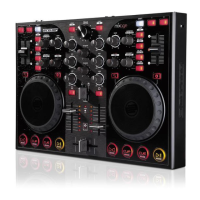
MIXAGE
Interface Edition
Professioneller 2-Deck-MIDI-Controller mit
integriertem 4-Kanal-Audio-Interface
Professional 2 Deck MIDI controller with
integrated 4 channel soundcard
Contrôleur MIDI professionnel à 2 platines
avec interface audio 4 canaux intégrée
DEUTSCH ............................. 2-23
ENGLISH ............................24-45
FRANÇAIS .........................46-67

Questions and Answers

  • T
    Tim ChristianAug 1, 2025
    Why is my Reloop Recording Equipment audio interface sound distorted?
    • C
      Carol HallAug 1, 2025
      Distorted sound from the audio interface can occur if the ASIO driver isn't being used, or if your computer's performance settings are not adequate for its capacity. Ensure the ASIO driver is installed and selected. You may also need to re-configure the available computer capacity in the ASIO driver settings. To do this in Traktor, go to 'Audio Setup', click 'Settings' next to the sound card selection window, and choose 'System Performance' ? 'Normal'. If the problem persists, select 'Relaxed' in the same menu.
  • J
    Joshua OrtizAug 6, 2025
    What to do if my Reloop Recording Equipment controller's LEDs are weakly lit and the device doesn't react?
    • A
      adamsstephanieAug 6, 2025
      If the LEDs are weakly lit and the device isn't responding, it means the power supply is insufficient. Connect your computer to a secured power line and connect the included mains adapter to the corresponding jack.
  • M
    Mrs. Jamie Cooper DDSAug 13, 2025
    What to do if my Reloop Recording Equipment doesn't receive any power?
    • L
      Lorraine WilliamsAug 13, 2025
      If the device isn't receiving power, the USB cord or mains adapter might not be correctly connected. Check that the USB cord is properly connected to a free USB port on your computer and to the Mixage's USB port. Also, verify that the mains adapter is correctly connected to the mains connection.
  • T
    Tyler SullivanAug 18, 2025
    What to do if my DJ software doesn't react to the Reloop Recording Equipment's control elements?
    • T
      Timothy Cain Jr.Aug 18, 2025
      If the DJ software isn't responding to the controller's control elements, it could be due to incorrect configuration of Traktor LE, incorrect installation of Traktor Pro, or an incorrect MIDI channel selection. If using Traktor LE, restart the Setup Wizard. If using Traktor Pro, reload the mapping. Also, check the MIDI Channel Switch and ensure it's in the correct position (ch. 1 or ch. 2).
  • A
    amyrowlandAug 25, 2025
    Why can't I select all outputs of the integrated audio interface in the DJ software with my Reloop Recording Equipment?
    • L
      Lisa WilliamsAug 25, 2025
      If you can't select all outputs of the integrated audio interface in your DJ software, the ASIO driver may not be installed correctly. Please reinstall the ASIO driver.

Summary

Critical Safety Warnings

Electrical Hazard and General Precautions

Highlights electrical shock risks, importance of manual adherence, and qualified personnel for operation.

Detailed Safety Instructions

Handling, Modifications, and Warranty

Covers electrical shock hazards, device integrity, prohibiting modifications, and warranty implications.

Initial Operation and Computer Configuration

Powering Up and ASIO Driver Installation

Steps for initial device operation and installing the essential ASIO driver for computer connectivity.

ASIO Driver Installation Steps

Connecting Device and Completing Setup

Guide to connect the device during installation and finalize the driver setup process.

Traktor LE Software Setup

Installing Traktor LE and Configuration Wizard

Instructions for installing Traktor LE software and initiating its setup wizard.

Traktor LE Setup Wizard Configuration

Controller and Audio Interface Settings

Steps to configure the controller and audio interface settings within the Traktor LE Setup Wizard.

Audio Setup in Traktor

Selecting Audio Device and Routing

Guide to select the correct audio device and configure output routing in Traktor's audio setup.

Traktor Pro Mapping Import

Controller Manager and Mapping Import

Device Operation and Control Functions

Advanced Control Functions

Firmware Update Execution

Troubleshooting Common Issues

Reloop MIXAGE Interface Edition Specifications

General IconGeneral
TypeDJ Controller
Channels2
USB InterfaceUSB 2.0
MIDIYes
CrossfaderYes
CompatibilityWindows, macOS
Power SupplyUSB powered
EQ3-band EQ

Related product manuals