53
Control units VCS
Control (HMI@Web – Connection to PC and LAN/WAN)
3rd Step Setting the Web@HMI for Connection
The Web@HMI controller can be configured from the
web interface (the same one which serves for normal
operation of the system). Enter the following IP ad-
dress http://192.168.1.199 in the address field in the
web browser and confirm with the "Enter" button.
Note: The Web@HMI configuration for the con-
nection itself is not dependent on the browser used.
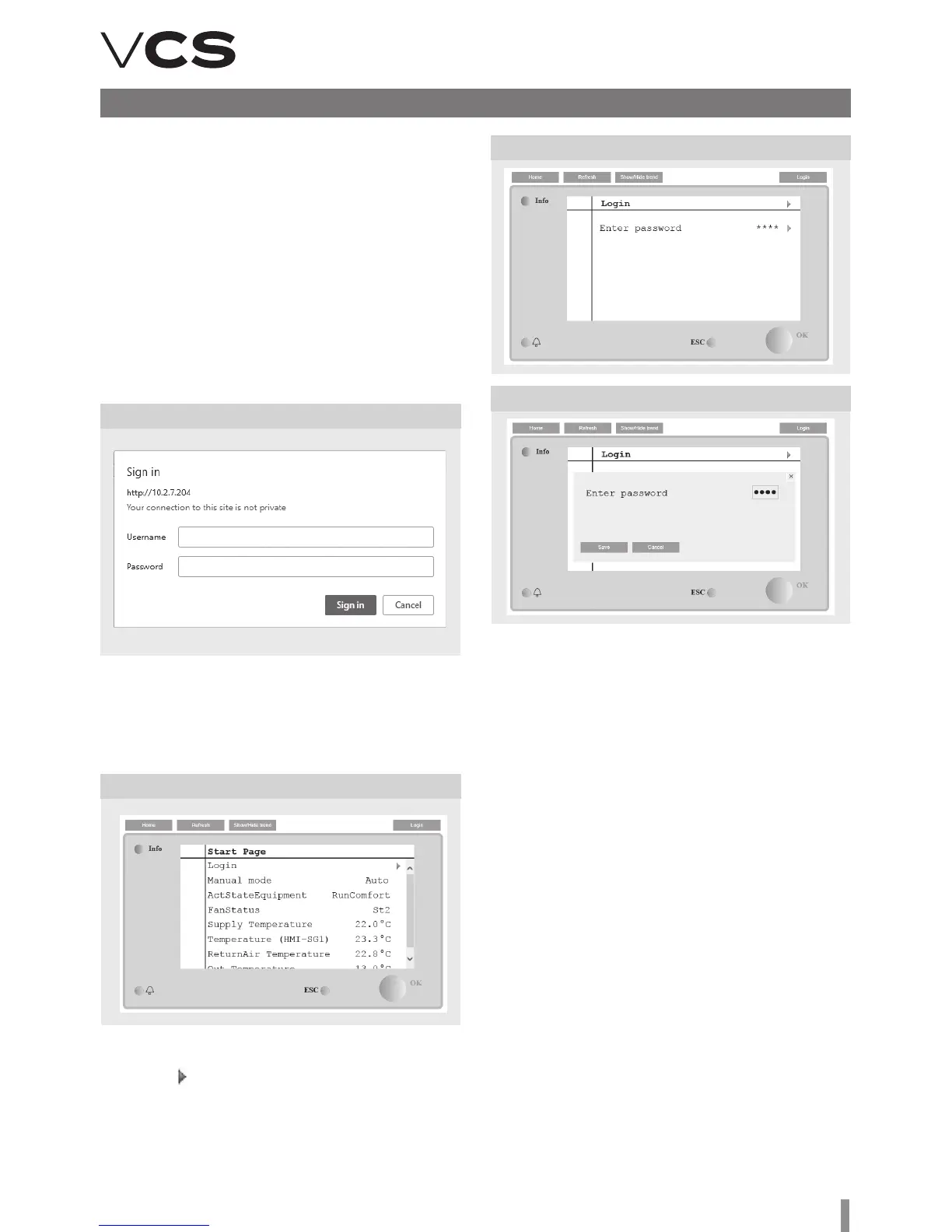
Enter log-in data in the fields of the Web Server dialog box
– see the figure:
User name: WEB (or ADMIN)*
Password: SBTAdmin!
Figure 33 – Web Server dialog box
Figure 34 – Start screen
Figure 35 – Log-in screen
Figure 36 – Password dialog box
ere is an account for one user on the HMI@Web Web
Server. e Web Server user log-in name and password can
be changed in the menu: Connection >> LAN Connection.
Upon successful log-in to the HMI@Web Web Server, the
Start screen is displayed.
To access the Main Menu, it is necessary to log in at the cor-
responding access level. Upon selecting the link on the first
line the log-in dialog box to enter the password is displayed.
e input field for entering the password is at the bottom of
the browser. Enter log–in data to the fields of the dialog box
– see the figure above; enter password – 4444.
(factory pre-set access password to the HMI@Web – for the
first start-up.
Attention – it is only valid until changed.
ese log-in data correspond to the highest level user authori-
sation (role: service) – they should only be reserved for the
supplier performing the installation or the service provider.
It is advisable to change the log-in data as soon as upon
first log-in (Passwords >> Password change – actual or
lower access level password change is offered). e dialog
box to enter a new password is displayed at the bottom of
the browser. Press the Save button to confirm and save the
changes to the settings.
Warning
Once the changes have been made, it will no longer be possible
to use the original data to log in. Keep your log-in data safely
stored (keep them confidential). If you lose them, contact the
manufacturer or authorized service representative.
Apart from the service log-in data, it is also necessary to
modify other user pre-set log-in data to enable access to the
HMI@Web for the operating staff – rename them according
to the actual authorised users and change the correspond-
ing passwords:
Role Pwd Level number
SERVICE 4444 2
ADMINISTRATOR 3333 4
USER 2222 6
GUEST 0000 8
Note: If the user settings are not performed within this phase
of commissioning, it is necessary to perform them at the lat-
est during training of the operating staff or device handover
to the end user.
* ADMIN only if the WEB log-in is non-functional
(for older systems)


 To Next Page