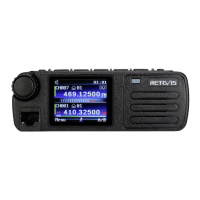
Channel Display
In this mode, the mobile radio only displays memory channel numbers but frequencies ( If the memory name is saved, the memory name is
displayed).
1.When the mobile radio is off, press REV and Power key to turn on the mobile radio.
·The mobile radio displays memory channel numbers not frequencies.
2.Rotate the coding knob or press microphone UP/DWN key to choose the needed memory channel number.
In memory display mode, following functions can’t be activated.
·VFO mode
·VFO scan
·Call/VFO scan
·Scan direction
·Memory save
·Memory to VFO Transmission
·Memory to Memory Transmission
·Delete memory channel
·VFO reset
·Fully reset
·1MHz Step
·Selective call
·Auto-simplex check
·Menu mode
To restore normal operations, turn off the mobile radio and press REV key and Power key again.
Note: to enter channel display mode, data must be included in at least one memory channel.
Scan
Normal Scan
When operating the mobile radio in VFO mode, the mobile radio has two scan modes: band scan and programming scan.
Band Scan
The mobile radio scans the whole band of selected frequency. If the current VFO receiving frequency is out of programming scan frequency
range (following contents), the mobile radio will scan the whole frequency range of current VFO.
1.Press VFO key, then rotate the coding knob or press microphone UP/DWN key to choose a frequency that is out of programming scan
frequency range.
2.Press VFO key for (1s) to start band scan.
·Scan is started from the current frequency
3.Press any other key except FUN and Power key to stop band scan.
Note:
· Intercom scans the frequency range stored in menu Angstrom No.7 (P.V).
·If frequency is selected between L0/U0~L1/U1 in step 1, the mobile radio starts programming scan.
Programming Scan
Frequency scan range can be limited manually. The mobile radio has two pairs of memory channels---- L0/U0~L1/U1. You can set starting
frequency and finishing frequency. Programming scan monitors the range between the starting and finishing frequencies which are saved in
memory channel. Before proceeding programming scan, save the programming scan frequency range to a pair of memory channel
(L0/U0~L1/U1).
Save Programming Scan Frequency Range
1.Press VFO key and rotate the coding knob or press microphone UP/DWN key to choose the needed starting frequency.
2.Press FUN key.
·Memory channel number appears and flashes.
3.Rotate the coding knob or press microphone UP/DWN key to choose memory channel (L0~L1).
4.Press MR key to save starting frequency to memory channel.
5.Rotate the coding knob to choose the needed finishing frequency.
6.Press FUN key.
7.Rotate the coding knob or press microphone or press microphone UP/DWN key to choose corresponding memory channel ( U0~U1).
8.Press MR key to save finishing frequency to memory channel.
Proceed Programming Scan
1.Press VFO key and rotate the coding knob to choose a frequency between the L0/U0~L1/U1 of the memory channel.
2.Press VFO key for (1s) to start programming scan from current frequency.
3.Press any key to stop programming scan, except FUN and Power key.
Note:
·When detecting the signal, the mobile radio stops scanning.
·If over 2 pairs of programming scan channels are saved and frequency range overlaps, scan will start from the smaller memory channel
number.
·To proceed programming scan, L channel must be lower than U channel. Otherwise, the mobile radio will start band scan.
Memory Scan
Memory scan monitors the memory channel that saved frequency.
All Channel Scan
The mobile radio scans all memory channels that saved frequencies.
1.Press MR key for (1s).
·Scan starts from the last memory channel number to each channel number (default).
·To skip the needed channel during scanning, rotate the coding knob quickly.
·To reverse scan direction, rotate the coding knob or press microphone UP/DWN key.
09


 To Next Page