EasyManua.ls Logo

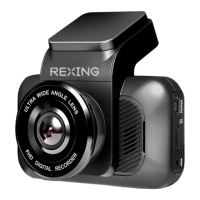
Rexing S1 Pro - User Manual

Rexing S1 Pro
34 pages
Print Icon
To Next Page IconTo Next Page
Loading...
S1 Pro
User Manual
The information in this manual is subject to change without notice.
www.rexingusa.com

Questions and Answers

Summary

Notice

Warning

Overview

Whats in the box?

Camera Overview

Visual Features

Provides a visual guide to the device's components and connections.

Buttons and Description

M Button (Menu;Mode Switch)

Controls menu navigation, mode switching, and picture taking.

Record;Up;MIC Button

Manages video recording, playback, and menu navigation.

Power Button

Used for turning the device on/off and controlling screen backlight.

Down;Toggle Button

Navigates menus, switches camera views, and controls IR light.

OK Button

Confirms selections, starts emergency recording, and controls Wi-Fi.

USB Port

Serves as a power charging and USB data cable connection port.

Power Port

Connects the power cable for device operation.

Rearview Camera Connection Port

Connects the optional rearview camera to the device.

Reset Pinhole

Used to reset the system if it crashes or becomes unresponsive.

Installation

Rearview Camera Wire Routing Illustration

Details the recommended routing for the rearview camera wire.

Basic Operations

Open the Setup Menu

Guides on accessing and navigating the system setup menu.

Video Mode - Setup

Instructions for configuring video recording settings and modes.

System Menu Setup

Covers settings like WDR, G-Sensor, Time-lapse, Exposure, DVR Audio, Date Stamp.

Taking Pictures

Taking a Picture

Steps to switch to picture mode and capture a single photo.

Picture Mode Setup

Options for configuring picture capture methods, resolution, and quality.

Playback and Delete a File

Instructions for browsing, playing, deleting, and protecting recorded files.

Playback on Computer

How to connect to a computer for file management and playback.

Parking Monitor

Power Voltage Protection

Setting up voltage thresholds for parking monitor activation and shutdown.

Monitoring Mode

Explains available parking monitoring modes like Time-Lapse and Super Night.

Mobile Connection

Rexing Connect App Operations

Guides on downloading, installing, and connecting the mobile application.

GPS Player

Install a GPS Module

Instructions for physically installing the GPS module in the vehicle.

GPS Player Software Operation

Steps for installing and using the GPS player software for video playback.

Product Specifications

General Troubleshooting

Warranty & Support

Rexing S1 Pro Specifications

General IconGeneral
BrandRexing
ModelS1 Pro
CategoryDash Cameras
LanguageEnglish

Related product manuals