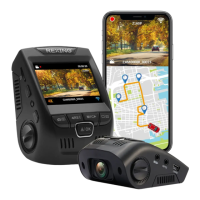
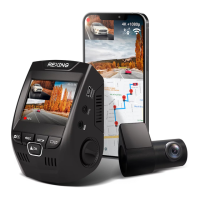
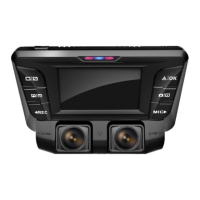
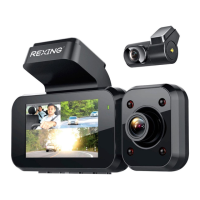
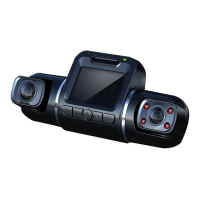
When connected to the camera, it will record the speed and location of your vehicle as you drive. You can then
access this information while playing back your recordings using the GPS Video player (For windows and Mac,
available at rexingusa.com). The dash cam will automatically search for the GPS signal once it’s connected to the
power source. Press the MENU button twice and go to System Settings. Toggle the GPS Speed Unit setting, and
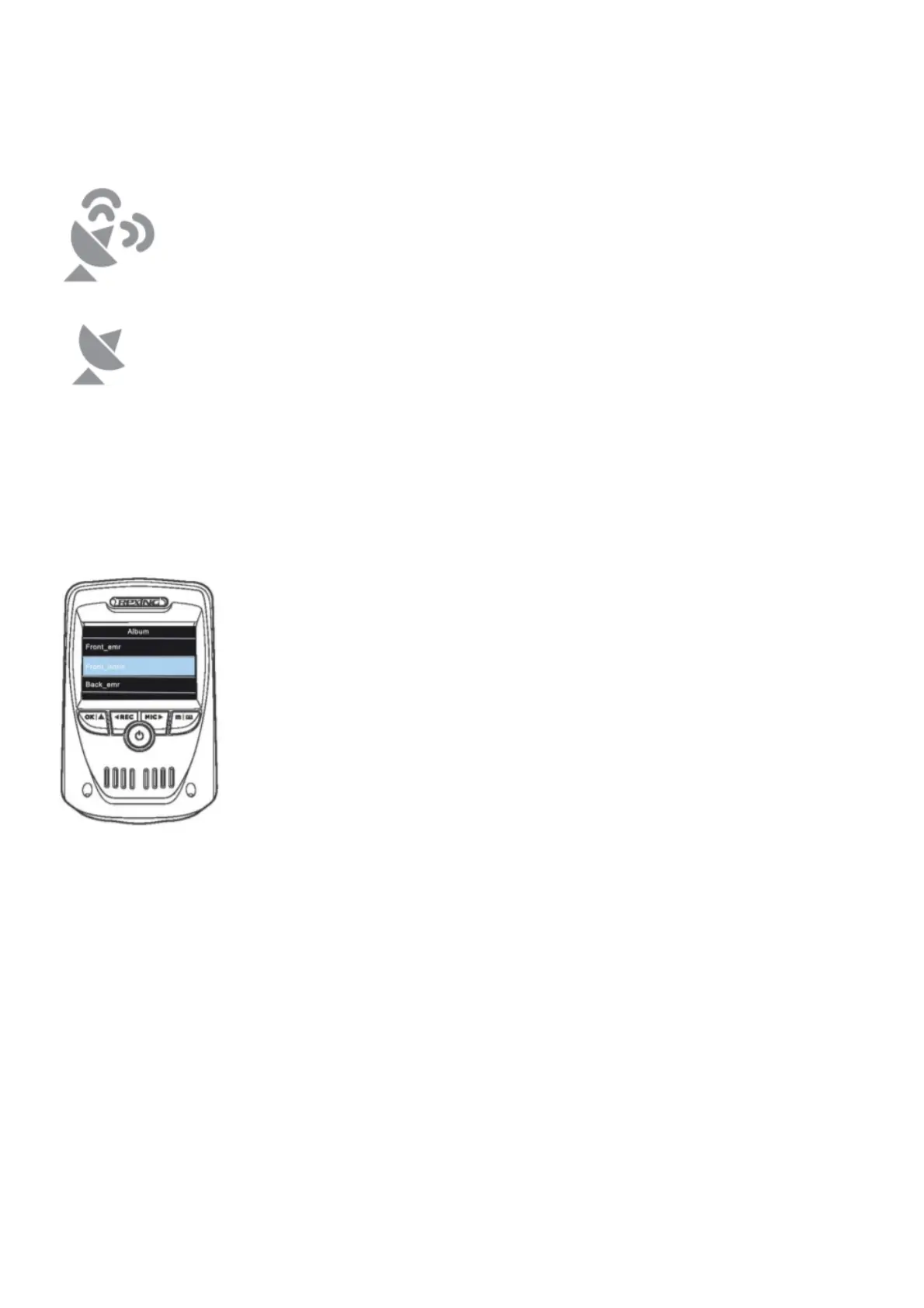
select your favorite speed unit. After a GPS signal is found, the screen icon will turn from not connected to active –
as per the below icons.
GPS function active
GPS Signal (not connected)
Parking Monitor
Connect the dash cam to the Smart Hardwire Kit (need to purchase separately) to activate the parking monitor
function. Please visit www.support.rexingusa.com to watch a video tutorial.
Taking Photos
To take a photo, stop video recording and hold down the REC button.To view a photo, stop video recording and hold
on MENU button to the Playback Mode. Press the REC and MIC Buttons to toggle through your photos.To delete a
photo, stop video recording and toggle to the Playback Mode and toggle through the videos and photos to the one
you want to delete.Hold the MENU to toggle the Delete option.Press the OK Button and select Delete Current or
Delete All.


 To Next Page