Security Settings
24
C
CC
C
Repeat step
B
BB
B
if you want to select
more than one document.
D
DD
D
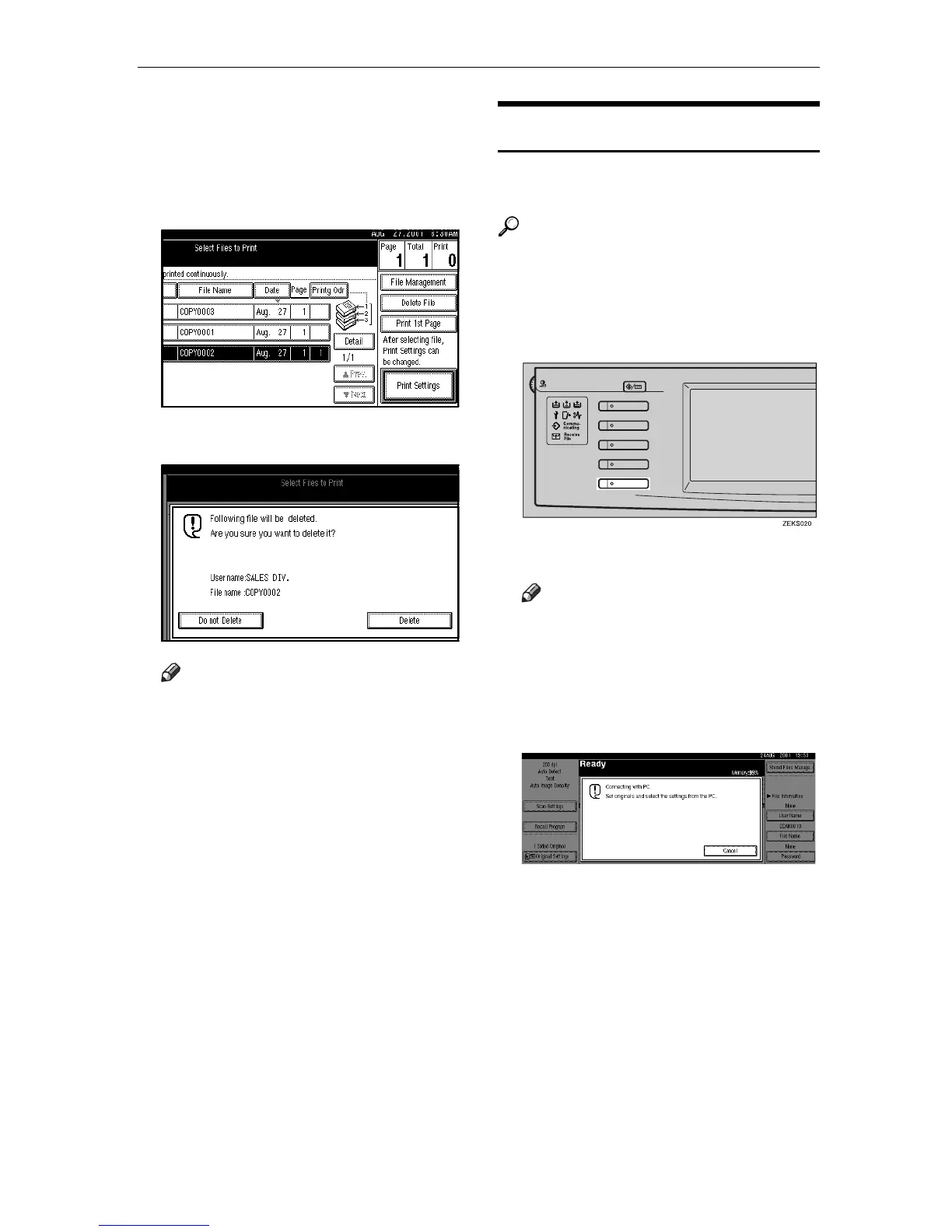
Press the [Delete File] key.
A confirmation dialog box appears.
E
EE
E
Press the [Delete] key to delete it.
Note
❒ To cancel the delete operation,
press the [Do not Delete] key.
Scanning in Scanner Mode
Scan documents and store them in the
Document Server.
Reference
For details, see "Storing Scan Data
in the Document Server" in the
Scanner Reference manual.
A
AA
A
Press the {
{{
{Scanner}
}}
} key.
The scanner function screen appears.
Note
❒ If the network TWAIN scanner
screen is displayed, press [Can-
cel]. This screen is displayed if
"Function Priority" in the Scan-
ner Initial Setup is set to net-
work TWAIN scanner mode.
B
BB
B
Set the original in the machine, and
adjust the settings for original size
and orientation if required.
E
Screen
Contrast
User Tools/Counter
Copy
Document Server
Facsimile
Printer
Scanner




 To Next Page