Protecting Documents Stored in the Document Server
49
B
BB
B
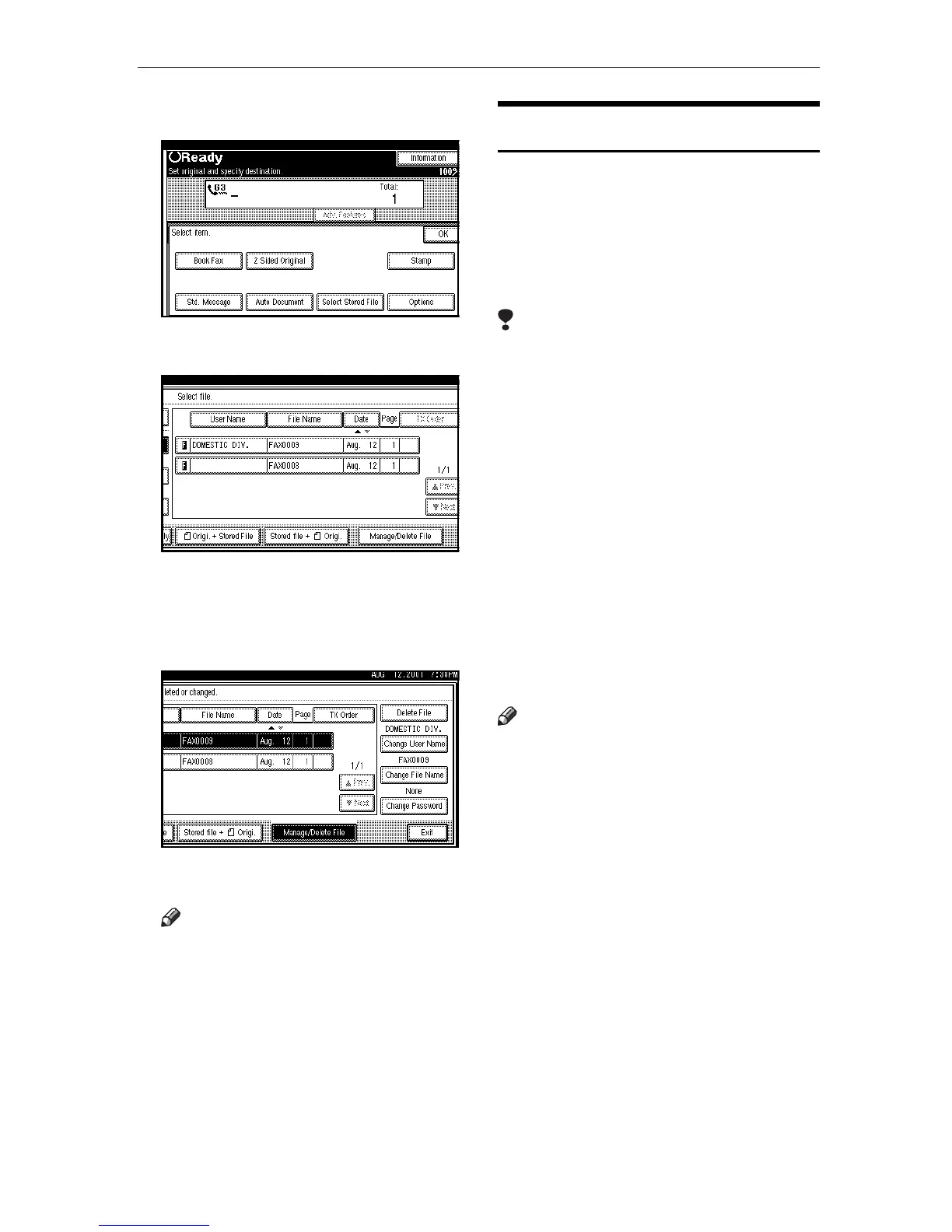
Press [Select Stored File].
C
CC
C
Select [Manage/Delete File].
D
DD
D
Press the document you want to
delete.
E
EE
E
Press [Delete File].
F
FF
F
Press [Delete].
Note
❒ If you want to cancel the dele-
tion of a document, press [Do not
Delete.].
G
GG
G
Press [OK].
H
HH
H
Press [OK].
The initial display is shown.
Sending a Stored File
Use this feature to send documents
that are stored in the Document Serv-
er. You can specify and send multiple
documents, and also send them with
scanned originals all at once.
You can also print the stored originals
with [Print File].
Limitation
❒
Only the documents that are stored
using the fax feature can be sent or
printed by pressing the
{
{{
{
Facsimile
}
}}
}
key. Documents stored using the
copy feature or printer feature can be
printed by pressing the
{
{{
{
Document
Server
}
}}
}
key. ⇒ "Document Server" in
the Copy Reference manual
• Free Polling transmission
• ID Polling transmission
• Personal ID Polling transmission
• Immediate transmission
• Batch transmission
• On-hook Dial
• Manual Dial
Note
❒ You can specify a maximum of 30
documents at one time.
❒ The machine can send a total of 400
pages in one operation. With the
optional Expansion Memory, it can
send a maximum of 1000 pages.
❒ The specified documents are sent
with the scan settings of when they
were stored.
❒ The stored documents are given
"File Names", such as "FAX001"
and "FAX002", automatically.
However, you can change the file
names. ⇒ p.47 “File Manage”
❒
You can attach "User Names" to the
stored documents.
⇒
p.47 “File
Manage”




 To Next Page