EasyManua.ls Logo

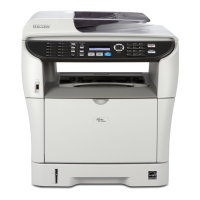
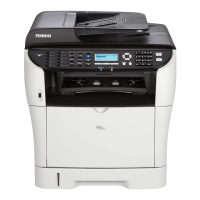
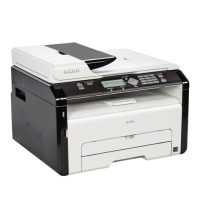
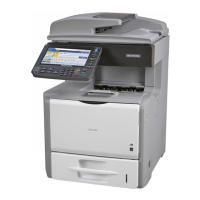
Ricoh Aficio SP 320 Series - User Manual

Ricoh Aficio SP 320 Series
272 pages
Print Icon
To Next Page IconTo Next Page
Loading...
For safe and correct use, be sure to read "Safety Information"
before using the machine.
Appendix
Troubleshooting
Maintaining the Machine
Configuring the Machine Using Utilities
Configuring the Machine Using the Control
Panel
Sending and Receiving a Fax
Scanning Originals
Copying Originals
Printing Documents
Loading Paper
Guide to the Machine
User Guide
SP 320/SP 325 series

Table of Contents

Questions and Answers

  • F
    Frank DavisAug 17, 2025
    How to stop Ricoh Aficio SP 320 from feeding multiple sheets?
    • D
      danielyoderAug 17, 2025
      If multiple sheets of paper are fed at one time in your Ricoh All in One Printer, fan the paper well before loading, ensuring the edges are even by tapping the stack on a flat surface. Check that the paper guides are in the right position. Use supported paper types and load paper only to the upper limit markings on the guide. Ensure the friction pads and paper feed rollers are clean. Only add paper when the tray is empty.
  • S
    Sarah RobersonAug 19, 2025
    How to prevent paper jams in Ricoh Aficio SP 320 All in One Printer?
    • I
      Isaac WilliamsAug 19, 2025
      If paper jams occur frequently with your Ricoh All in One Printer, ensure there are no gaps between the paper and the paper guides by adjusting them. Avoid printing on both sides of paper when printing images that contain large solid areas. Use supported paper types and load paper only as high as the upper limit markings on the paper guide. Also, make sure that the friction pads and paper feed rollers are clean.
  • J
    Johnny SandovalAug 22, 2025
    How to fix curled paper from Ricoh Aficio SP 320 All in One Printer?
    • K
      kimberly44Aug 22, 2025
      If the printed paper from your Ricoh All in One Printer is curled, try loading the paper upside down in the paper tray. If the curl is severe, take prints from the output tray more frequently. Also, the paper might be damp, so use paper that has been stored properly.
  • D
    Daniel SalasAug 25, 2025
    How to make paper feed smoothly in Ricoh All in One Printer?
    • N
      Nichole HernandezAug 26, 2025
      If paper does not feed smoothly in your Ricoh All in One Printer, use supported paper types. Load paper correctly, ensuring the paper guides are properly adjusted. If the paper is curled, straighten it. Take the paper out of the tray, fan it well, reverse the top and bottom, and put it back in the tray.
  • B
    Brendan ParkerAug 28, 2025
    How to prevent paper wrinkles in Ricoh Aficio SP 320?
    • R
      Rachel SmithAug 28, 2025
      If paper gets wrinkles when using your Ricoh All in One Printer, the paper may be damp, so use paper that has been stored properly. The paper could also be too thin. If there are gaps between the paper and the paper guides, adjust the paper guides to remove the gaps.
  • S
    Shawn WagnerAug 30, 2025
    Why is the scanned image blank on my Ricoh All in One Printer?
    • C
      Christian JohnsonAug 30, 2025
      If the scanned image from your Ricoh All in One Printer is blank, the original might have been placed with the front and back reversed. When using the exposure glass, place originals copy side down. When using the ADF, place originals copy side up.
  • G
    Gabriel HartSep 2, 2025
    What to do if Ricoh All in One Printer makes strange noises?
    • C
      Chase MillsSep 2, 2025
      If your Ricoh All in One Printer is producing strange noises, it might be due to improperly installed supplies. Confirm that all supplies are properly installed.
  • S
    sanderskimSep 4, 2025
    Why do sent faxes from Ricoh Aficio SP 320 All in One Printer appear spotty?
    • M
      Mackenzie WilliamsSep 5, 2025
      If faxes you sent from Ricoh All in One Printer appear spotty or dirty when received, the exposure glass or ADF might be dirty. Clean these parts. Also, before placing originals on the exposure glass, ensure that any ink or correction fluid is dry.
  • J
    Jeffrey MillerSep 8, 2025
    Why is the scanned image upside down on Ricoh All in One Printer?
    • C
      Connor AndradeSep 8, 2025
      If the scanned image from your Ricoh All in One Printer is upside down, the original was likely placed upside down. Place the original in the correct orientation.
  • E
    Eric LewisSep 10, 2025
    Why are received images on Ricoh Aficio SP 320 All in One Printer dirty?
    • J
      Jonathan ReidSep 12, 2025
      If the background of received images on your Ricoh All in One Printer is dirty, or images from the rear side of the originals are visible, the image density may be too high. Adjust the image density.

Ricoh Aficio SP 320 Series Specifications

General IconGeneral
Print TechnologyLaser
FunctionalityPrint, Copy, Scan
Print Resolution1200 x 1200 dpi
ConnectivityUSB 2.0, Ethernet
Paper Capacity250 sheets
Display2-line LCD
Scan Resolution600 x 600 dpi
Copy Resolution600 x 600 dpi
Maximum Copy Quantity99 copies
Scan TypeFlatbed
Paper SizesA4, A5, A6, B5, Legal, Letter, Executive
Supported Operating SystemsWindows

Related product manuals