EasyManua.ls Logo

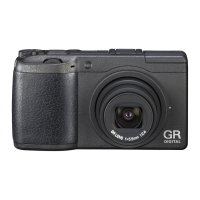
Ricoh gr digital III - User Manual

Ricoh gr digital III
185 pages
Print Icon
To Next Page IconTo Next Page
Loading...
Before You Begin
Before using your camera, take a few moments to familiarize your-
self with camera controls and displays (pages 1–8). Refer to this sec-
tion as you read through the rest of the manual.
Basic Photography and Playback
Read this section before using the camera for the first time. It covers the
steps involved in readying the camera for use, taking photographs,
and playing them back (pages 9–38).
Reference
Read this section for information on topics not covered in “Basic Photography
and Playback. It covers advanced shooting and playback options and
describes how to print photographs, customize camera settings,
and copy pictures to a computer (pages 39–173).
The rechargeable battery needs to be charged before use. The
battery is not charged at the time of purchase.
Camera User Guide
The product serial number may be found on the bottom
of the camera.

Other manuals for Ricoh gr digital III

Questions and Answers

  • K
    Kristine CarrilloJul 26, 2025
    Why my Ricoh gr digital III Digital Camera does not turn on?
    • C
      Christina DavisJul 26, 2025
      If your Ricoh Digital Camera won't turn on, check that the battery is correctly inserted and charged (if rechargeable). You can also insert a fresh battery or use an AC adapter. Ensure the battery is compatible and in the correct orientation. Also, check the AC adapter connection. It's possible the camera turned off automatically to save power, so try turning it back on. As a last resort, remove and reinsert the battery or disconnect and reconnect the AC adapter. If the battery has reached the end of its charging life, replace it with a new one.
  • X
    xbarnettAug 6, 2025
    What to do if I can not view pictures on memory card with my Ricoh Digital Camera?
    • J
      juarezleslieAug 7, 2025
      If you can't view pictures on the memory card of your Ricoh Digital Camera, first, ensure the camera is in playback mode by pressing the 6 button. Check and reconnect the A/V cable if it's connected incorrectly. Ensure the video mode matches your TV. Insert a card that has been formatted in the camera and contains pictures recorded with the camera. Clean the memory card contacts with a soft, dry cloth. Try another card to rule out card malfunction. Also, ensure the battery isn't exhausted by charging it or using an AC adapter. Turn the camera on if it has turned off automatically. Remove protection if the file is protected, and unlock the memory card if it's locked.
  • D
    David GuerraAug 13, 2025
    Why does my Ricoh gr digital III not display pictures on TV?
    • J
      Julie HendricksAug 14, 2025
      If your Ricoh Digital Camera does not display pictures on TV, try choosing another video mode to match your TV. Ensure the A/V cable is correctly connected.
  • J
    juliafieldsOct 30, 2025
    How to fix blurred pictures on Ricoh gr digital III?
    • K
      Kimberly HaynesOct 31, 2025
      If your Ricoh Digital Camera pictures are blurred, it could be due to several reasons. First, ensure the battery isn't exhausted by charging it, inserting a fresh one, or using an AC adapter. Make sure the camera is on and in shooting mode by pressing the POWER button or the 6 button. Press the shutter-release button all the way down. Check if the memory card is formatted, not full, or at the end of its working life; if so, format it or insert a new one. Unlock the memory card if it's locked and clean the contacts with a soft, dry cloth if they're dirty. Ensure the picture display is on and adjust the brightness if needed. Disconnect any A/V cables. Clean the lens with a soft, dry cloth. If the subject isn't at the center, use focus lock. For subjects unsuitable for autofocus, use focus lo...
  • T
    tylerpatelNov 17, 2025
    How to solve 'Print settings cannot be set for this file' on Ricoh Digital Camera?
    • K
      Kevin FrostNov 18, 2025
      If print settings cannot be set for a file on your Ricoh Digital Camera, insert a memory card, set the camera clock, or insert another card if the camera is out of file numbers or if there is insufficient space on the memory card to copy all files. Use a computer to check the file contents and delete the file if the camera cannot display it. Remove protection if the file is protected and unlock the card if it is write-protected. Delete existing files or increase the amount of memory available if there is insufficient memory to store additional files. Set the number of prints for other images to zero if the maximum number of images has been selected for printing. Format the internal memory or the card in the camera if they are not correctly formatted. If the message persists after formattin...

Summary

Package Contents

Notices

Product Manuals

Before You Begin

Introduction

Explains the manual's purpose and encourages thorough reading.

Parts of the Camera

Details the physical components of the camera with page references.

Basic Photography and Playback

First Steps

Covers initial setup procedures like charging and inserting batteries/cards.

Taking Photographs

Explains how to hold the camera and take pictures.

Viewing and Deleting Photographs

Guides users on how to view, manage, and delete captured images.

Reference

More on Photography

Details various shooting modes like P, A, S, M, and SCENE.

Movies

Covers recording and playback of video clips.

More on Playback

Explains playback features like slide shows, protection, and copying.

Printing Photographs

Guides on connecting to a printer and printing images directly.

The Setup Menu

Details camera settings and customization options.

Copying Pictures to a Computer

Provides instructions for transferring images to a PC or Mac.

Technical Notes

Includes troubleshooting, specifications, and accessory information.

Ricoh gr digital III Specifications

General IconGeneral
Megapixel10 MP
Camera typeCompact camera
Sensor typeCCD
Image stabilizerNo
Image sensor size1/1.7 \
Maximum image resolution3648 x 2736 pixels
Optical zoom5.7 x
Fixed focal length6 mm
Focal length range- mm
Digital SLR-
Minimum RAM256 MB
Built-in flashYes
Minimum processor500 MHz
Camera shutter speed- s
Minimum storage drive space160 MB
Compatible operating systemsWindows 2000, XP, Vista; Mac OS9.0-9.2.2, Mac OSX10.1.2-10.5.6.
Auto focusing (AF) modesMulti Point Auto Focus, Spot Auto Focus
ISO sensitivity100, 200, 400, 800, 1600, Auto
Flash modesauto, Flash off, manual, Red-eye reduction, Slow synchronization
Internal memory88 MB
Compatible memory cardsSD, SDHC
Maximum memory card size32 GB
Video formats supportedAVI
Maximum video resolution640 x 480 pixels
Display diagonal3 \
Display resolution (numeric)- pixels
Scene modesDocuments
Image editingresizing, rotating
White balanceAuto, Cloudy, Daylight, Fluorescent, Incandescent, Manual
Camera playbackMovie
Self-timer delay10 s
Product colorBlack
Battery technologyAlkaline
Number of batteries supported2
Weight and Dimensions IconWeight and Dimensions
Depth25.5 mm
Width59.8 mm
Height108.6 mm

Related product manuals