EasyManua.ls Logo

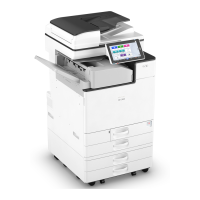
Ricoh IM C2500 Series - User Manual

Ricoh IM C2500 Series
396 pages
Print Icon
To Next Page IconTo Next Page
Loading...
For safe and correct use, be sure to read Safety Information before
using the machine.
For information not found in this manuals,
see the online manuals available on our
web site (https://www.ricoh.com/) or via the
control panel.
Legal and Contact Information
Specifications for The Machine
Troubleshooting
Adding Paper and Toner
Web Image Monitor
Document Server
Scan
Print
Fax
Copy
Getting Started
User Guide
Selected Version

Table of Contents

Questions and Answers

  • B
    bryan99Aug 18, 2025
    Why Ricoh IM C2500 All in One Printer power does not come on?
    • J
      Jonathan JohnsonAug 18, 2025
      If your Ricoh All in One Printer isn't powering on, there could be a few reasons. First, ensure the power cable is securely plugged into the wall outlet, using the ground wire. Avoid extension cords; plug the printer directly into the wall. Finally, there might be an issue with the wall outlet itself, so try plugging the printer into a different outlet that you know is working.
  • A
    Allison MyersAug 20, 2025
    What to do if nothing is displayed when I touch the screen of my Ricoh All in One Printer?
    • J
      John WilsonAug 21, 2025
      If nothing is displayed when you touch the screen of your Ricoh All in One Printer, the power of the machine might be turned off. Check that the main power indicator is not lit, and then turn on the main power of the machine.
  • N
    Nicole CraigAug 23, 2025
    Why the screen of my Ricoh IM C2500 is not lit?
    • J
      Judy HolmesAug 23, 2025
      If the screen of the control panel on your Ricoh All in One Printer is not lit, the machine is likely in sleep mode. Simply touch the screen to wake it up.
  • L
    laurenlindseyAug 26, 2025
    What to do if a function is not executed on my Ricoh IM C2500?
    • L
      Lucas RoweAug 26, 2025
      If a function isn't executing or you can't perform an operation on your Ricoh All in One Printer, it might be because another function is running that can't be used at the same time. Wait for the current function to finish before starting the next operation.
  • J
    Jennifer RuizAug 28, 2025
    What to do if my Ricoh All in One Printer is beeping five short times repeatedly?
    • M
      Michelle BaileyAug 28, 2025
      To resolve the issue, check the message displayed on the screen of your Ricoh All in One Printer and follow the instructions to remove any jammed paper or originals, or replace the toner if needed.
  • J
    joshua53Aug 30, 2025
    Why is the User Code entry screen displayed on my Ricoh All in One Printer?
    • E
      Erika KellerAug 30, 2025
      If the User Code entry screen is displayed on your Ricoh All in One Printer, it means User Code authentication is enabled. Enter your User Code and press [OK]. If you don't know your User Code, consult your user administrator.
  • A
    Adam WilliamsSep 2, 2025
    What to do if help content is not displayed on my Ricoh IM C2500 All in One Printer?
    • S
      Stephanie ScottSep 2, 2025
      If the screen changes to Web Browser when you press [Help] on your Ricoh All in One Printer, but the help content is not displayed, the machine may not be connected to the network correctly. Check if you can display a web page in [Web Browser]. If a web page cannot be displayed, ensure that the machine is properly connected to the network.
  • J
    julia23Sep 4, 2025
    What to do if the key is unresponsive on my Ricoh IM C2500?
    • B
      bauerkatherineSep 4, 2025
      If a key is unresponsive or another key is activated on your Ricoh All in One Printer, a temporary malfunction might be occurring. Turn off the printer, wait at least 10 seconds after the main power indicator turns off, and then turn it back on.
  • L
    Lindsay StoneSep 7, 2025
    What does it mean when my Ricoh IM C2500 All in One Printer beeps five long times repeatedly?
    • K
      Kaitlyn ClarkSep 7, 2025
      Check that an original is not left on the exposure glass and that paper is loaded in the paper tray of your Ricoh All in One Printer.
  • N
    nbergSep 9, 2025
    What to do if my Ricoh All in One Printer beeps 12 short times?
    • D
      David TaylorSep 9, 2025
      Check that the original is placed in the ADF with the side to scan facing up on your Ricoh All in One Printer.

Summary

1. Getting Started

Power Management

Covers turning the machine on/off, energy saving modes, and sleep mode.

Control Panel Operations

Explains the touch panel, media slots, LED indicators, and display language.

Registering Frequently Used Settings as a Program

Steps to configure and save frequently used settings as a program.

Control Panel Login Methods

Covers login via username/password, IC card, and mobile device.

2. Copy

Basic Copying Procedure

Step-by-step guide to making a basic copy of a document.

3. Fax

Basic Fax Transmission

Explains the procedure for sending a fax, including scanning and memory transmission.

4. Print

Installing Printer Driver

Covers installation using Device Software Manager and from CD-ROM.

Printing a Document

General steps for printing documents from Windows and OS X/macOS.

5. Scan

Scanning Documents and Sending by E-mail

Steps to scan documents and send them as email attachments.

Scanning Documents and Sending to a Folder

Procedures for scanning documents and saving them to a shared folder.

6. Document Server

Storing Documents in Document Server

Instructions on how to save scanned documents to the machine's document server.

Printing Documents from Document Server

How to print documents that are stored in the document server.

8. Adding Paper and Toner

Loading Paper into Paper Trays

Detailed instructions for loading paper into various paper trays.

Replacing the Toner

Step-by-step guide for replacing toner cartridges.

Replacing the Waste Toner Bottle

Instructions for replacing the waste toner bottle.

9. Troubleshooting

Checking Control Panel Indicators and Messages

How to interpret and respond to indicators, icons, and messages on the control panel.

When the Machine Cannot Be Operated

Troubleshooting steps when the machine is unresponsive or not operating.

Network Connection Errors

Troubleshooting network connectivity issues, including SIP and destination errors.

Ricoh IM C2500 Series Specifications

General IconGeneral
Print Resolution1200 x 1200 dpi
Copy Resolution600 x 600 dpi
Scan Resolution600 x 600 dpi
Fax Speed33.6 Kbps
FunctionsPrint, Copy, Scan, Fax
Print TechnologyLaser
Warm-up Time21 seconds
Memory2 GB RAM
Paper Output500 sheets
Operating Systems SupportedWindows, Mac OS, Linux
Print Speed25 ppm (black/color)
Copy Speed25 copies per minute
Paper Capacity2, 300 sheets
ConnectivityEthernet, USB 2.0
First Print Speed (Color)7.5 seconds
ProcessorIntel Atom Processor Bay Trail: 1.46 GHz
Hard Disk Drive320 GB
Supported Paper SizesA3, A4, A5, B4, B5
Paper Weight52 to 300 g/m²
Duplex PrintingStandard
Scan DestinationsEmail, Folder, USB
Fax Resolution200 x 200 dpi
InterfaceEthernet, USB 2.0
Mobile Printing SupportApple AirPrint, Mopria, Google Cloud Print
Dimensions587 x 685 x 788 mm

Related product manuals