EasyManua.ls Logo

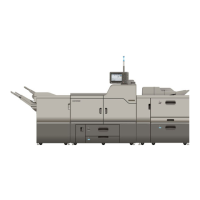
Ricoh PRO C7210SX - User Manual

Ricoh PRO C7210SX
552 pages
Print Icon
To Next Page IconTo Next Page
Loading...
For safe and correct use, be sure to read Safety Information before
using the machine.
Maintenance
Troubleshooting
Document Server
Scan
Print
Adjustment Settings for Operators
Paper Specifications and Adding Paper
Copy
Getting Started
Useful Functions
Manuals Provided with This Machine
How to Read the Manuals
Operator's Guide

Table of Contents

Other manuals for Ricoh PRO C7210SX

Questions and Answers

  • R
    Randy MitchellAug 18, 2025
    What to do if J099 appears on Ricoh Printer (Main Machine Tray)?
    • M
      Mark SheltonAug 18, 2025
      The J099 error on your Ricoh Printer's main machine tray can occur if coated or unsupported paper is loaded. To resolve this, load supported paper in the wide LCT or another paper tray that supports the paper. Additionally, if sheets are stuck together, fan the paper before loading it to loosen them.
  • C
    Cathy LeeAug 22, 2025
    Why does my Ricoh Printer have wrong detection of double feeding?
    • K
      Kyle LindseyAug 22, 2025
      If the Ricoh Printer detects double feeding when using thin paper (52.3 to 63.0g/m2), set the [Double Feed Detection] to OFF. If the Double-Feed Sensor is dirty with paper powder, clean it using a blower brush.
  • B
    Benjamin ThomasAug 25, 2025
    What causes J080 to appear on Ricoh Printer (Paper Delay in Specific Papers)?
    • T
      Theresa WilliamsAug 26, 2025
      J080 appears on the Ricoh Printer when the paper position goes over the calibration threshold because the sub-scan registration position is calibrated by accelerating/decelerating the line speed of transfer timing roller. You can set No. 1331-01 "Jam Detection: Detect JAM080" in “Custom Paper Settings (IMSS)” to [0] (Off). Note that the leading edge in the image may shift if this switch is off.
  • J
    jasonmckeeAug 29, 2025
    How to troubleshoot paper skew on a Ricoh Printer?
    • D
      Dr. James JonesAug 29, 2025
      To address paper skew with your Ricoh Printer, ensure the side fence setting is correct. If the skew level of output is not permissible, lowering the SP1-116-001 to 14 (Skew Detection Level) makes the skew detection level stricter. Also, check for and remove any foreign materials in the paper feed path and adjust the Rotary Gate Position. Adjust the Rotary Gate Position for Incorrect paper arching degree (Inappropriate registration buckle) and Incorrect parallelism.
  • T
    Timothy VaughanSep 1, 2025
    How to resolve jams related to duplex/invert in short grain and thickest paper on Ricoh Printer?
    • S
      Sara GraySep 1, 2025
      To address jams related to duplex/invert in short grain and thickest paper on your Ricoh Printer, clean the transfer rollers around the locations where jam occurs. The jams are caused by an insufficient force of transferring thick papers.
  • M
    Michael JonesSep 4, 2025
    What to do for no feeding (poor-quality paper) in Ricoh Printer?
    • D
      Dwayne ClarkSep 4, 2025
      To prevent no feeding (poor-quality paper) in the main machine paper feed of the Ricoh Printer, increase the separation pressure.
  • M
    Mrs. Kayla HaleSep 7, 2025
    How to fix jams related to insufficient separation on thin paper in Ricoh Printer?
    • L
      Laura OliverSep 8, 2025
      To address jams related to insufficient separation on thin paper in your Ricoh Printer, if the mask width of paper leading edge can be widened, or the erase margin of trailing edge can be widened. This is because a lack of margin on the paper leading edge allows the separation plate on fusing roller to catch the paper, which produces an accordion-like jam. Also, a lack of margin on the trailing edge of paper also allows the separation plate on pressurizing side to catch the paper in duplex printing.
  • C
    Chad WernerSep 12, 2025
    How do I resolve roller marks on the buffer pass unit of my Ricoh Printer?
    • H
      Heather WattsSep 12, 2025
      To address roller marks on the buffer pass unit of your Ricoh Printer, select 'Magazine' for the booklet printing method and set the binding margin to 5mm or greater. This issue arises because the temperature on the surface of toner differs between the contact area of the paper transport roller and the image, and other non-contact areas.
  • C
    Caroline JacobsonNov 14, 2025
    How to fix frequent paper misfeeds in my Ricoh Printer?
    • B
      Benjamin RobinsonNov 14, 2025
      Frequent paper misfeeds in the Ricoh Printer may occur if coated or unsupported paper is loaded in the tray. Try loading paper supported by the machine's paper tray in the wide LCT or another paper tray. Also, ensure the side fences match the paper width, the paper size/orientation/type is specified correctly in tray paper settings, and the paper tray isn't overloaded. Flatten curled or wavy sheets, protect unused sheets from moisture, enable the Pickup Assist setting, and clean the paper feed sensor and transport roller if they're stained with paper dust or toner. If the transfer timing motor isn't operating correctly, check for any loose/disconnected harnesses. Check that the encoder is correctly attached to the transfer timing roller. Check for anything which is exerting load on the tra...

Ricoh PRO C7210SX Specifications

General IconGeneral
BrandRicoh
ModelPRO C7210SX
CategoryAll in One Printer
LanguageEnglish

Related product manuals