EasyManua.ls Logo

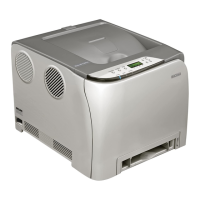
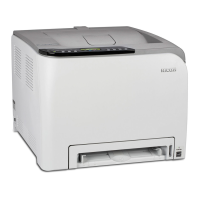
Ricoh SP C250DN - User Manual

Ricoh SP C250DN
208 pages
Print Icon
To Next Page IconTo Next Page
Loading...
Operating Instructions
For safe and correct use, be sure to read "Safety Information" before using the machine.

Table of Contents

Other manuals for Ricoh SP C250DN

Questions and Answers

  • K
    kathryn52Sep 9, 2025
    How to fix toner smudging on Ricoh SP C250DN?
    • W
      Wesley RothSep 9, 2025
      To resolve toner smudging issues on your Ricoh Printer, follow these steps: PCL 5c/6: On the printer driver's [Paper] tab, select a proper paper type in the "Paper Type:" list. PostScript 3: On the printer driver's [Paper/Quality] tab, select a proper paper type in the "Media" list.
  • J
    Jeremy RuizSep 8, 2025
    How to properly position Ricoh Printer?
    • G
      gsmithSep 8, 2025
      Ensure your Ricoh Printer is on a level surface and is not subject to vibration or shock.
  • J
    John McdonaldSep 7, 2025
    Why is there a delay in printing with my Ricoh SP C250DN?
    • J
      jonathan26Sep 7, 2025
      The processing time for your Ricoh Printer depends on the data volume. High volume data, such as graphics-heavy documents, take longer to process. To speed up printing, reduce the printing resolution using the printer driver. The machine may also be calibrating color, so wait for a while.
  • N
    Nicole MaxwellAug 22, 2025
    What to do if Ricoh SP C250DN paper jams frequently?
    • J
      Julia JohnsonAug 22, 2025
      If your Ricoh Printer frequently experiences paper jams, ensure that there are no gaps between the paper and paper guides by adjusting the guides accordingly. Avoid printing on both sides of the paper when printing images that contain large solid areas that consume a large amount of toner. Ensure you are using supported paper types. Load paper only as high as the upper limit markings on the paper guide. Also, make sure the friction pads, paper feed rollers, or registration rollers are clean.
  • D
    Dr. Robert Barnett Jr.Sep 4, 2025
    Why are images printed diagonally on Ricoh SP C250DN Printer?
    • J
      Jane WrightSep 5, 2025
      If images are printed diagonally on pages from your Ricoh Printer, adjust the paper guides to remove any gaps between the paper and the guides.
  • M
    matthew05Sep 3, 2025
    How to fix curled paper from Ricoh SP C250DN?
    • C
      Catherine SpencerSep 4, 2025
      To address curled paper from your Ricoh Printer, try loading the paper upside down in the paper tray. If the curl is severe, retrieve prints from the output tray more frequently. The paper being used may be damp, so use paper that has been stored properly. You can also select [Level 2] or [Level 3] in [Anti-Humid Lvl] under [Maintenance], noting that the first print will take longer.
  • F
    frankromeroSep 2, 2025
    How to fix wrinkled paper from Ricoh SP C250DN?
    • T
      tinahillSep 2, 2025
      If the paper from your Ricoh Printer is wrinkled, the paper being used may be damp; use paper that has been stored properly. The paper might also be too thin. If there are gaps between the paper and the paper guides, adjust the paper guides to remove the gaps. Check that both the left and right fusing unit levers have been raised to the plain paper mark.
  • S
    Stephanie WilliamsSep 1, 2025
    Why is my Ricoh Printer making a strange noise?
    • G
      Gregory StevensonSep 1, 2025
      If your Ricoh Printer is making a strange noise, check if the supplies or options are properly installed. The noise may not indicate a malfunction; wait until the cleaning is complete.
  • A
    Anna KnightAug 31, 2025
    How to stop Ricoh SP C250DN from feeding multiple sheets?
    • J
      Jamie CaldwellAug 31, 2025
      To prevent your Ricoh Printer from feeding multiple sheets at once, fan the paper well before loading it into the tray. Ensure the edges of the paper stack are aligned by tapping them on a flat surface. Position the paper guides correctly and use supported paper types. Load paper only as high as the upper limit markings on the paper guide. Also, make sure that the friction pads, paper feed rollers, or registration rollers are clean. Ensure that paper was not added while there was still some left in the tray; only add paper when the tray is empty.
  • K
    kevin51Aug 29, 2025
    How to fix Ricoh SP C250DN that does not turn on?
    • M
      Mary MejiaAug 29, 2025
      If your Ricoh Printer isn't turning on, ensure the power cord is properly connected to both the printer and a working wall outlet. Also, test the wall outlet with another device to confirm it's not defective.

Summary

Getting Started and Basic Setup

1. Getting Started

Introduces the manual's main sections and basic operational concepts.

Installing the Machine

Covers essential procedures and precautions for setting up the machine in its environment.

Configuration and Printing Operations

2. Loading Paper

Provides comprehensive instructions for loading various paper types and sizes.

3. Printing Documents

Details fundamental printing procedures, job management, and special printing modes.

Advanced Configuration and Maintenance

4. Configuring the Machine Using the Control Panel

Details how to configure machine settings using the physical control panel interface.

5. Configuring the Machine Using Web Image Monitor

Explains how to access and manage machine settings remotely via a web browser.

Troubleshooting and Appendix

Ricoh SP C250DN Specifications

General IconGeneral
ColorYes
Print technologyLaser
Resolution color1200 x 600 DPI
Maximum resolution2400 x 600 DPI
Duplex printing modeAuto
Time to first page (black, normal)14 s
Print speed (black, normal quality, A4/US Letter)21 ppm
Duplex print speed (black, normal quality, A4/US Letter)12 ppm
Maximum duty cycle30000 pages per month
Number of print cartridges4
Page description languagesPCL 5c, PCL 6, PostScript 3
Total input capacity250 sheets
Total output capacity150 sheets
Maximum input capacity751 sheets
Total number of input trays1
Maximum print size210 x 297 mm
Duplex media weight60 - 90 g/m²
Paper tray media typesBond paper, Card stock, Envelopes, Labels, Plain paper, Pre-Printed, Recycled paper, Thick paper, Thin paper
Paper tray media weight60 - 160 g/m²
ISO A-series sizes (A0...A9)A4, A5, A6
Multi-purpose tray media typesBond paper, Envelopes, Labels, Letterhead, Plain paper, Preprinted forms, Recycled paper, Thick paper, Thin paper
Maximum ISO A-series paper sizeA4
Wi-Fi standards802.11b, 802.11g, Wi-Fi 4 (802.11n)
Mobile printing technologies-
Standard interfacesEthernet, USB 1.1, USB 2.0, Wireless LAN
Optional connectivityWireless LAN
USB 2.0 ports quantityUSB 2.0 ports have a data transmission speed of 480 Mbps, and are backwards compatible with USB 1.1 ports. You can connect all kinds of peripheral devices to them.
Internal memory128 MB
Processor frequency350 MHz
DisplayLCD
Color displayNo
Product colorBlack, White
AC input voltage220 - 240 V
AC input frequency50 - 60 Hz
Power consumption (max)1300 W
Power consumption (printing)- W
Sustainability certificatesENERGY STAR
Server operating systems supportedWindows Server 2003, Windows Server 2003 R2, Windows Server 2008, Windows Server 2008 R2, Windows Server 2008 R2 x64, Windows Server 2012, Windows Server 2012 x64
Windows operating systems supportedWindows XP Home, Windows XP Home x64, Windows XP Professional, Windows XP Professional x64, Windows Vista Business, Windows Vista Business x64, Windows Vista Enterprise, Windows Vista Enterprise x64, Windows Vista Home Basic, Windows Vista Home Basic x64, Windows Vista Home Premium, Windows Vista Home Premium x64, Windows Vista Ultimate, Windows Vista Ultimate x64, Windows XP Home, Windows XP Home x64, Windows XP Professional, Windows XP Professional x64, Windows 7 Enterprise, Windows 7 Enterprise x64, Windows 7 Home Basic, Windows 7 Home Basic x64, Windows 7 Home Premium, Windows 7 Home Premium x64, Windows 7 Professional, Windows 7 Professional x64, Windows 7 Starter, Windows 7 Starter x64, Windows 7 Ultimate, Windows 7 Ultimate x64, Windows Vista Business, Windows Vista Business x64, Windows Vista Enterprise, Windows Vista Enterprise x64, Windows Vista Home Basic, Windows Vista Home Basic x64, Windows Vista Home Premium, Windows Vista Home Premium x64, Windows Vista Ultimate, Windows Vista Ultimate x64, Windows XP Home, Windows XP Home x64, Windows XP Professional, Windows XP Professional x64, Windows 7 Enterprise, Windows 7 Enterprise x64, Windows 7 Home Basic, Windows 7 Home Basic x64, Windows 7 Home Premium, Windows 7 Home Premium x64, Windows 7 Professional, Windows 7 Professional x64, Windows 7 Starter, Windows 7 Starter x64, Windows 7 Ultimate, Windows 7 Ultimate x64, Windows 8, Windows 8 Enterprise, Windows 8 Enterprise x64, Windows 8 Pro, Windows 8 Pro x64, Windows 8 x64, Windows Vista Business, Windows Vista Business x64, Windows Vista Enterprise, Windows Vista Enterprise x64, Windows Vista Home Basic, Windows Vista Home Basic x64, Windows Vista Home Premium, Windows Vista Home Premium x64, Windows Vista Ultimate, Windows Vista Ultimate x64, Windows XP Home, Windows XP Home x64, Windows XP Professional, Windows XP Professional x64
Weight and Dimensions IconWeight and Dimensions
Depth450 mm
Width400 mm
Height320 mm
Weight23800 g

Related product manuals