Driver Configuration Guide (Windows 2000/XP/2003/Vista) 10
This guide describes Windows XP case. Other Windows versions are similar.
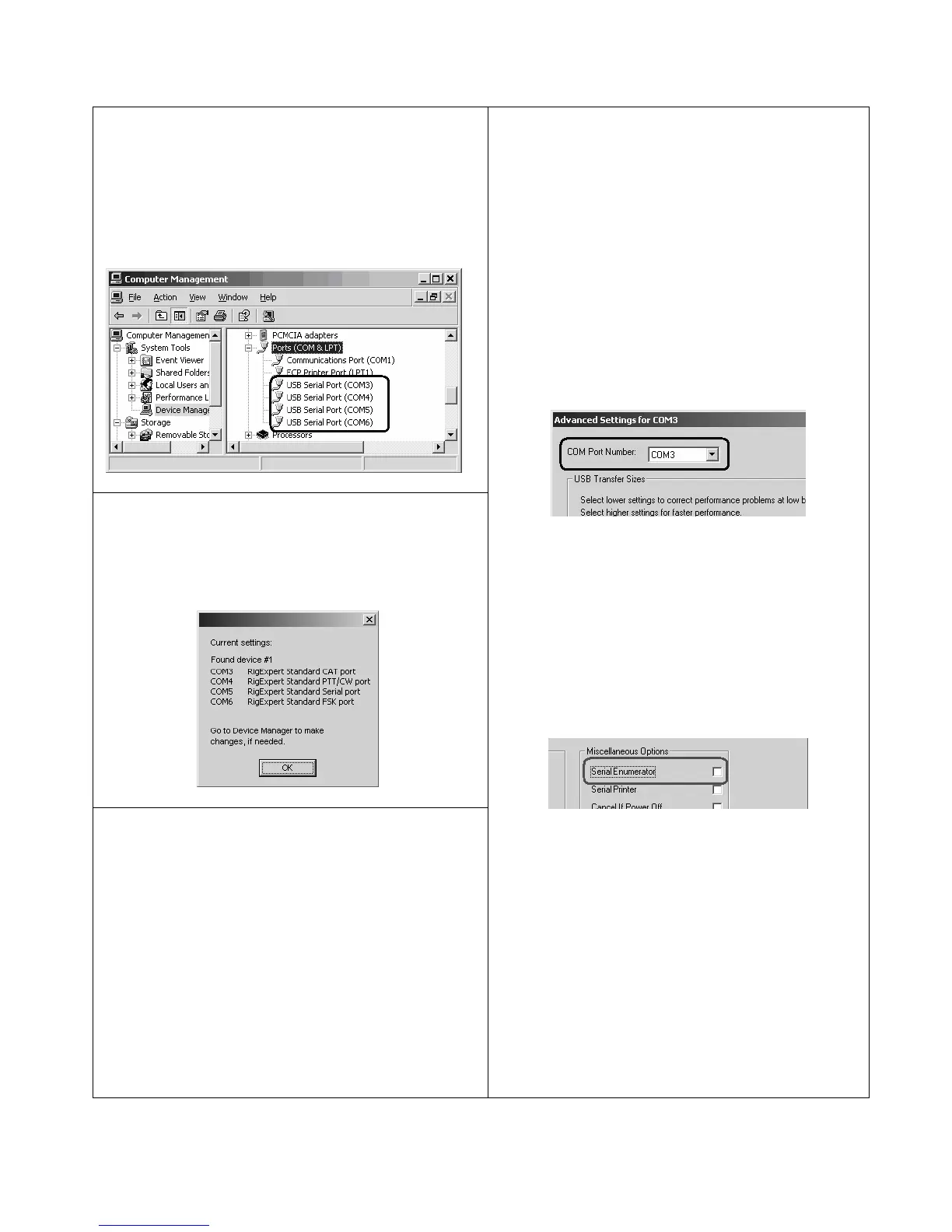
1. As a result of successful installation, you will see
four new serial ports in the Device Manager (right-
click My Computer on the desktop, select Manage
from the menu, select Device Manager from the list
on the left side of the window, then open Ports
(COM&LPT) branch on the right).
2. To view the RigExpert Standard serial port
assignment, please run the ListRE program from
Start – Programs – RigExpert Standard – Show
serial ports:
3. Write down the port numbers on a piece of paper.
For instance,
CAT port: COM3
PTT/CW port: COM4
SERIAL port: COM5
FSK port: COM6
These port numbers will be needed later to set up
your software.
4. Changing serial port numbers.
The serial port numbers are assigned
automatically during driver installation. If you
need to change their values, open Device
Manager, right-click the USB Serial Port
(COMxx), then select Properties from the menu.
In the USB Serial Port (COMxx) Properties
dialog, activate Port Settings tab, then click
Advanced button.
In the newly-open Advanced Settings for COMx
dialog, select a new COM Port Number.
Click OK to apply new settings and close the
Advanced Settings for COMx dialog.
You will have to re-plug the RigExpert Standard
device for this change to take effect.
It is recommended for all four ports to uncheck the
Serial Enumerator check-box in the same window:
This will eliminate a case when Windows is trying
to find a mouse or other device on this port when
you plug in the RigExpert Standard.


 To Next Page