Software setup example: MixW 2 13
3. (continued)
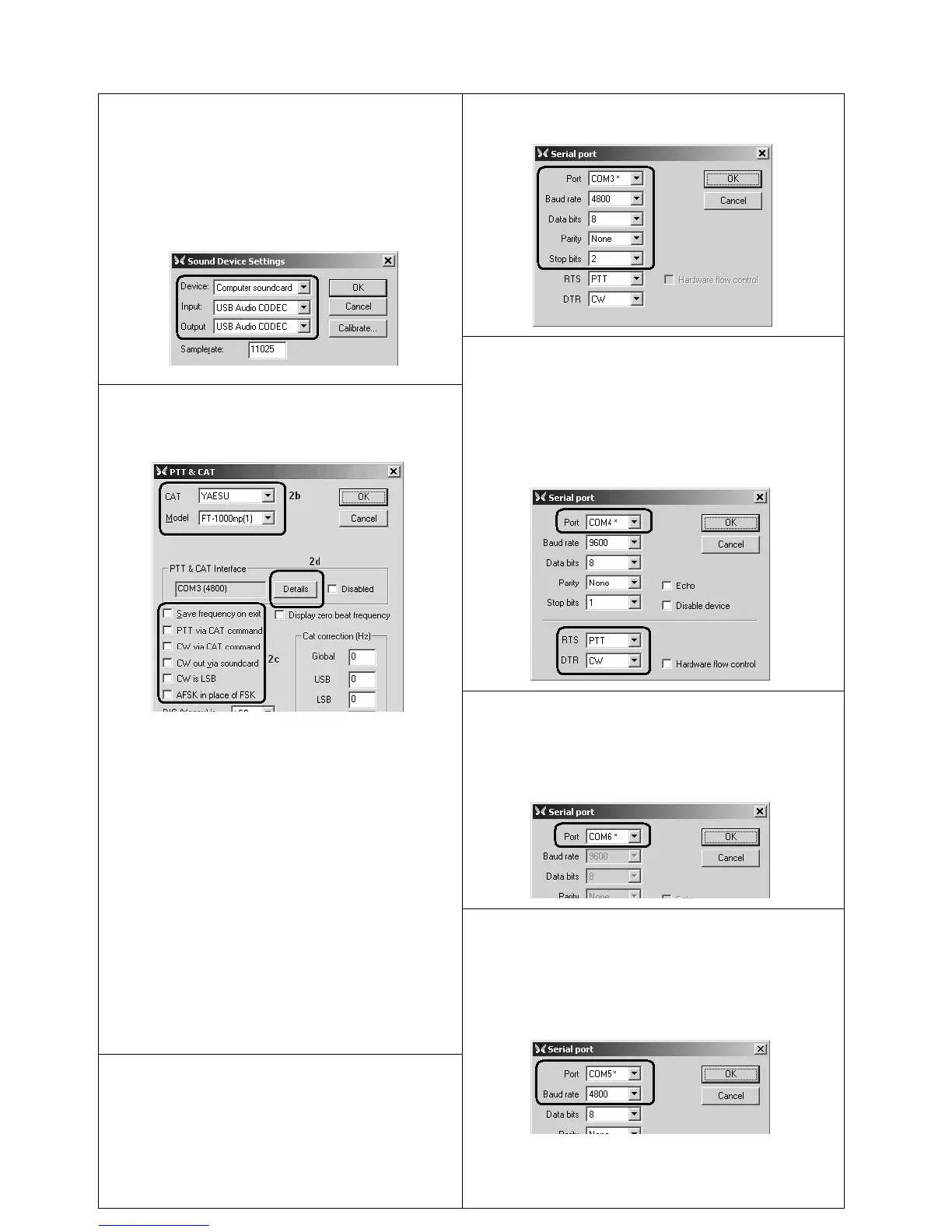
1. Run MixW 2 and open the Sound Device
Settings dialog from Configure menu. Choose
Computer soundcard as a device type, then
select USB Audio CODEC as input and
output devices. Perform other sound device
settings, if needed.
4. Go to Configure – Secondary PTT port – Port
settings menu. In the Serial Port dialog, select the
PTT/CW port number as a Port, then set RTS to
PTT, and DTR to CW. Uncheck Hardware flow
control. Other settings have no effect with
RigExpert Standard.
5. Go to Configure – FSK port – Port settings
menu. In the Serial Port dialog, select the FSK
port number as a Port. RTS and DTR settings
have no effect with RigExpert Standard.
2a. Go to Configure – TRCVR CAT/PTT
menu to open the PTT & CAT dialog.
2b. Select your transceiver type and model (see
the PTT&CAT dialog above).
2c. Perform additional settings according to
MixW2 manual.
• To use CW output from RigExpert
Standard, uncheck the CW out via
soundcard check-box.
• For using FSK mode with RigExpert
Standard, uncheck the AFSK in place
of FSK check-box.
2d. Click Details to configure the CAT serial
port.
3. In the Serial Port dialog, select your CAT
port number as a Port, then set the serial port
parameters according to the transceiver manual.
RTS and DTR settings have no effect with
RigExpert Standard.
6. Go to Configure – Rotor – Settings menu. In
the Serial Port dialog, select the SERIAL port
number as a Port. Select other parameters, such as
Baud rate to be able to connect an antenna rotor to
the SERIAL port of RigExpert Standard device.


 To Next Page