2-10
ComColor GD Series Troubleshooting Guide
When copying or scanning, the
original loaded in the ADF (automatic
document feeder) is not fed properly.
The original may be too small.
The minimum size original that can be loaded in the
ADF is 100 mm × 148 mm (3 15/16" × 5 27/32"). If the
original is too small, it may not be fed properly from the
ADF, causing a paper jam. Load originals smaller than
100 mm × 148 mm (3 15/16" × 5 27/32") on the platen
glass.
Prints or copies have white streaks or
appear blurry.
The print heads may be clogged.
Perform [Print Head Cleaning] to unclog the print
heads.
The output results are dirty or have
black streaks.
Paper that is unusable for printing or copying
may have been loaded in the machine.
Check the type of the paper loaded in the standard tray
or feed tray. For more information, see "Printing
Paper" in the "Safety Information".
You may be using curled paper for printing or
copying.
Curled paper can come in contact with the print heads,
causing the paper to become dirty. This can damage
the print heads, so do not use curled paper.
If you are copying or scanning, the [Scanning
Level] setting may be too dark.
Adjust the [Scanning Level] setting.
If you are copying or scanning, the original
cover may not have been closed securely.
Close the original cover of the scanner securely to
prevent any light from entering.
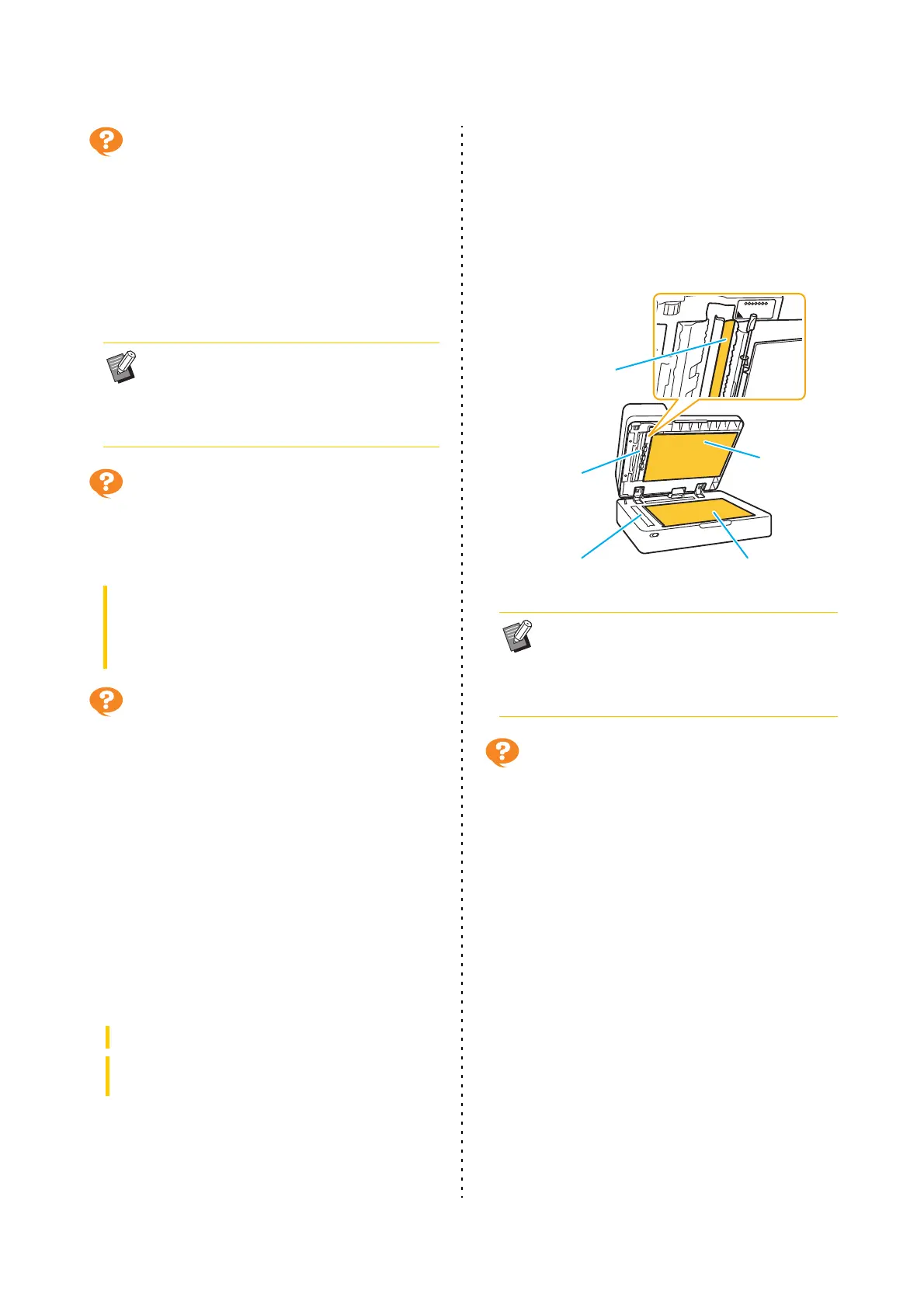
If you are copying or scanning, the parts listed
below may be dirty.
Wipe them with a soft cloth.
The copied or scanned data is
blurred, or part of the data is not
printed.
The original may not be in complete contact
with the platen glass.
Close the original cover so that the original is
completely flat against the platen glass.
The scanner may have been subjected to
vibration.
Scan the original again without subjecting the scanner
to vibration.
If you are copying, the paper may be moist.
If the paper contains moisture, part of the copied data
may not be printed or it may be blurred. Use dry paper.
• Even if the size of the original is appropriate,
the paper thickness, type or other
characteristics may prevent it from being
scanned with the ADF. For more information,
see "Originals" in the "Safety Information".
[Home1] screen [Maintenance] [Print Head
Cleaning] [Normal Cleaning]
If this does not fix the problem, perform [Strong
Cleaning].
[Copy] screen / [Scan] screen [Scanning Level]
[Storage] - [Save] screen / [USB] - [Save] screen
select folder [Save Document] [Scanning Level]
• Any dust, debris, ink, glue, or correcting fluid
adhering to the white sheet of the ADF, the
platen glass, or scanner glass can result in
the copied or scanned data that is not clean.
Perform periodic cleaning.
Platen glass
Original
pad
White sheet
Scanner glass
Scanner glass



 To Next Page