2-11
2
ComColor GD Series Troubleshooting Guide
The back of the original is visible.
If you are copying or scanning an original on
thin paper, the image on the back side of the
original or on the next page may be captured in
the image data.
• Adjust [Scanning Level] to a lighter setting.
• Place a black piece of paper on the back side of the
original and copy or scan the original again.
• When copying or scanning an original with a base
color, such as a newspaper or magazine, you can
use the [Base Color Level] setting to adjust the base
color level.
Moire interference occurs.
Moire interference (meshed shadow) can easily
occur when copying or scanning images such
as photographs that have been subjected to
screen processing for publication.
Moire interference can be reduced by configuring the
[Moire Elimination] setting.
No paper is fed. / The back of a card is
damaged. / Multiple sheets of paper
are fed.
The [Thickness] setting in [Paper Type] may not
match the paper properties (paper thickness).
Correctly configure the [Thickness] setting in [Paper
Type].
For printing:
For copying:
For more information, see "Paper Selection" in the
"User's Guide".
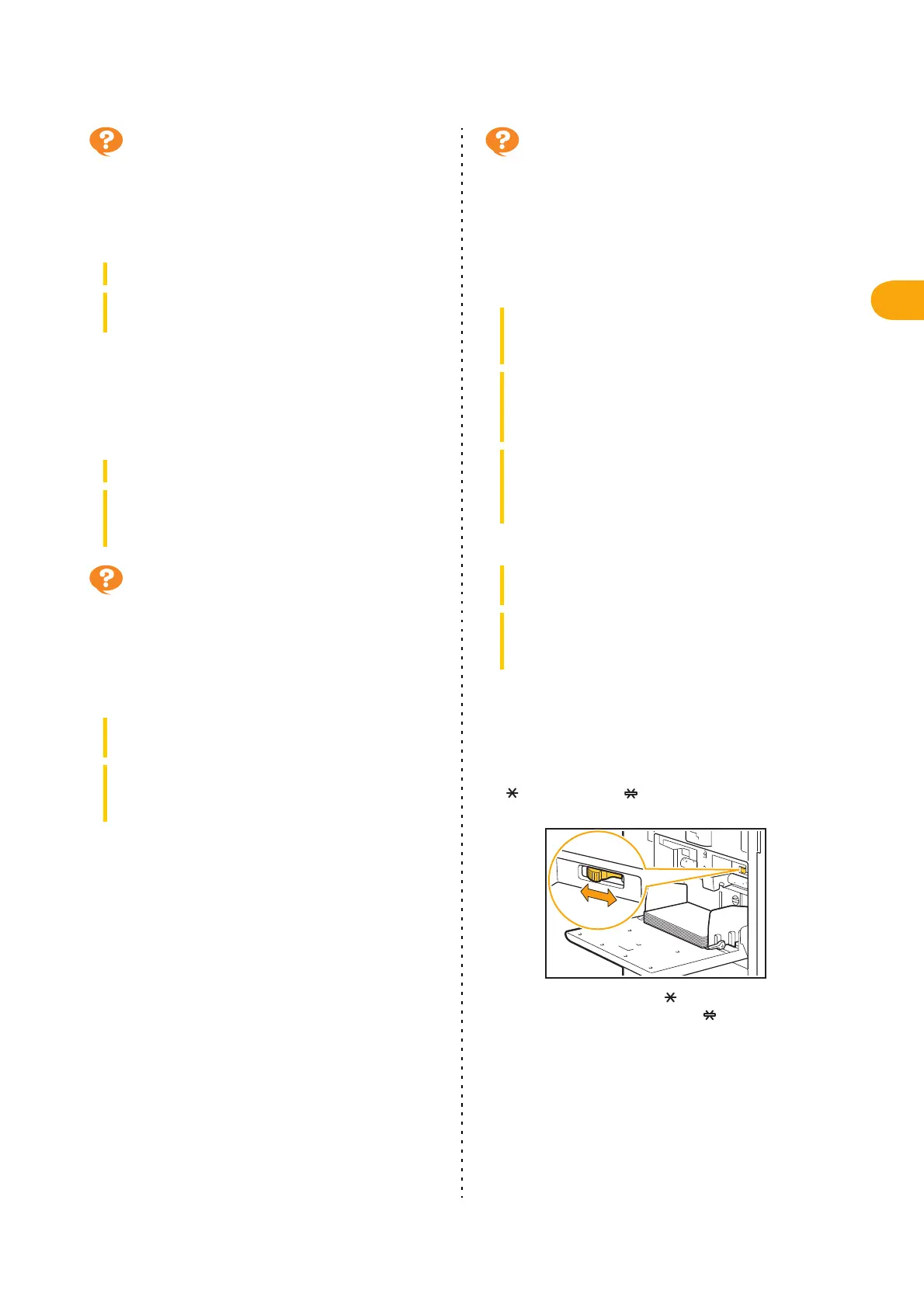
The paper feed pressure may need to be
adjusted to suit the paper thickness.
Set the paper feed pressure adjustment lever to
" (NORMAL)" or " (CARD)" based on the type of
paper that is loaded.
Normally, set the lever to " (NORMAL)". If paper
feeding is a problem, set this to " (CARD)".
For more information, see "Loading the Paper in the
Standard Tray" in the "User's Guide".
[Copy] screen / [Scan] screen [Scanning Level]
[Storage] - [Save] screen / [USB] - [Save] screen
select folder [Save Document] [Scanning Level]
[Copy] screen / [Scan] screen [Base Color Level]
[Storage] - [Save] screen / [USB] - [Save] screen
select folder [Save Document] [Base Color
Level]
[Copy] screen / [Scan] screen [Image Control]
[Moire Elimination]
[Storage] - [Save] screen / [USB] - [Save] screen
select folder [Save Document] [Image Control]
[Moire Elimination]
[Print] screen select job [Change Setting] in the
sub menu [Paper Selection] [Paper Tray
Setting] [Paper Type] [Thickness]
[Storage] - [Load] screen select folder select
document [Change Setting] in the sub menu for
the document [Paper Selection] [Paper Tray
Setting] [Paper Type] [Thickness]
[USB] - [Load] screen select folder [Open]
select document [Change Setting] in the sub menu
[Paper Selection] [Paper Tray Setting] [Paper
Type] [Thickness]
[Copy] screen [Paper Selection] [Paper Tray
Setting] [Paper Type] [Thickness]
[Storage] - [Save] screen select folder [Save
Document] [Paper Selection] [Paper Tray
Setting] [Paper Type] [Thickness]



 To Next Page