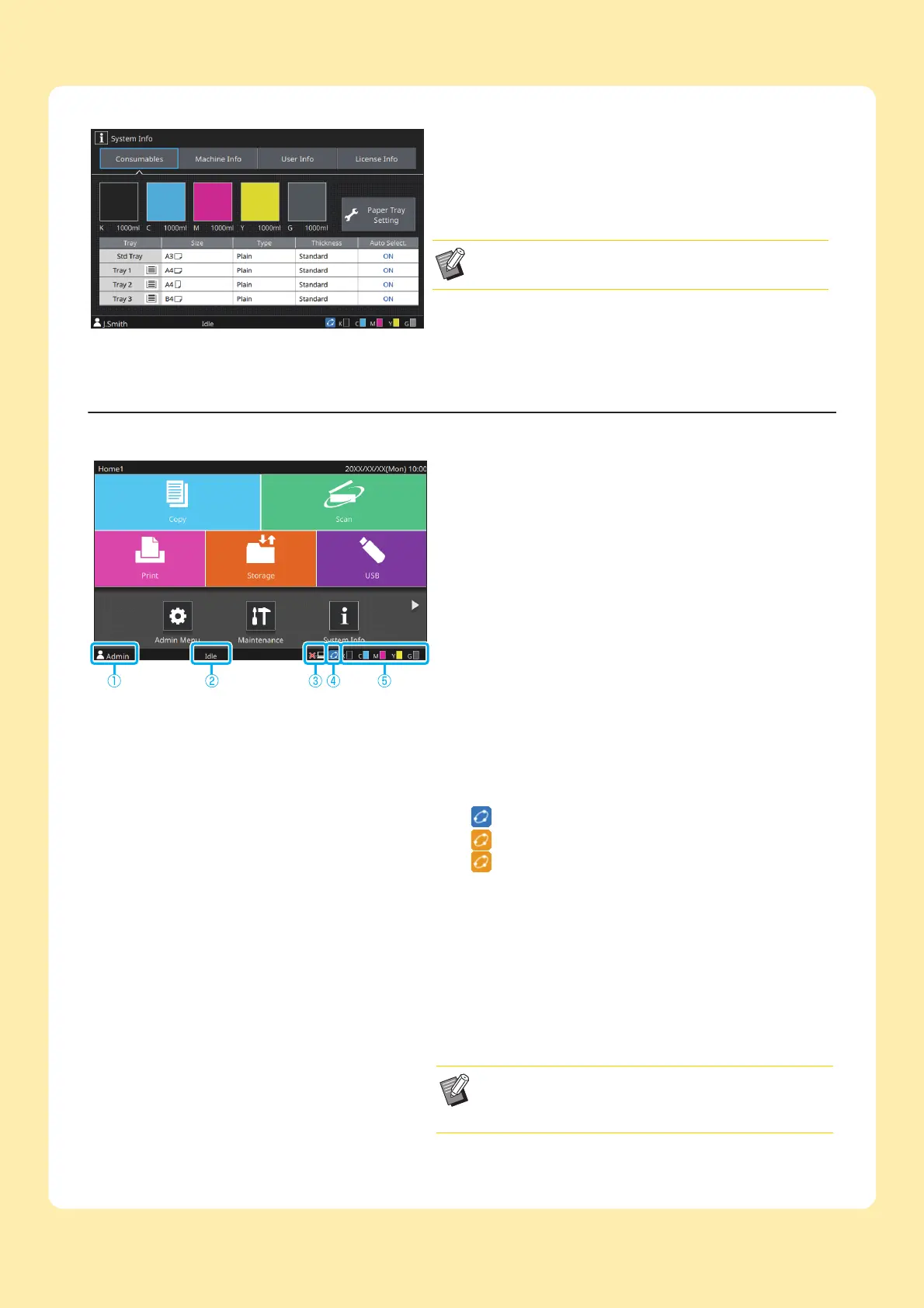
You can touch [System Info] on the [Home1] screen to check
information about the consumables, machine, user, and license.
The [Consumables] screen displays the status of the ink and
paper.
• [User Info] is displayed only when a user is logged in.
[System Info] screen
a User name
The name of the user currently logged in is displayed.
b Printer status
The current status of the machine is indicated with a
description such as [Idle], [Printing], [Error], or [Some Units
Unavailable].
c Offline
This icon is displayed when [Online/Offline] is set to [OFF].
While the icon is displayed, the machine does not receive
jobs.
d FORCEJET
link icon
This icon indicates whether all parts required for printing are
working correctly.
The display will differ depending on the consumable or
configured details.
• (ON): Using RISO ink
• (ON): Using non-RISO ink (Ink information is entered.)
• (Flashing): Using non-RISO ink (Ink information is not
entered.)
For more information on setting the ink information, see "The
[Ink Information Input] screen is displayed." (p. 2-28).
e Remaining ink indicator
The bar of each ink indicates the amount of remaining ink.
When the bar starts flashing, it is the time to replace the ink
cartridge. Prepare a new ink cartridge for the color that
flashes.
• The amount of remaining ink cannot be displayed when
using non-RISO ink. [―] is displayed instead of the
remaining ink indicator.



 To Next Page