Storage and Scan Modes (Option)
Converting Hard-copy to Stored Data (Scan Mode)
199
Scanning Originals (2) for 2-Colour Printing
Originals from Drum 1 and Drum 2 are read and stored as one piece of data.
1
Select a scan mode.
See )p.25 for information about selecting a scan
mode.
2
Place the Original for Drum 1.
See step 5 of “2-Colour Printing” ()p.41).
Procedures are the same for using the ADF unit
(option).
Go to step 4 if you are not specifying folder, data,
or owner name. If no settings are configured, data
is stored by default (Data Name: scan_001, Save
Location:1_folder, Owner:Owner-1).
3
Set data information.
Sets the data name, save location and owner
name.
)p.201
4
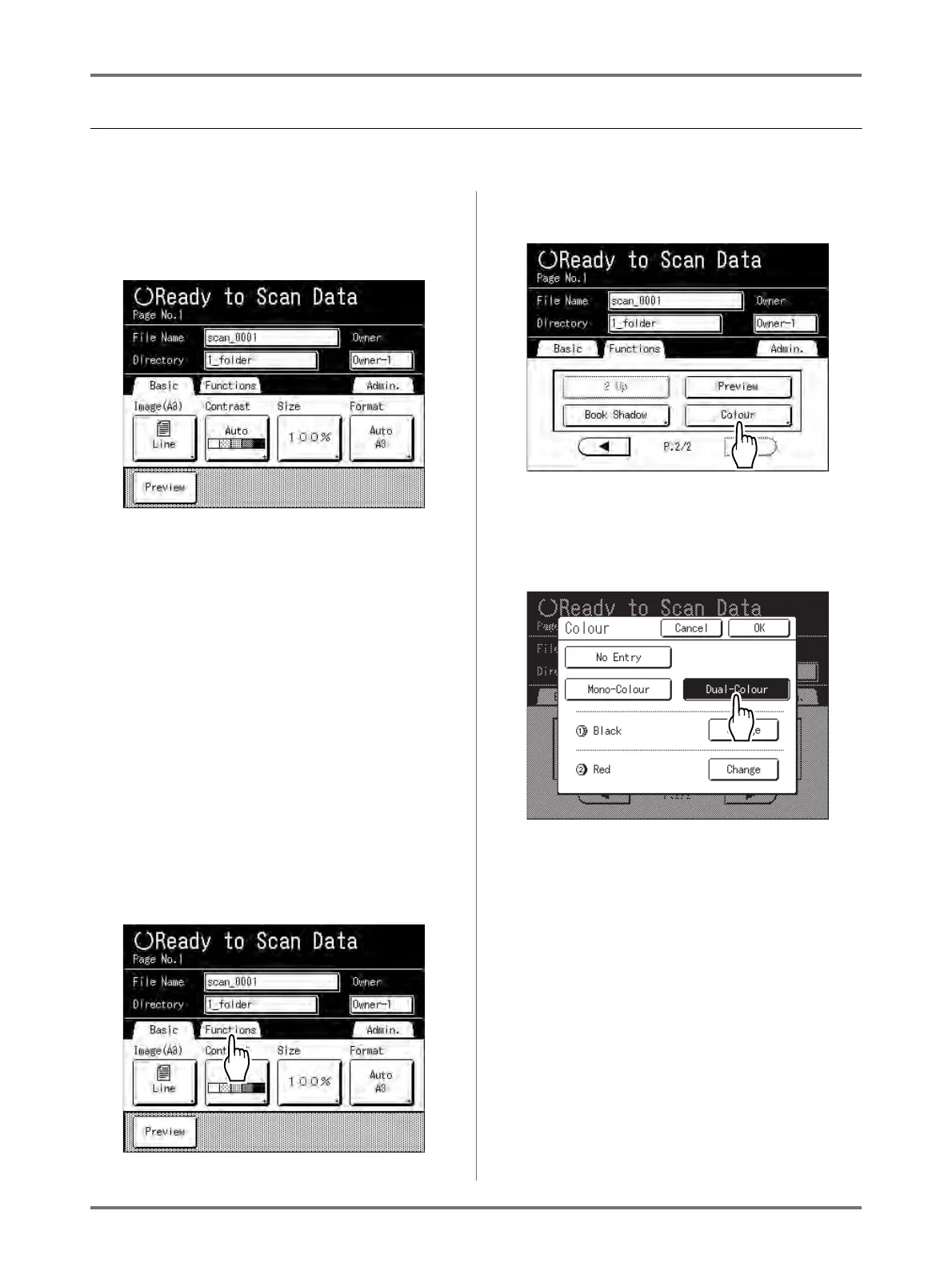
Touch [Functions].
5
Touch [Colour].
The Colour screen appears.
6
Touch [Dual-Colour].
7
Check the drum colour.
To change the ink colours on Drum 1 and Drum 2,
touch [Change] for each and choose from among
the displayed colours.
Note:
• The previously set colour name displays on the
Change screen.



 To Next Page