23
Display brightness adjustment
The display backlight will normally become temporarily brighter when using the controls
RQWKHUDGLR<RXPD\VHSDUDWHO\FRQ¿JXUHWKHQRUPDOEDFNOLJKWOHYHODQGDOVRWKHEULJKWHU
backlight level. You can also select for how long the display should remain at the brighter
level after using any of the controls.
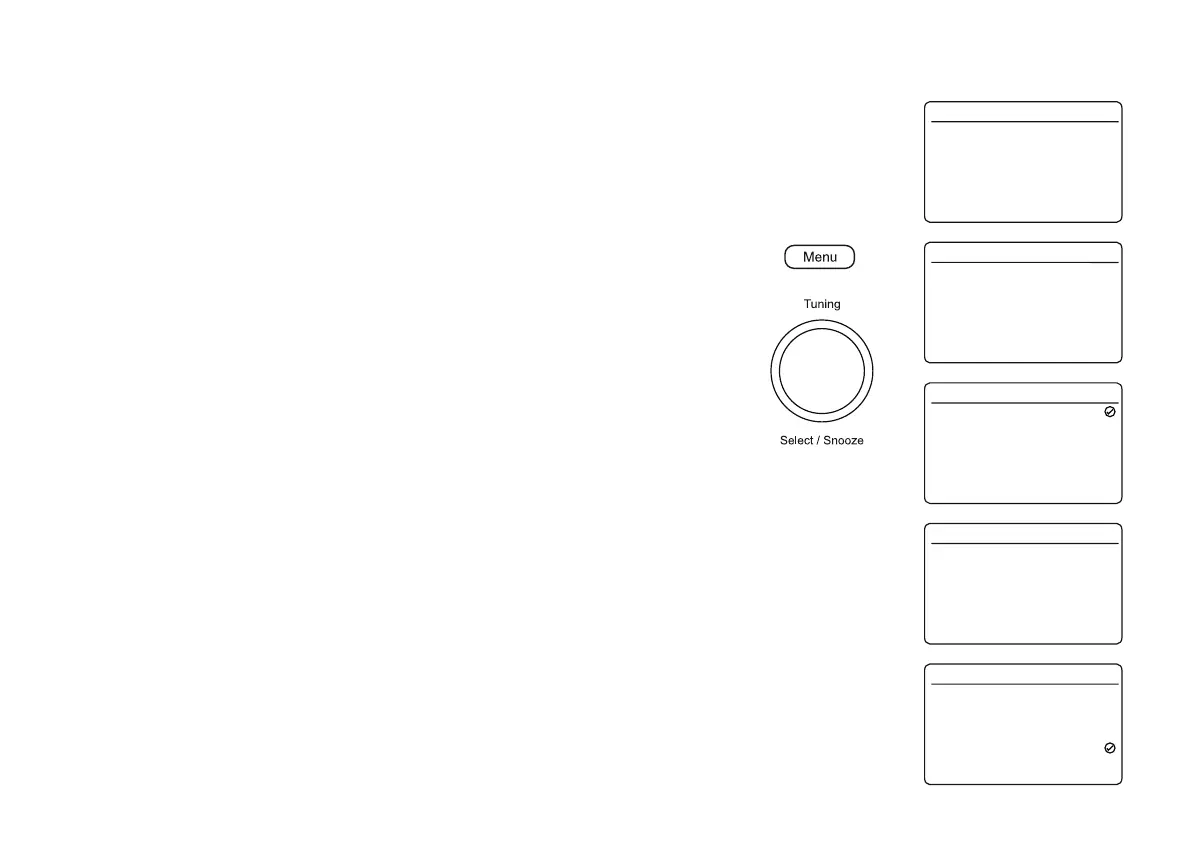
To change the backlight brightness levels for the display please follow these steps.
1. Press On/Off to switch on the radio.
2. Press Menu.
3. Choose 6\VWHP6HWWLQJV and then %DFNOLJKW.
4. To adjust the display brightness when the radio is in standby or when playing select 'LP
Level'.
To adjust the display brightness used after any of the controls have been used select
'Bright Level'.
Press Tuning to enter the selected brightness adjustment.
5. Choose the desired brightness level from High, Medium, Low or Very Low. Note the Very
Low setting is only available in Dim Level option.
6. Press Tuning to set the level.
7. Press Menu as needed to exit.
To change the duration for which the display will remain bright after using any of the controls,
please follow these steps.
1. Press On/Off to switch on the radio.
2. Press Menu.
3. Choose 6\VWHP6HWWLQJV, %DFNOLJKW and then 7LPHRXW.
4. The timeout function can be set in increments to between 10 and 180 seconds or to the
‘On’ setting. The display backlight will then revert to the Dim Level after the set time. If
the timeout is set to ‘On’ then the radio will only use the Bright Level setting.
Theme
Night Mode
Sleep
Equaliser
Time/Date
Backlight
Language
System Settings 16.34
>
>
>
>
>
>
>
Ruby
My EQ
English
Timeout
Bright Level
Dim Level
Backlight 16.34
>
>
>
10 sec
High
Low
High
Medium
Low
Bright Level 16.34
Timeout
Bright Level
Dim Level
Backlight 16.34
>
>
>
10 sec
High
Low
On
10 sec
20 sec
30 sec
45 sec
60 sec
90 sec
Timeout 16.34




 To Next Page