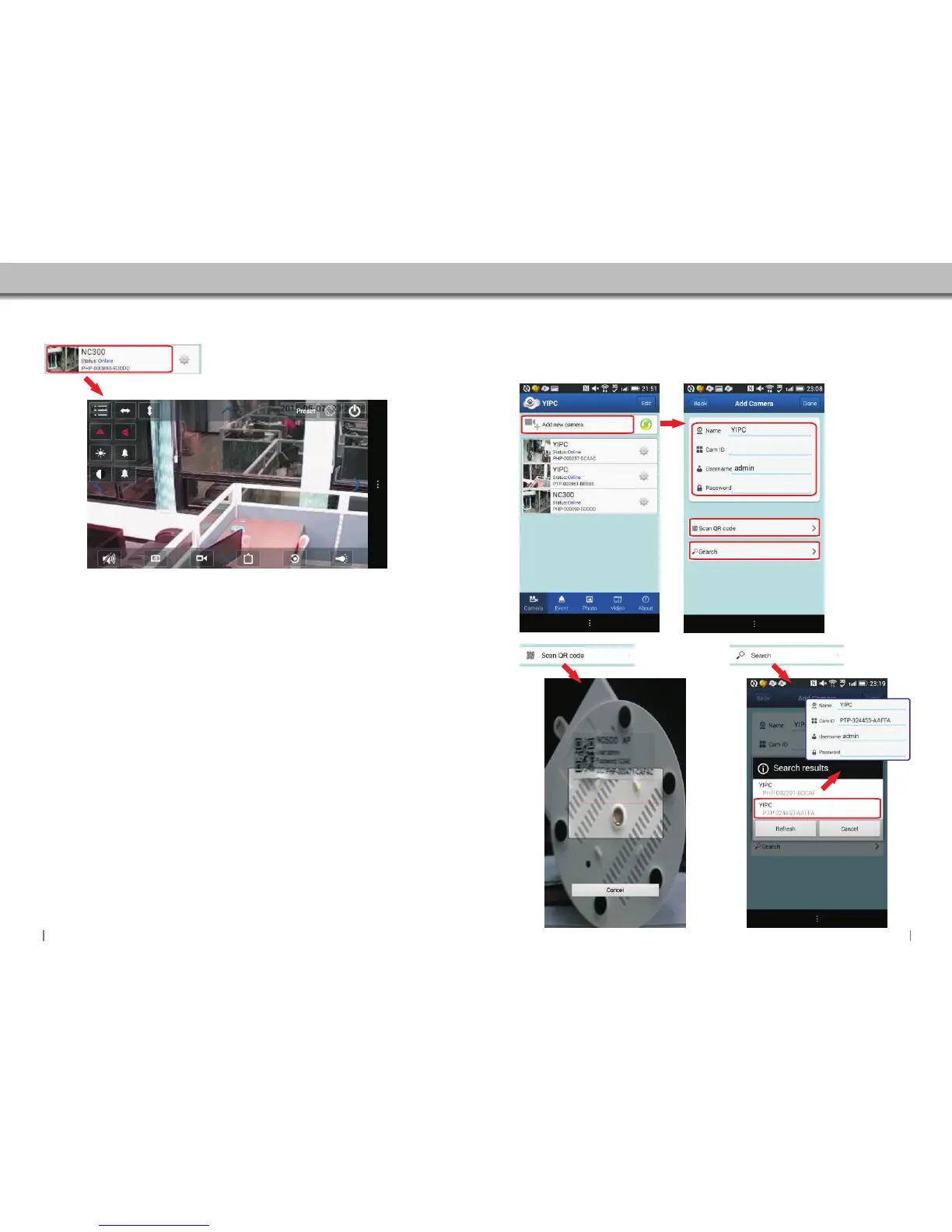
Click this area to enter Real-time video monitoring screen.
1 2 3
4
5
6
7
8 9 10
1.This button includes 6 icon buttons:
1.1 Horizontal Mirror image
1.2 Vertical Mirror image
1.3 Color Saturation
1.4 Open GPIO Alarm
1.5 Contrast
1.6 Close GPIO Alarm
3.Tilting Vertically
2.Panning Horizontally
10.Video Recording
6.Close monitoring interface
9.Capture Photo
8.Enable/Disable Audio
11.Videomode/resolution setting: High Quality / normal / Speed
11
1.1
1.2
1.3
1.4
1.5
12
1.6
4.Preset positions setting: Recall position / Set position
7.Arrows:Click :Camera view moves as same as the arrows direction
5.Enable/Disable full screen display
12.Reset video settings to factory default
12.IR Light control:Open Led Light / Close Led Light / Auto Led Light
4.3 Add Camera
on the same network
There are 3 methods to add cameras:
Method 1 - Input the UID username and password directly.
Method 2 - Scan QR Code.
Method 3 - Search camera .
Method 1: Enter the UID
Username and password
directly.
Click here to add new camera
Method 2: Scan QR code
to add Camera.
(Figure 3.31)
Method 3: Search camera
on the same network.
(Figure 3.32)
Scan QR code to add Camera.
Figure 3.31
Figure 3.32
Note:The camera and your
iphone have to be on the same
network.
Select the camera that you
want.then enter the usename
and password.
1817


 To Next Page