04
Chapter 2 Device Connection
2. 1 Ethernet Cable Connection
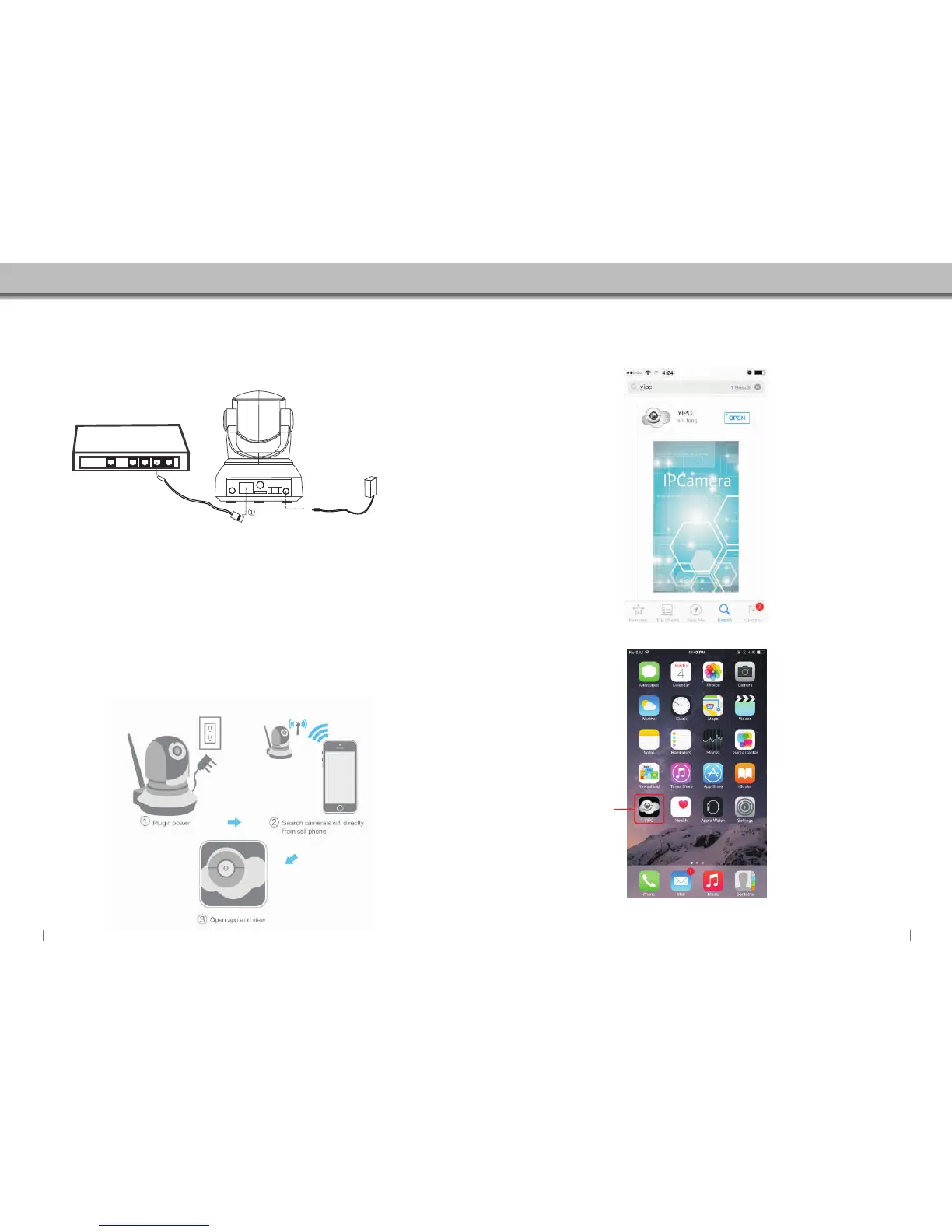
2.1.1 Plug cable to cable connection of NC500 / Router.
2.1. 2 Plug Power adapter to “DC In Jack” NC500. of
03
Chapter 3 Apple Device setting
3. 1 Download and install Apple APP
Enter APP Store, search, download “YIPC”.and install
And make sure that the Power indicator light of the router is on and the Network Indicator light of
NC500 is blinking .
3. 2 APP Features introduction
Click here to run APP
②
LAN Interface
Power Adapter
Router
2. 2 WIFI Hotspot Connection
2.2.1
2.2.2 Use iOS device or android device search wifi hotspot of NC500.The name of wifi hotspot is
CAM****. Cnnect to this wifi hotspot password .
2.2.3 Run APP.add this camera.(reference page 07 or page 18 add new camera)
Plug Power adapter to “DC In Jack” of NC500.After Nc500 start (about 60 seconds).It will
generate a wifi hotspot.
2.2.4 Setting NC500 WIFI.(reference page 09 or page 20 wifi setting)
2.2.5 After setting wifi.NC500 will reboot.
After reboot NC500 will connect to wifi automatically.
123456789


 To Next Page