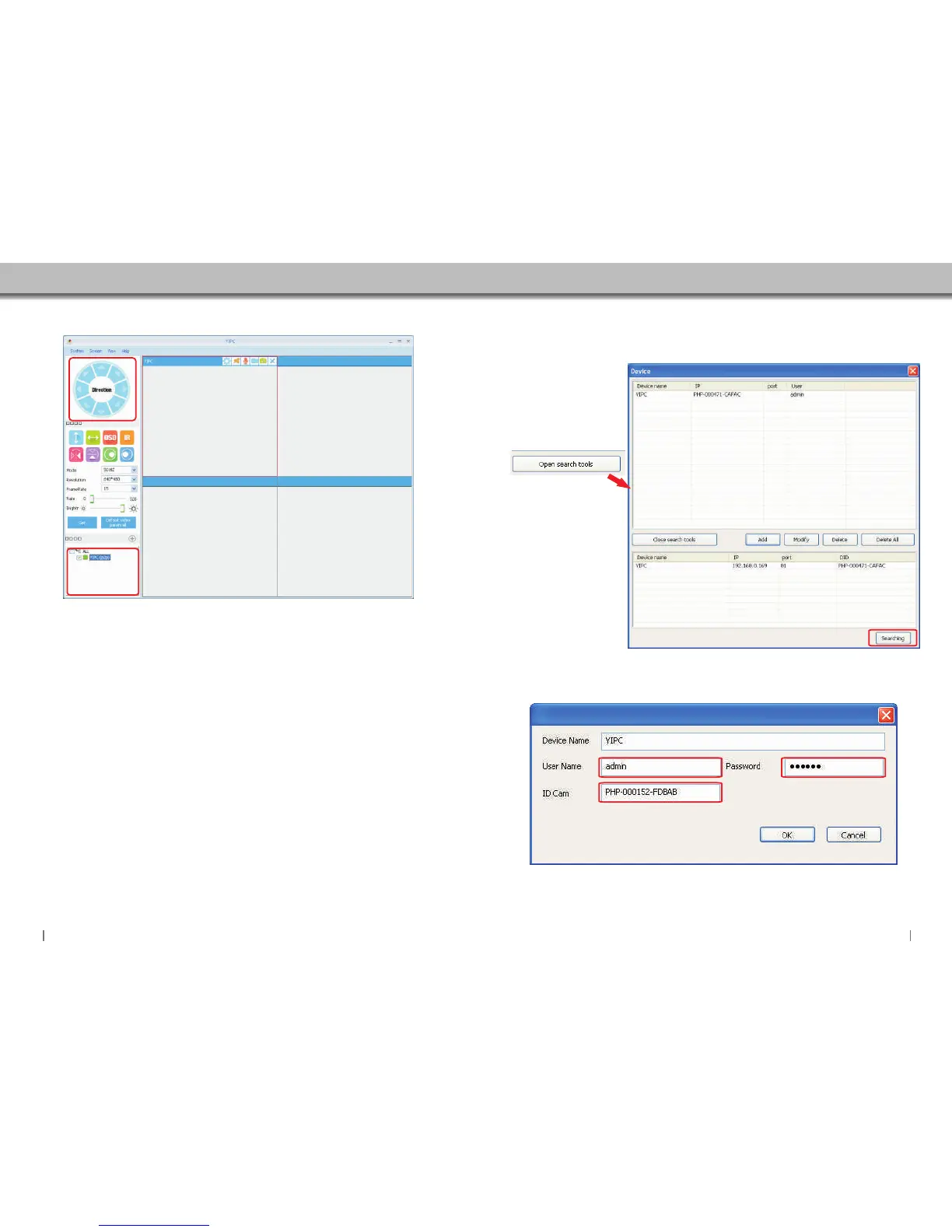
5. 2 Software home page introduction
1.1
1.2
1.3
1.4
1.5
1.6
1.7
1.8
2 3
4
5
6 7
8
9
10
11
12
13
14
15
16
17
18
19
20
21
20
22
23
24 25
26
27
1.Rotation control buttons:
Press on the number corresponding to the direction in which you want the camera to turn to.
3.Pan Vertically
2.Tilt Horizontally
23.Close monitoring interface
11.Video resolution setting: 640*480 / 320*480
5.IR Light control:Open Led Light / Close Led Light / Auto Led Light
4.OSD
6.Horizontal Mirror image
7.Vertical Mirror image
8.Open GPIO A larm
9.Close GPIO A larm
10.Frequency: 50Hz / 60Hz
16.Reset video settings to factory default
12.FrameRate:15 / 20 / 25
13.Set network bandwidth
14.Brightness
15.Get Set parameters
17.Add camera
18.Set camera parameters
19.Enalbe / Disable Speaker
20.Enable / Disable Microphone
24.Minimize window
25.Maximize window
26.Close window
21.Video Recording
22.Capture Photo
27.Camera lists
5.3 Add Camera
There are 2 methods to add a camera:
Method 1 - Search camera (camera and computer should be on the same network).
Method 2 - Input the UID username and password directly.
Method 2: Enter the UID Username and passworddirectly.
Method 1:Search camera in the same network.
2827


 To Next Page