05
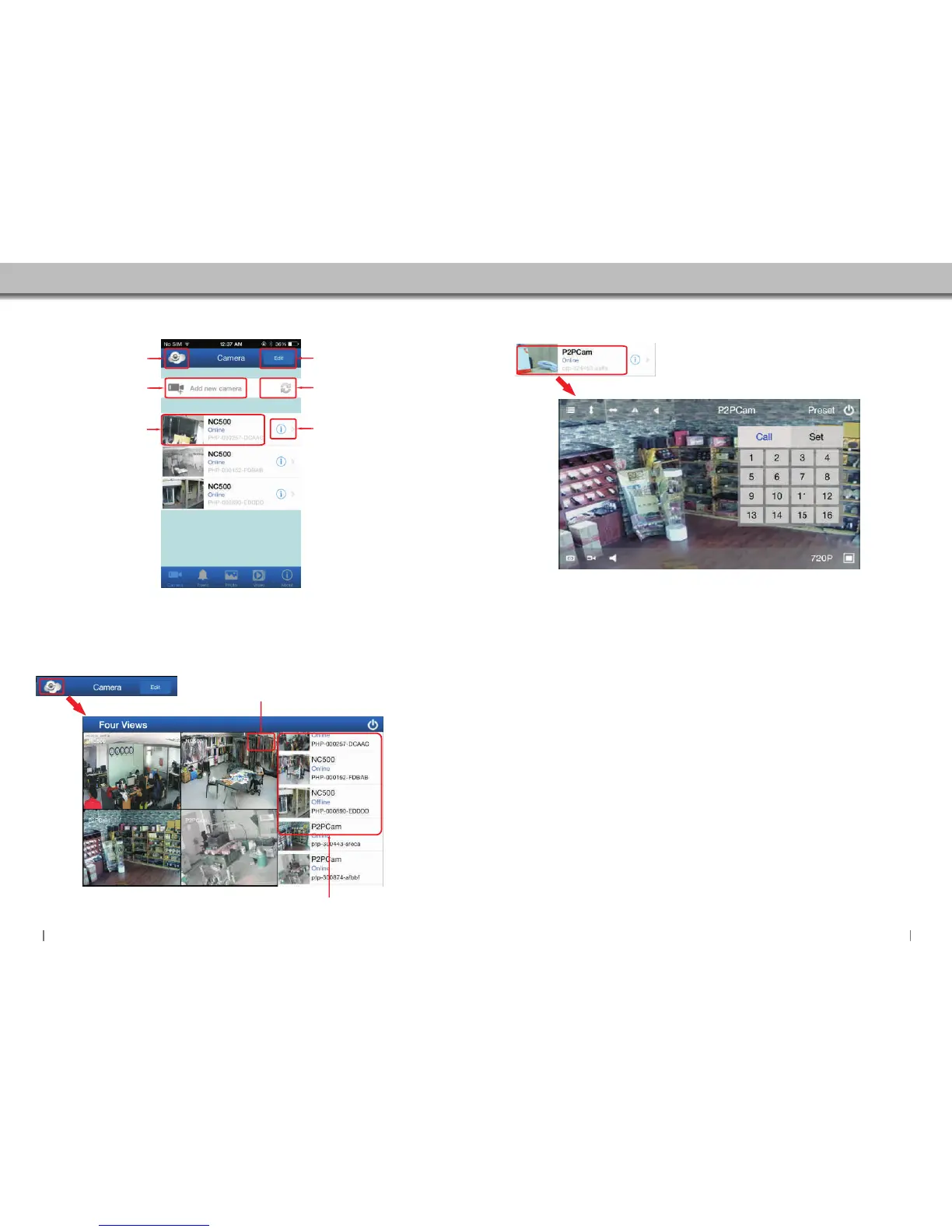
4 camera viewing mode.
Click the camera list to view real-time video monitoring
You can add a maximum of 4 cameras to the viewing mode.
Click here to get full screen display
Click here to add new camera.
Edit the camera which is on the
camera
list,you can delete the
camera from the camera list or
re-enter the password or user
name when it says Invalid user
or password.
Click here to initialize the
camera settings.
Click to access camera settings
interface.
1 2 3
4
5
1.Camera:Click this icon to
return to main menu list.
3.Photo:To check recorded
photos.
2.Event:Displays alarm logs.
4.Video:To check the
recordings.
.
video
5.Information about the
applications.
Click this icon to enter 4 camera viewing mode.
Click here to enter Real-time
video monitoring screen.
Click this area to enter Real-time video monitoring screen.
1 2 3
4
5
6
7
8
9 10
1.This button includes 7 icon buttons:
1.1 Video mode/resolution setting: High Quality / normal / Speed
1.2 White balance
1.3 Brightness
1.4 .Reset video settings to factory default
1.5 IR Light control: Open Led Light / Close Led Light / Auto Led Light
1.6 GPIO Alarm: Open GPIO Alarm / Close GPIO Alarm
1.7 Frequency: 50Hz / 60Hz
3.Tilting Vertically
2.Panning Horizontally
10.Enable/Disable Audio
6.Preset position settings
6.1 Recall position
6.2 Set position
9.Video Recording
8.Capture Photo
11.Screen switching
11
1.1
1.2
1.3
1.4
1.5
1.7
1.6
6.1
6.2
4.Horizontal Mirror image
7.Close monitoring interface
5.Vertical Mirror image
06


 To Next Page