OPC90 Server
whenever OPC clients are attached to OPC90, the startup in runtime option is
in monitor mode. Simply right click on the block and select enabled or it is
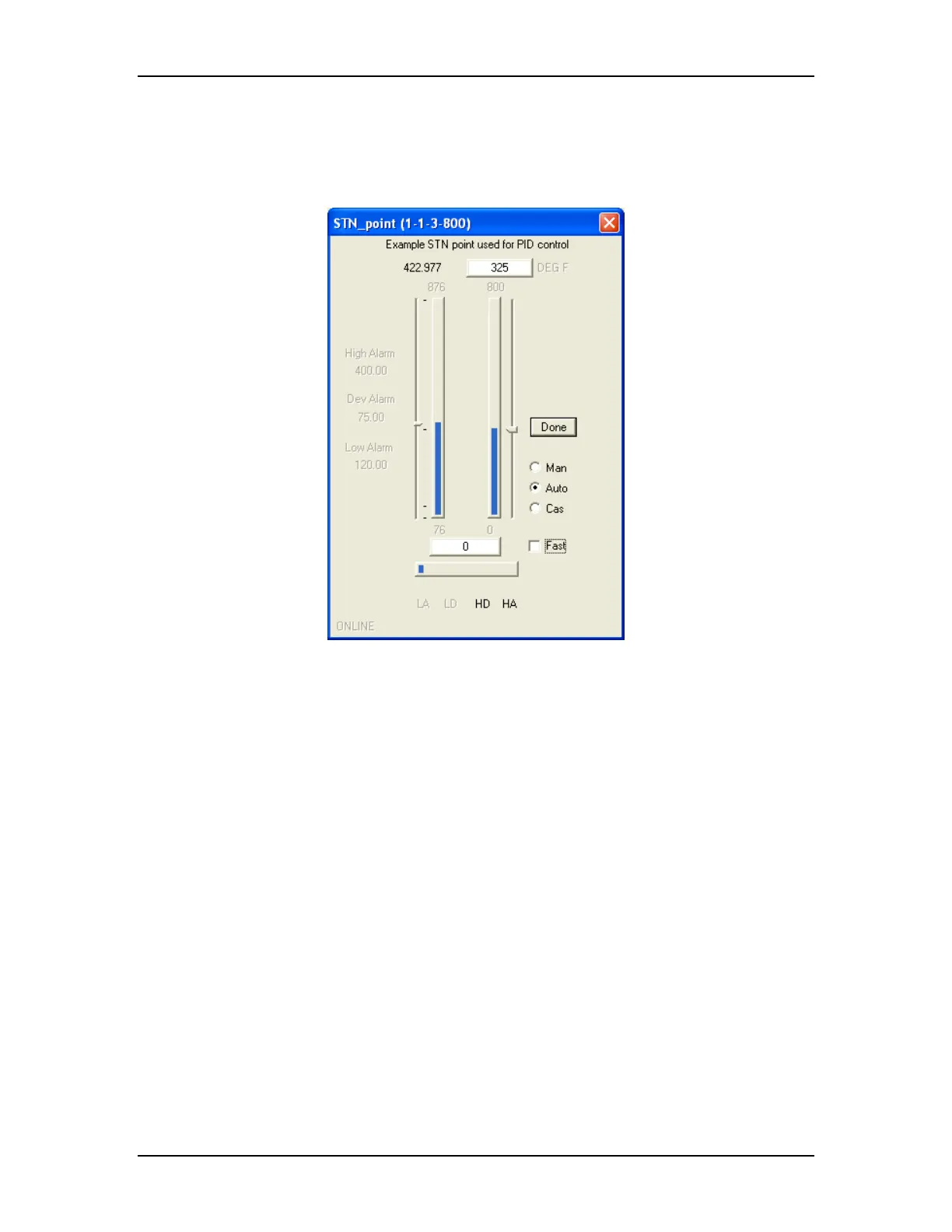
faceplate. A faceplate dialog will be displayed that corresponds to the block type
selected. The following example faceplate corresponds to the STN block type.
All faceplates have a title which will be the block name followed by the address in
ring-node-module-block format. The block description appears immediately
under the title. Along the bottom is the block operational status. The remaining
indicators and controls that appear will be specific to the block type.
Some faceplates allow numbers to be entered. These types of entries should be
pleted within a few
econds, it will revert back to the original setting. Many blocks have alarm and
.7 Help
completed by pressing the “Tab” key although the “Enter” key also works for all
blocks except the Device block. If an entry is not com
s
other operational indicators. These indicators are in the inactive state when grey
and active when black. For this example, both the high deviation and high alarm
is active.
It is important to note that all faceplates have been designed to only utilize OPC
tags available from its corresponding block type. This means the faceplates for
each block type can serve as a good example on how a faceplate might be
implemented in any given OPC client accessing the block data.
5
The following picture shows the available Help menu items:
The RoviSys Company Version 7.0 Page 33



 To Next Page