OPC90 Server
Setup of DCOM on the remote PC is complete. If the OPC client cannot access
OPC90 after completing this setup, try rebooting the OPC client PC. Depending
on the types of changes made to “My Computer” DCOM settings a reboot of the
PC may be required.
9.3 Validating OPC Client Access of OPC90
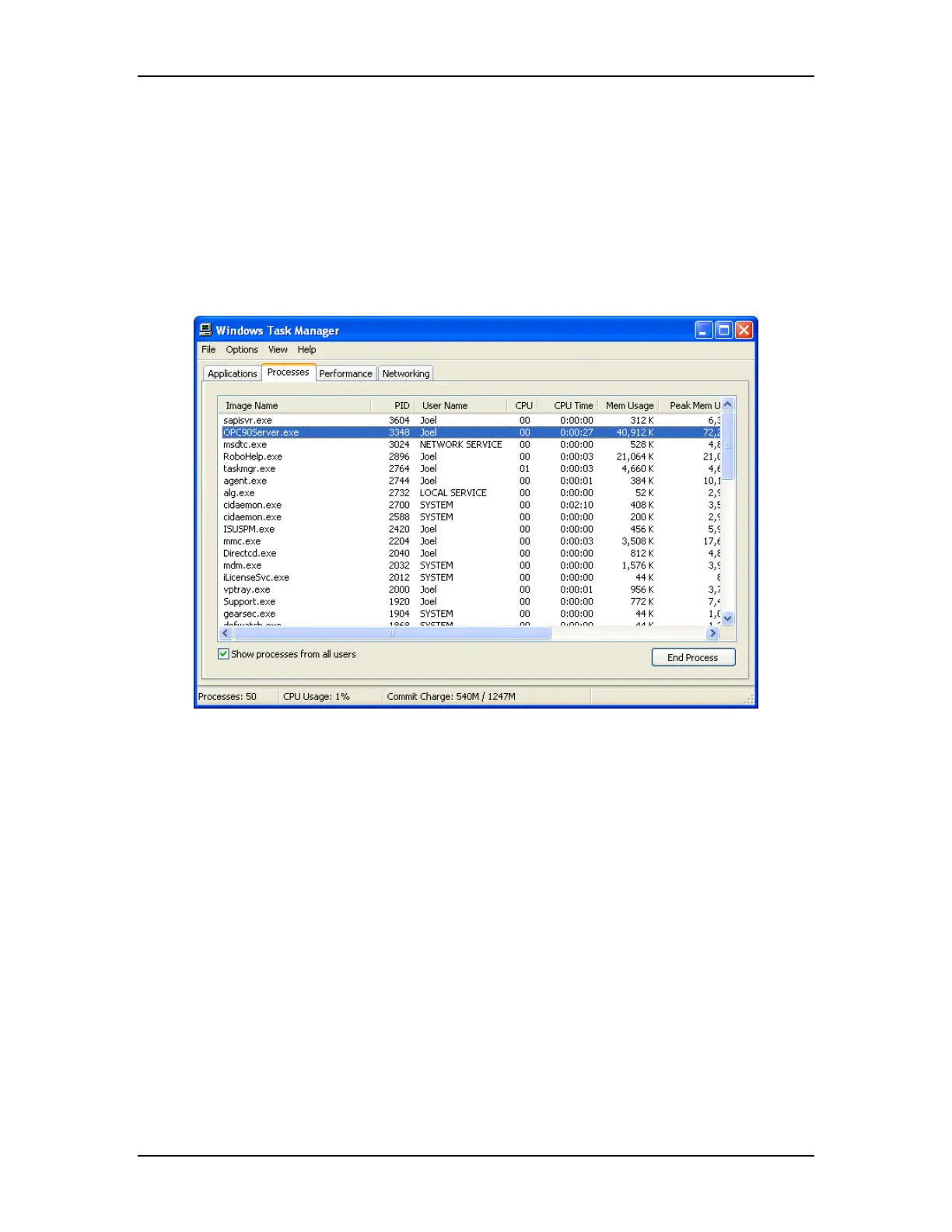
When one or more OPC clients are started and they have requested a
connection with OPC90, a single instance of the program can be observed using
the Processes tab of Windows Task Manager shown by the following dialog.
If OPC90 has been configured to run as a service, a single instance of the
program should be observed prior to running any OPC client.
If multiple instances of OPC90 are found running after two or more OPC clients
have been started (and OPC90 has not been manually run), this is an indication
of a DCOM setup error. This condition must be corrected before OPC90 can be
properly utilized to serve its data to more then one OPC client. Failure to do so
will result in only the first OPC client to run receiving data from OPC90.
Manually running OPC90 after it has been started as a service or by an OPC
client connection will result in a second instance of the program to be observed in
Windows Task Manager. This is by design and not an indication of an error
condition. Under this condition a progress dialog will be briefly displayed when it
is first started, reporting that it is attaching itself to the first instance. Afterwards
the second instance becomes a user interface to the first instance.
Warning, manually running OPC90 should not be attempted until after all the
OPC clients have been started. Failure to heed this warning could result in an
The RoviSys Company Version 7.0 Page 133



 To Next Page