OPC90 Server
selected to run OPC90 on the local PC must be duplicated on the remote PC and
the OPC clients on the remote run under that same account.
If Windows XP / 2003 Server is being utilized with Service Pack 2 or later and the
Windows firewall is enabled, OPC90 and the OPC clients must be added to the
list of firewall exceptions for each PC running OPC90 or the OPC client. Also a
port named DCOM with port number 135 associated with TCP must be added to
the local and remote PCs. This is setup by running ControlPanel | Windows
Firewall. For additional information consult the document entitled “OPC With
DCOM With XP SP2.PDF”. This document has been installed in the C:\Program
Files\OPC90 Server directory.
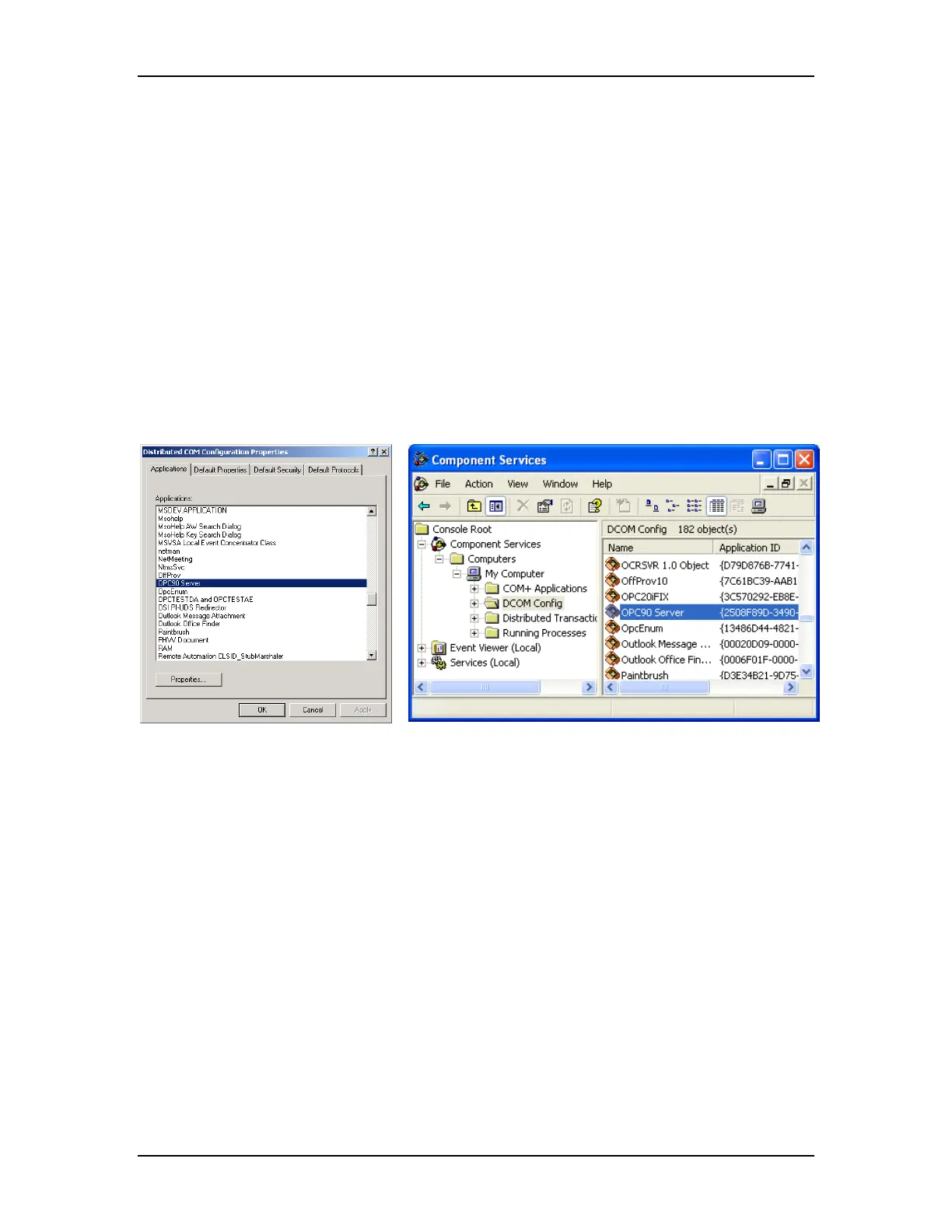
To run DCOMCNFG select “Start | Run” and type in DCOMCNFG (or start it from
the OPC90 Utilities menu selection). Based on the Windows operating system
being used, one of the two following program windows will be displayed.
Select “OPC90 Server” which can be found under the Application tab list box or
under “Components | Computers | My Computer | DCOM Config”. Click on the
properties button (or right click on “OPC90 Server” and select properties) and
one of the two following dialogs will appear.
The RoviSys Company Version 7.0 Page 126



 To Next Page