RUKO-U11 PRO-XXXXXX
Step 3: Connect the Wi-Fi and APP
Copyright ©2021 Ruko All Rights Reserved.
25
U11Pro User Manual
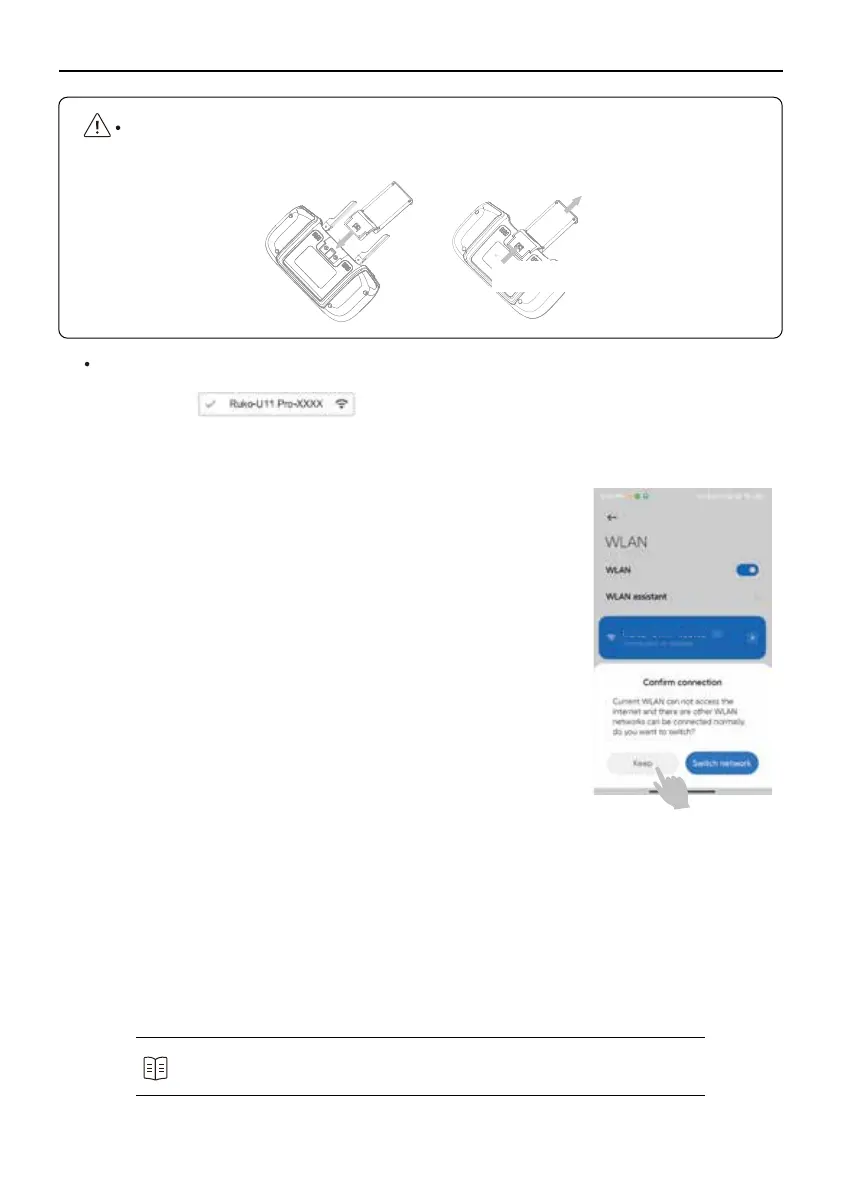
Installing/Removing Phone Holder
Wi-Fi Connect
Installing Removing
①
②
Pull the phone clip
on the back of the controller.
Push it to
the end.
②
Press to unlock the lock
Pull up the clip on the
mobile phone
①
②
Refer to the APP section of User Manual for more information about
Flight Setting and Beginner Mode.
The required Operating System of the phone must be iOS 9.0 or later/ Android 5.0 or later.
This drone will be compatible with the phones which’s WLAN function is dual-band Wi-Fi
(2.4GHz and 5.8 GHz).
For iOS system:
Connect the Wi-Fi “Ruko-U11Pro-XXXXXX” with your phone.
For Android system:
①
After connecting with the drone’s Wi-Fi “RUKO-U11Pro-XXXXXX”
please wait for about 10-30 seconds.
②
Note if there is any option popping up about internet settings,
Please keep connected, otherwise, there is no picture after entering
APP.
③
If still without a Wi-Fi connection, please turn on your phone's
airplane mode for a few seconds, then turn off the airplane mode
and open the Wi-Fi list to connect it again.
*Note: Need to turn off the VPN. VPN will affect Wi-Fi connection.
App Connect
①
Check the drone's status on the App ""RUKO GPS"".
②
Tap “Go Flying", then set the flight parameter what you want on App, such as Max Distance,
Max Altitude and Return Altitude.


 To Next Page