USER MANUAL V4.0 | Updated Jan 06, 2021 47
TEXT: Insert Text into template.
DATETIME: Insert Date time into template.
DATA FIELDS (F1, F2, F3): Select field. This value is match with the Column in database file.
Row: Set the first row of database to print.
Text: Change content of Text object above.
Datetime format: Set format of Date time object above.
Click OK to apply.
1.9. Add Barcode object
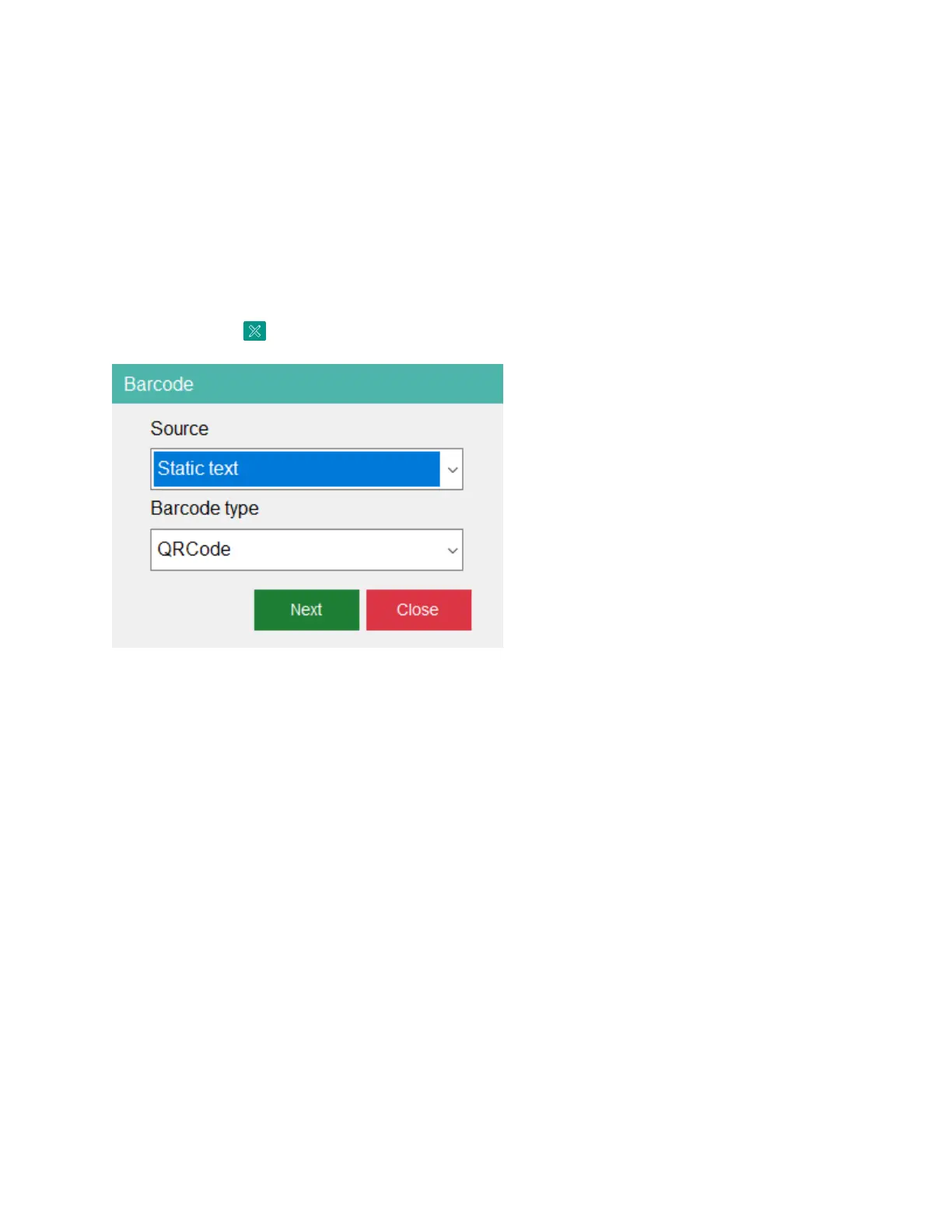
Click on button and then select Barcode button to open the barcode form.
1.9.1. Source
Support some fields as Static text, Counter, Datetime, Database, POD and Shift Code.
1.9.2. Barcode type
Select barcode type. It is including 1D and 2D barcode type such as CODE 11, CODE 2OF5
STANDARD, CODE 2OF5 INTERLEAVED, CODE 2OF5 IATA, CODE 2OF5 MATRIX, CODE 2OF5
DATA LOGIC, CODE 2OF5 INDUSTRY, EAN8, EAN13, UPC12, UPCA, UPCE, CODE 39, CODE 39
EXTENDED, EAN UCC128, CODABAR 2, CODE 128, GS1 DATABAR EXPANDED, GS1 DATAMATRIX,
UCC128, QRCODE, DATAMATRIX, GS1 DATABAR EXPANDED STACKED, GS1 128, QRCODE 2005
…
Click Next to setting Barcode value and then Press OK to insert barcode to template.
1.9.3. Barcode Properties
Double click on the barcode and then the Barcode Properties windows will appear.
Depending on the barcode type, you can adjust different properties: Barcode type,
Module width, Bar width reduction, optimize barcode, quite zone unit, left margin, right
margin, top margin, bottom margin, must fit, escape sequences.


 To Next Page