Revised 5/19/2010 3.13
DATE and TIME Setup
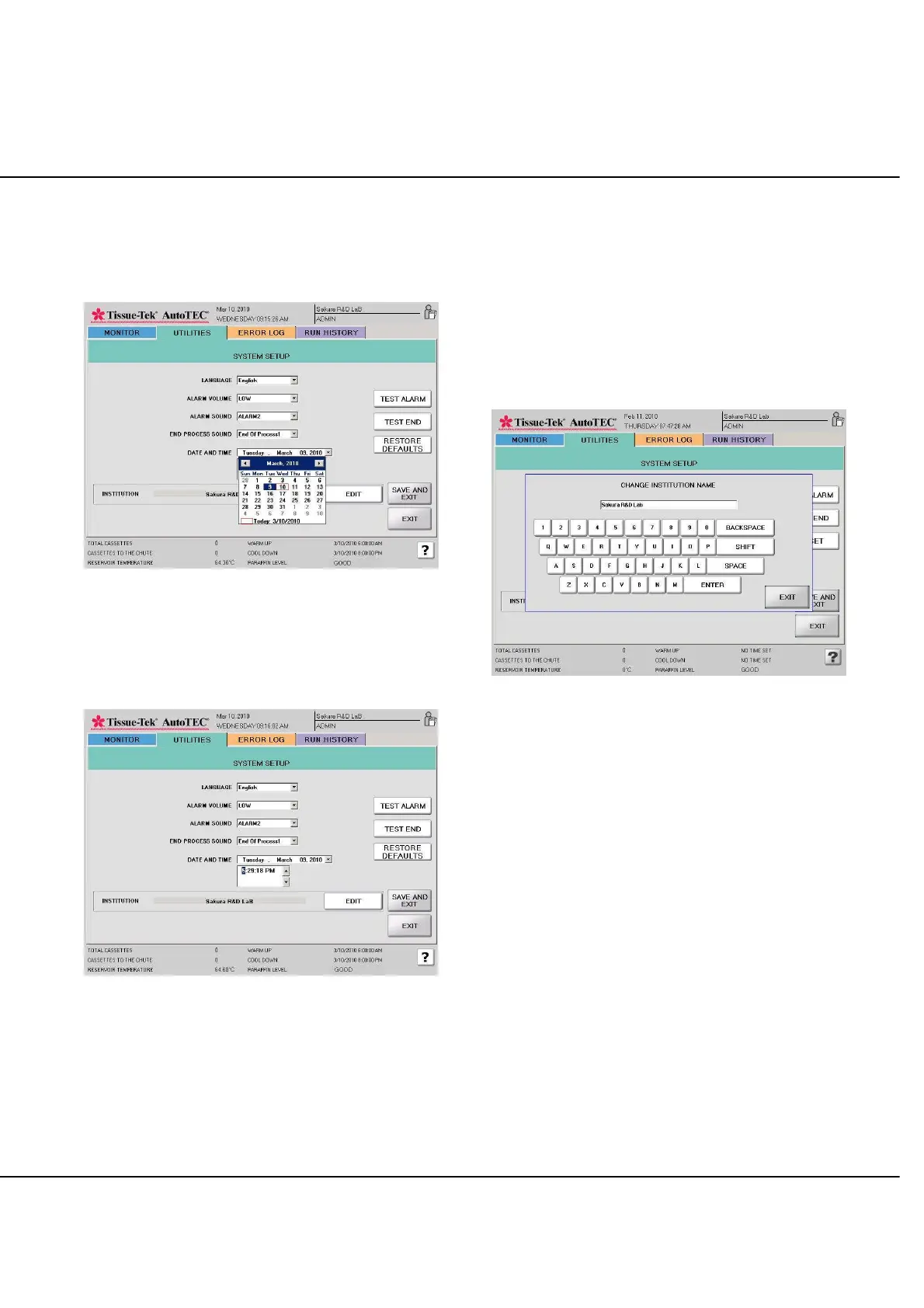
For current DATE setting, select the DATE down arrow to
activate the calendar screen. Select the correct date
(Figure 3-Y).
Figure 3-Y: System Setup screen, Date
For current TIME setting, highlight one of the three time
fields for Hours, Minutes, and Seconds, use the UP or
DOWN arrow to increment or decrement the highlighted
selection (Figure 3-Z).
Figure 3-Z: System Setup screen, Time
Select SAVE AND EXIT to save the changes. Select
EXIT to abort the changes.
NOTE: Time can only be changed, when AutoTEC is
idling and there is no timer running, such as the 4 Hr.
warming up timer.
INSTITUTION Setup
Select EDIT to bring up CHANGE INSTITUTION NAME
keyboard (Figure 3-AA). Use BACKSPACE to clear
current entry. Use keypads to enter new name. Use
SHIFT to change letter fonts. Select to ENTER to confirm
and save current changes.
The new institution name will be updated immediately and
can be seen at the upper right corner of the LCD display.
Select EXIT to return to UTILITIES screen.
Figure 3-AA: System Setup, Keyboard



 To Next Page