CUSTOMIZATION OF SETTINGS
3.14 Revised 5/19/2010
User Accounts
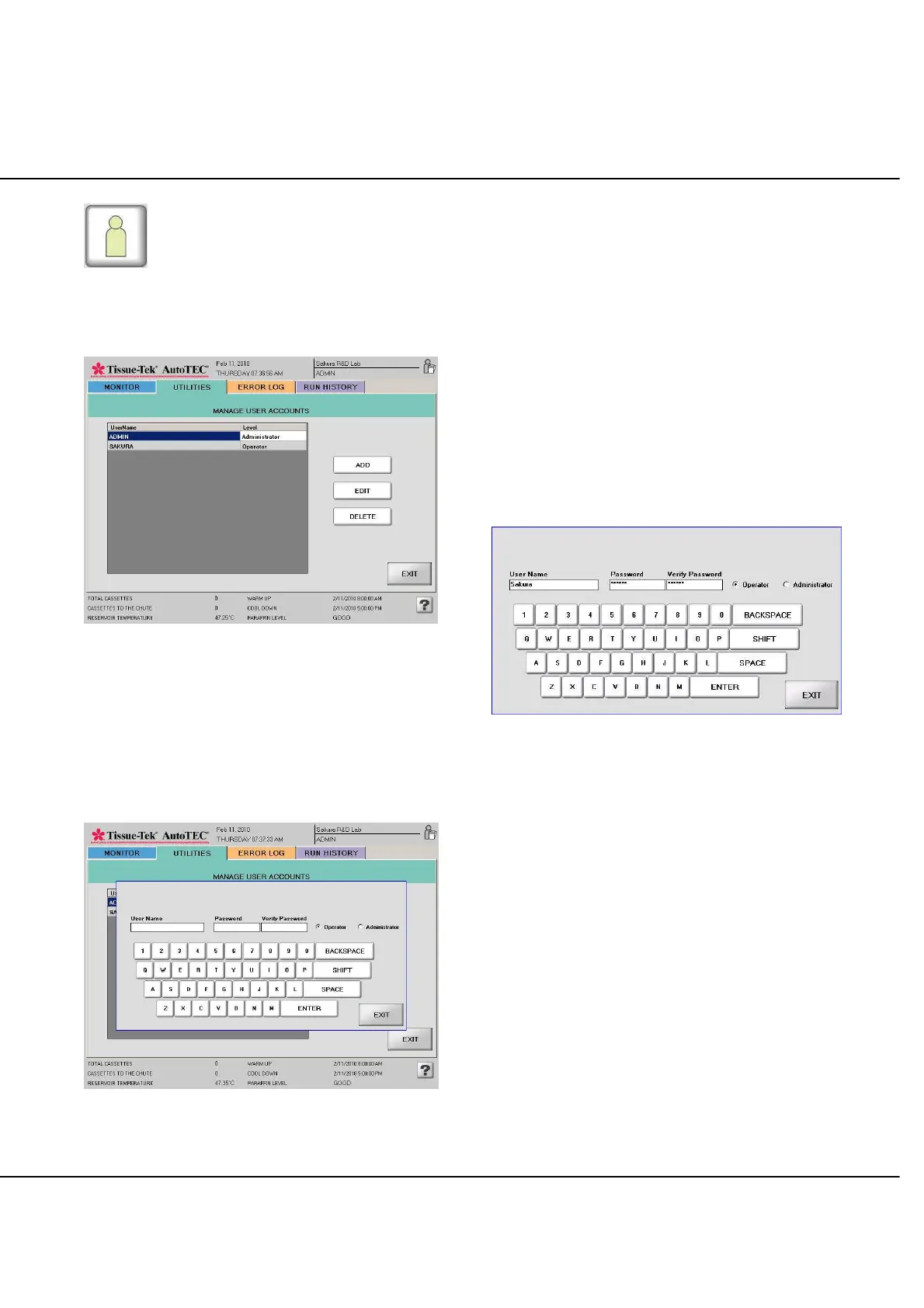
From the Utilities screen (Figure 3-BB), touch the USER
ACCOUNTS icon to bring up MANAGE USER
ACCOUNTS screen. A total of up to 13 Administrators
and 42 Operators can be set up.
Figure 3-BB: Utilities screen
Select ADD to add a new user. Use the keyboard display
to type in the information for the new user (Figure 3-CC).
Highlight a user from the UserName list then select the
EDIT to edit an existing user. Highlight a user from the
UserName list then select the DELETE to delete an
existing user.
Figure 3-CC: Add a new user
NOTE: Passwords and user names can only have a
maximum of 8 characters.
NOTE: Administrators may change or delete passwords
and user names but passwords are never displayed. If an
operator forgets their password, it can be reset.
Touch the User Name, Password, Verify Password
fields and use the display keyboard to type a name and
passwords (Figure 3-DD).
NOTE: The user name and passwords are not case
sensitive.
NOTE: Each entered password letter is displayed as “ * ”.
NOTE: Entries are not saved until ENTER is selected
from the Passwords screen.
Figure 3-DD: User Name and Password Entry screen
Exporting Data
The system allows sending reports and files to a flash
drive. The connection ports location can be seen in figure
1-B, location 8. If a flash drive is connected in the USB port
the data will be transferred to that drive.



 To Next Page