30
ENG
If no signal is being received or the signal is very weak, a blue
screen automatically replaces the noisy picture background.
If you wish to continue viewing the poor picture, you must set the
“Blue screen” mode to “Off”.
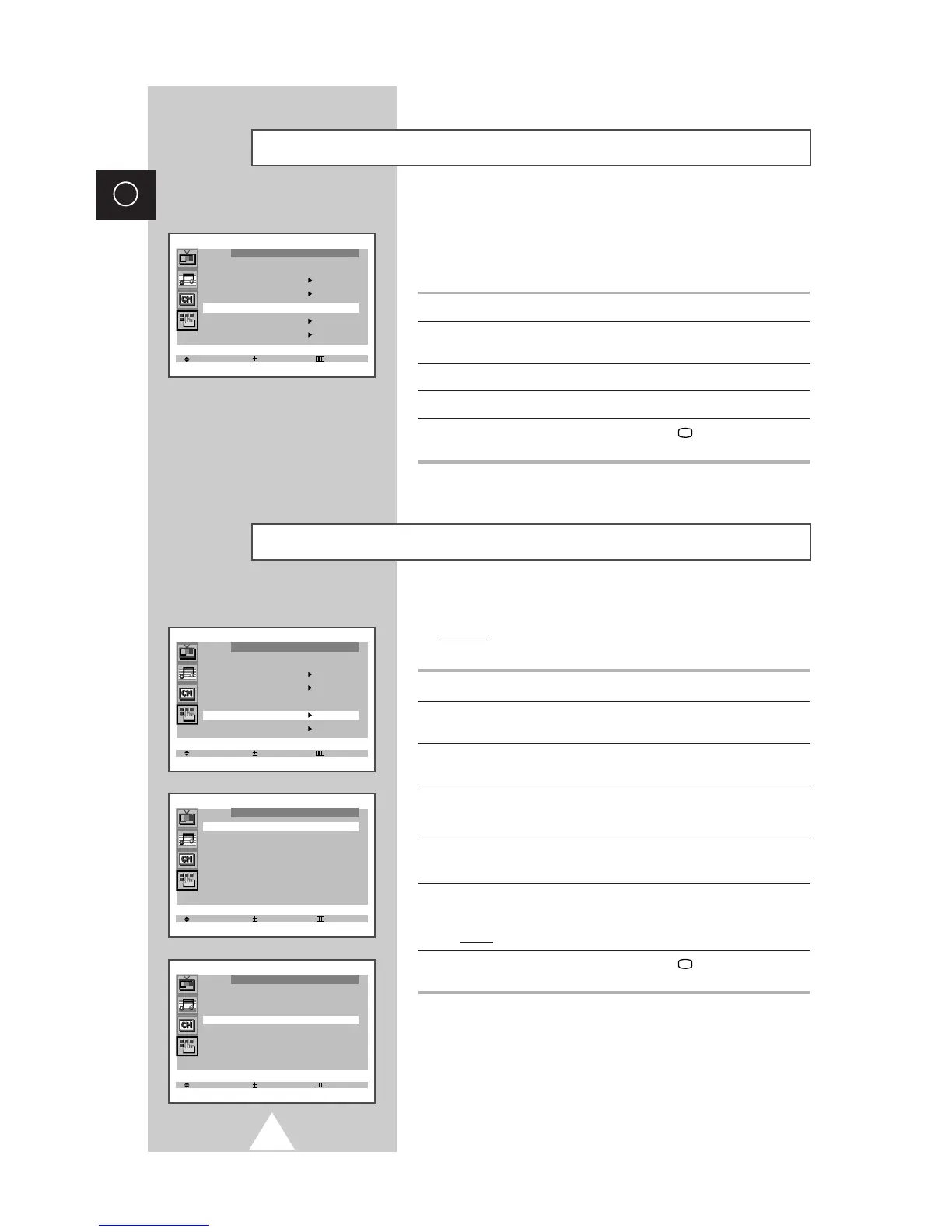
1 Press the MENU button.
2 Press the ▲ or ▼ button to select the “Function” and press the
-
or
+ button.
3 Press the ▲ or ▼ button to select the “Blue screen”.
4 Press the
-
or + button to select the required option (On/Off).
5 When you have finished, press the TV button, or press the
MENU button repeatedly to return to normal viewing.
Setting the Blue Screen Mode
You can restrict viewing by locking the channels of your choice.
Example
: You can prevent your children from watching
unsuitable programmes.
1 Press the MENU button.
2 Press the ▲ or ▼ button to select the “Function” and press the
-
or
+ button.
3 Press the ▲ or ▼ button to select the “Childlock” and press the
-
or + button.
4 Set to “On” by pressing the
-
or + button.
➣
If you want to unlock a channel, set to “Off”.
5 Press the ▲ or ▼ button to select the “Prog.No.”. Select the
number of the channel to be locked by pressing the
-
or + button.
6 Press the ▲ or ▼ button to select the “Lock” and press the
-
or +
button.
Result
: “Locked” is displayed.
7 When you have finished, press the TV button, or press the
MENU button repeatedly to return to normal viewing.
➣
If any channel is locked, you cannot enter the “Channel”
menu (the message “Not available” is displayed).
Activating the Childlock



 To Next Page