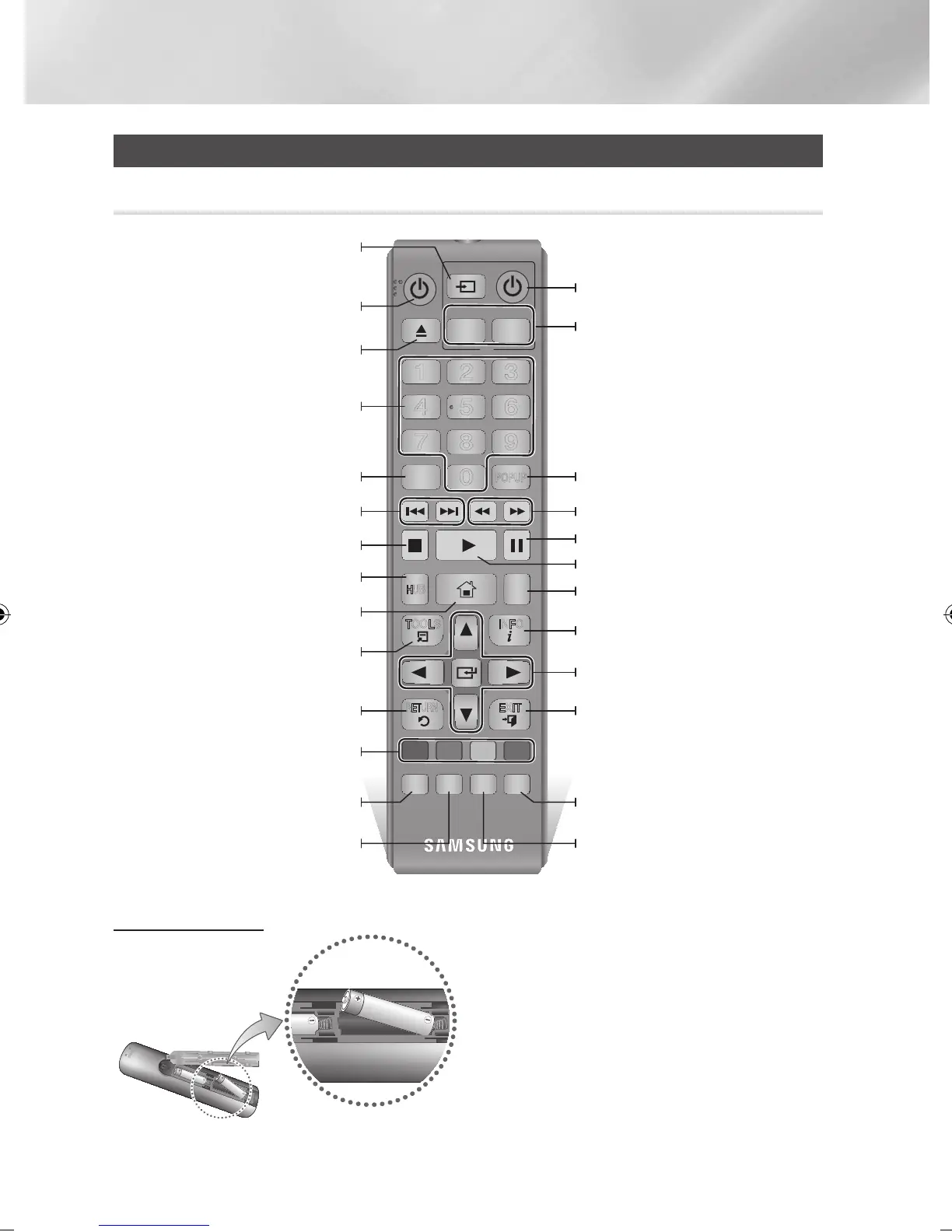
Remote Control
Tour of the Remote Control
Installing batteries
| NOTE |
\
If the remote does not operate properly:
- Check the polarity +/– of the batteries.
- Check if the batteries are drained.
- Check if the remote sensor is blocked by obstacles.
- Check if there is any fluorescent lighting nearby.
| CAUTION |
\
Dispose of batteries according to local environmental
regulations. Do not put them in the household trash.
PANDORA
DIGITAL
SUBTITLE
INPUT
PANDORA
DIGITAL
SUBTITLE
INPUT
1
4
7
VOL+
2
8
0
VOL–
3
6
9
SOURCE
DISC MENU TITLE MENU
VOL VOL
POPUP
A B C D
SUBTITLE HDMI IN
TV
– +
INFOTOOLS
RETURN
EXIT
BONUS
5
AUDIO
VIEW
HOME
HOME REPEATSMART
HUB
Press to eject a disc.
After setup, allows you to set the input
source on your TV.
Turn the player on and off.
Return to the previous menu.
These buttons are used both for menus
on the player and also several Blu-ray Disc
functions.
Press numeric buttons to operate options.
Use to enter the disc menu.
Press to skip backwards or forwards.
Press to search backwards or forwards.
Use to access various audio functions on a
disc.
Press to use Smart Hub.
Press to stop a disc.
Press to move to the home menu.
Turn the TV on and off.
TV volume adjustment.
Press to pause a disc.
Press to play a disc.
Press to switch the Blu-ray Disc/DVD's
subtitle language.
Press to use the Tools menu.
Use to display the playback information.
Use to select menu items and change
menu values.
Press to exit the menu.
Use to enter the Popup menu/Title menu.
Press to use repeat function.
Press to use bonusview function. Press to change HDMI input signal.
|
14 English
02229K-BD-E6500-ZK-ENG.indd 14 2012-05-02 오후 6:03:09



 To Next Page