HDMI Input
If you have connected an external device to
HDMI IN 1 or HDMI IN 2, you can use the HDMI
OUTPUT function to select the HDMI source to
activate.
1. Select HDMI Input on the Home screen, and
then press the
v
button.
2. Select HDMI IN 1 or HDMI IN 2, and then
press the
v
button.
| NOTE |
\
If Pass Through HDMI IN 1 is enabled, you can view the
output from the source on your TV without turning on the
player. (See page 24)
\
The HDMI 1 and HDMI 2 inputs do not support the
Anynet+ (HDMI-CEC) function.
\
Even if you have selected HDMI IN 1 or HDMI IN 2 as the
input source, when you restart the player, it automatically
resets the input selection to the default. To select an
HDMI source again, turn on the connected device and use
the HDMI Input function to re-select the HDMI source.
\
The HDMI input selection is displayed on the front panel
display.
\
Do not connect the player's HDMI output to the HDMI
input terminal directly.
Accessing the Settings Screen
1. Select Settings on the Home screen, and
then press
v
button. The Settings screen
appears.
2. To access the menus, sub-menus, and
options on the Settings screen, please refer
to the remote control illustration below.
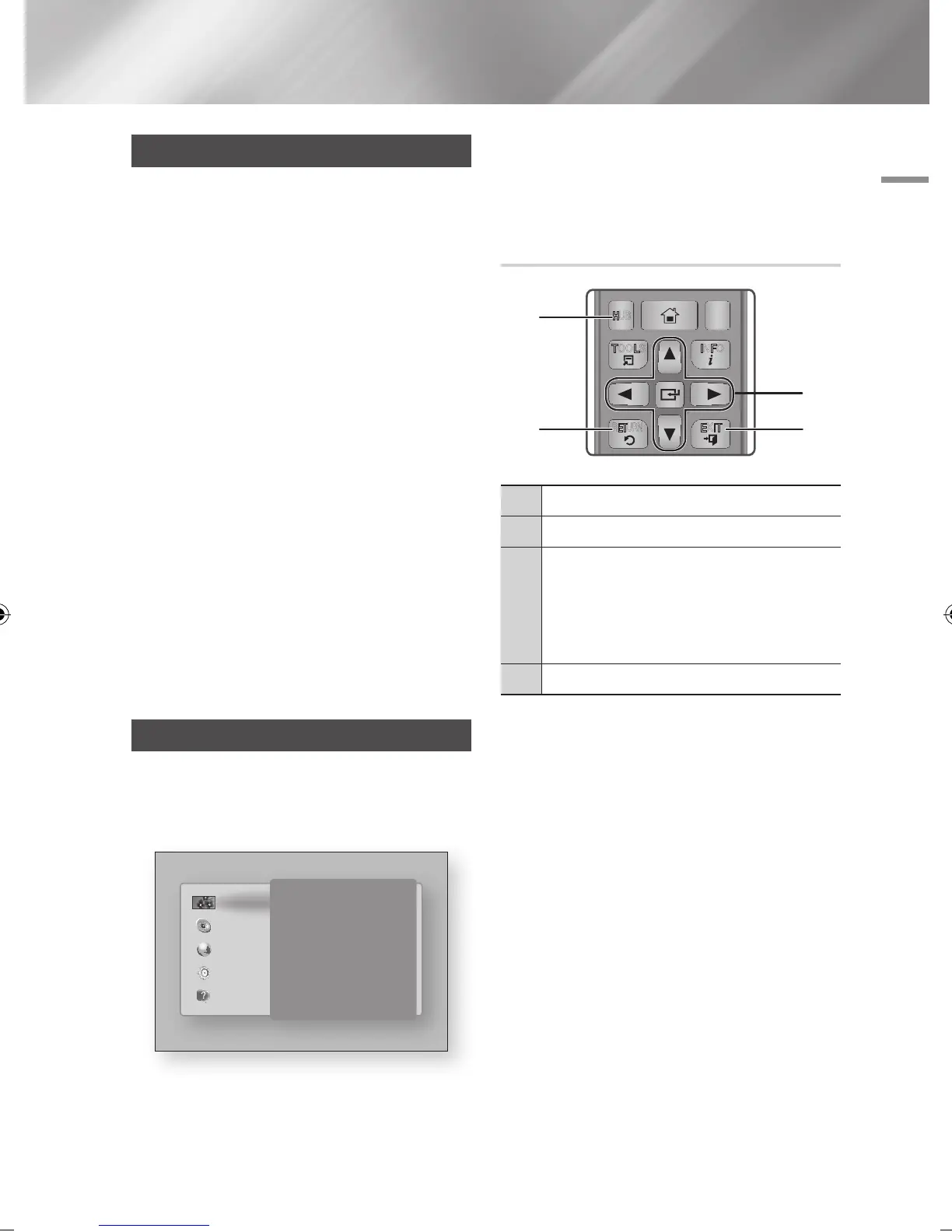
Buttons on the Remote Control Used
for the Settings Menu
1
HOME Button : Press to move to the Home screen.
2
RETURN Button : Return to the previous menu.
3
v
(Enter) / DIRECTION Buttons :
• Press ▲▼◄► to move the cursor or select an
item.
• Press the
v
button to activate the currently
selected item or confirm a setting.
4
EXIT Button : Press to exit the current menu.
Detailed Function Information
Each Settings function, menu item, and individual
option is explained in detail on-screen. To view an
explanation, use the ▲▼◄► buttons to select the
function, menu item, or option. The explanation
will usually appear on the right side of the screen.
A short description of each Settings function
starts on the next page. Additional information on
some of the functions is also in the Appendix of
this manual.
Display
3D Settings
TV Aspect Ratio 16:9 Original
Smart Hub Screen Size Size 3
BD Wise On
Resolution Auto
Movie Frame (24Fs) Auto
HDMI Colour Format Auto
HDMI Deep Colour Auto
Progressive Mode Auto
Audio
Network
System
Support
PANDORA
DIGITAL
SUBTITLE
INPUT
PANDORA
DIGITAL
SUBTITLE
INPUT
1
4
7
VOL+
2
8
0
VOL–
3
6
9
SOURCE
DISC MENU TITLE MENU
VOL VOL
POPUP
A B C D
SUBTITLE HDMI IN
TV
– +
INFOTOOLS
RETURN
EXIT
BONUS
5
AUDIO
VIEW
HOME
HOME REPEATSMART
HUB
1
2 4
3
English 21
|
02229K-BD-E6500-ZK-ENG.indd 21 2012-05-02 오후 6:03:13



 To Next Page