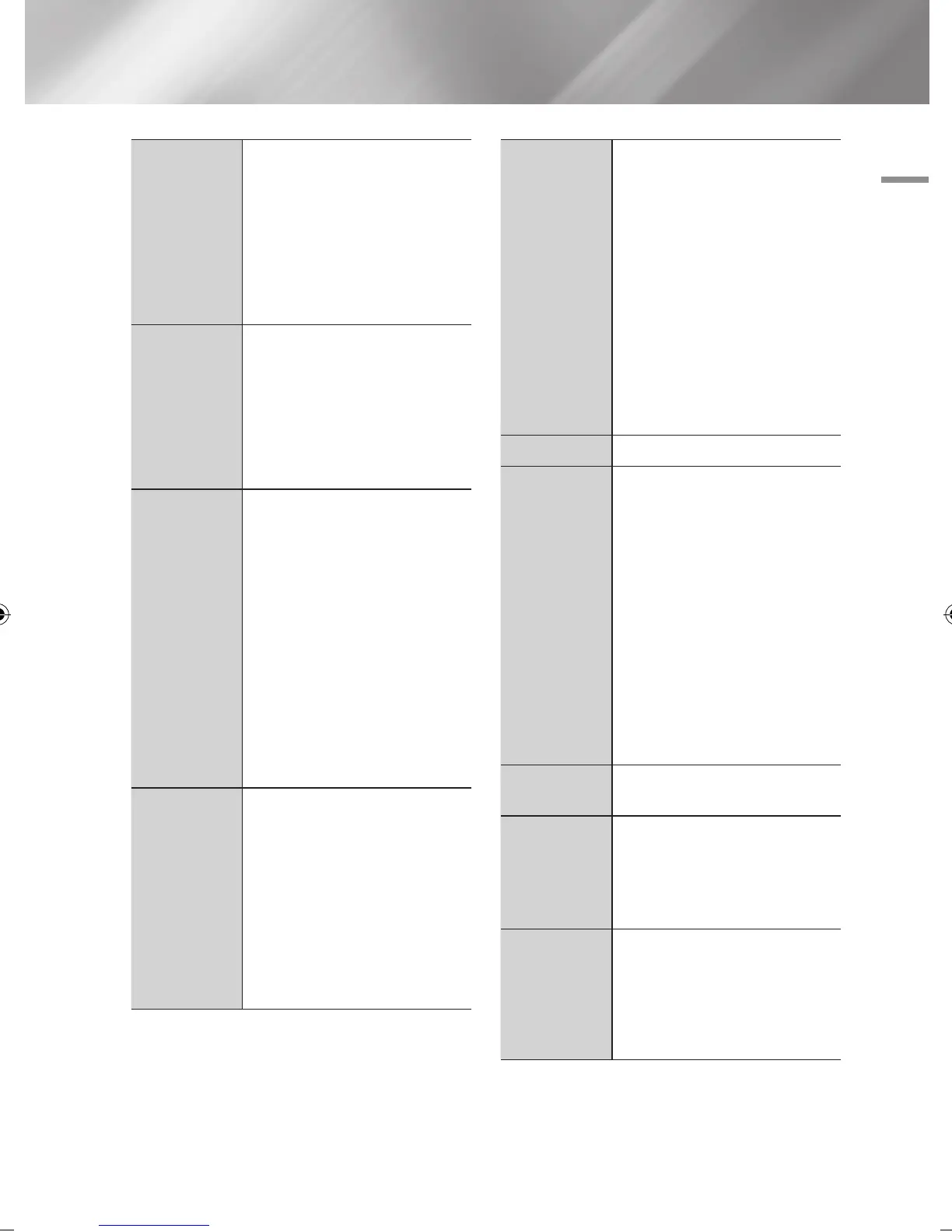
Title Search
If there is more than one movie on the
disc or device, select to start a different
title.
1. Select Title Search, and then press
the
v
button.
2. Use the ▲▼ buttons to select
a title, and then press the
v
button.
Chapter Search
Select to play the chapter of your
choice.
1. Select Chapter Search, and then
press the
v
button.
2. Use the ▲▼ buttons to select a
chapter, and then press the
v
button.
Time Search
Select to play the movie from a
selected time point.
1. Select Time Search, and then
press the
v
button.
2. Using the number buttons, enter
the time point you want to go to,
and then press the
v
button.
| NOTE |
\
You can also use the ◄► buttons
to advance or rewind the movie.
The movie advances or rewinds one
minute each tme you press the ◄
► buttons.
Repeat Mode
Select to repeat a title, chapter, or
specific section.
- Off : Select to return to normal
playback.
- Title : Choose to repeat a selected
title.
- Chapter : Choose to repeat a
specific chapter.
- Repeat A-B : Choose to repeat a
specific section.
Repeat Mode
1. Press the ▲▼ buttons to select
repeat A-B, and then press the
v
button.
2. Press the
v
button at the point
where you want repeat play to start
(A). Let the movie play.
3. Press the
v
button at the point
where you want repeat play to stop
(B).
| NOTE |
\
You must set point (B) at least 5
seconds of playing time after point
(A).
Full Screen
Select to change the full screen size.
Picture Mode
Select to set the picture mode.
- Dynamic : Increases sharpness and
brightness.
- Standard : Choose this setting for
most viewing applications.
- Movie : The best setting for
watching movies.
- User : Lets you adjust the sharpness
and noise reduction function
respectively.
| NOTE |
\
When you use the BD wise function,
this menu will not appear.
Audio
Select to set the desired audio
language.
Subtitle
Select to set the desired subtitle
language.
- You can also operate this function
by pressing the SUBTITLE button on
the remote control.
Angle
Select to view a scene from another
angle. The Angle option displays the
number of angles available to view.
When a Blu-ray Disc/DVD contains
multiple angles of a particular scene,
you can change angle.
English 39
|
02229K-BD-E6500-ZK-ENG.indd 39 2012-05-02 오후 6:03:19



 To Next Page