4
Enter one digit of the DVD code listed below for your brand of
DVD.
▼
5
Press POWER. Your DVD should turn on. If your DVD turns on,
your remote control is now “set up” correctly.
If your DVD does not turn on,
repeat steps 2, 3, and 4, but try one
of the other codes listed for your
particular brand of cable box. (If no
other codes are listed, try each DVD,
0 through 9.)
▼
6
Once your remote control is set up, press the DVD button any
time you want to use the remote to operate your DVD.
When your remote control is
in the “DVD” mode, the volume but-
tons still control your TV’s volume.
Also, the VCR control buttons (STOP,
STOP, etc.) will still operate your
VCR.
2
On your Samsung remote control, press SET.
▼
3
Press the DVD button on the top right of your remote control.
The remote control has four
“modes”: “TV,” “VCR,”, “CABLE”
and “DVD”.
Press the “DVD” button to switch
the remote control to the “DVD”
mode.
1
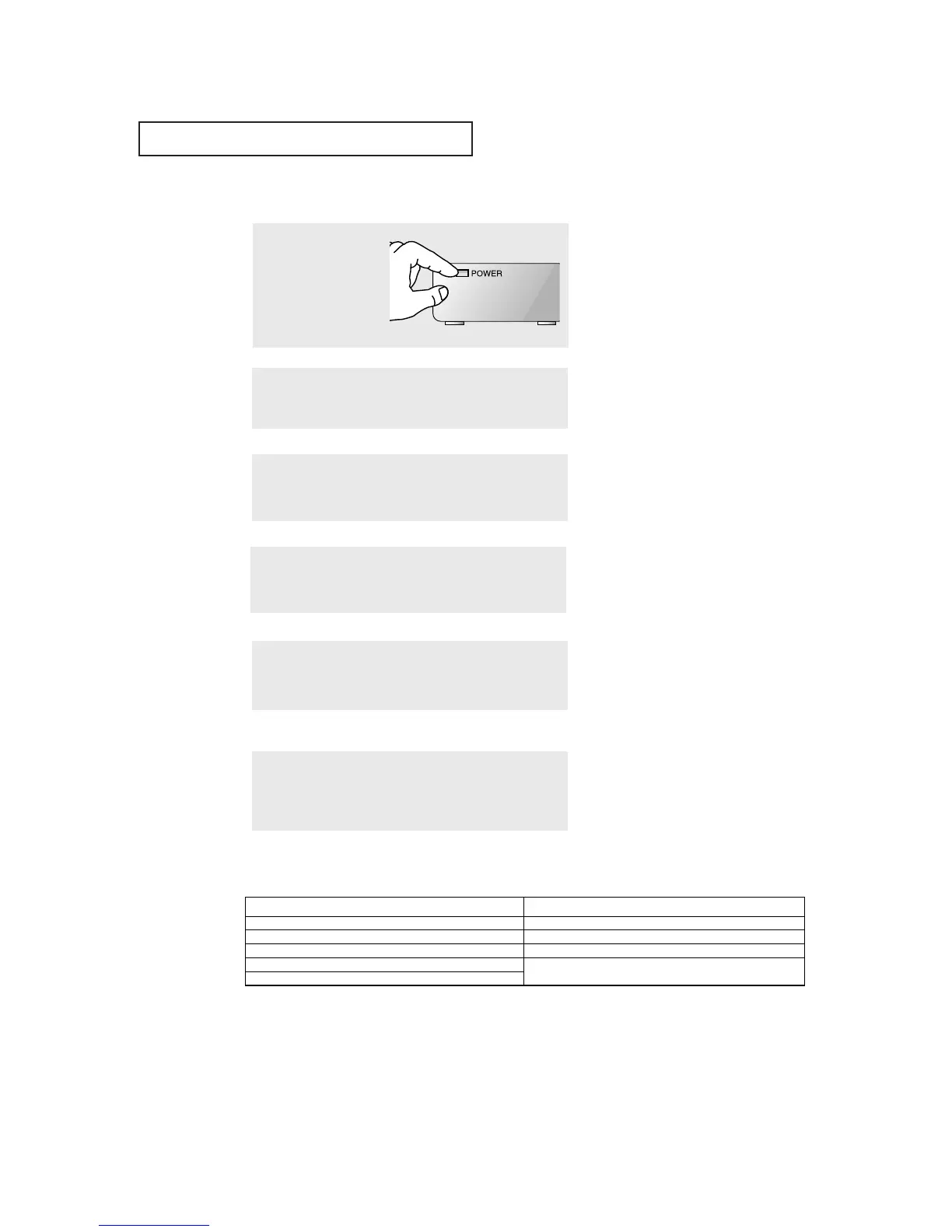
Turn off your DVD.
Setting Up Your Remote Control to Operate Your DVD
SPECIAL FEATURES





 To Next Page