CHAPTER FOUR:SPECIAL FEATURES 4.15
SPECIAL FEATURES
Viewing Picture-in-Picture
(For models CL-29A5P/29A6P/29A7P/CT-29A7PW/CL-29M6P/
CT-29M6P/CL-34M9P)
You can use the PIP feature to simultaneously to watch two video sources.
Activating Picture-in-Picture
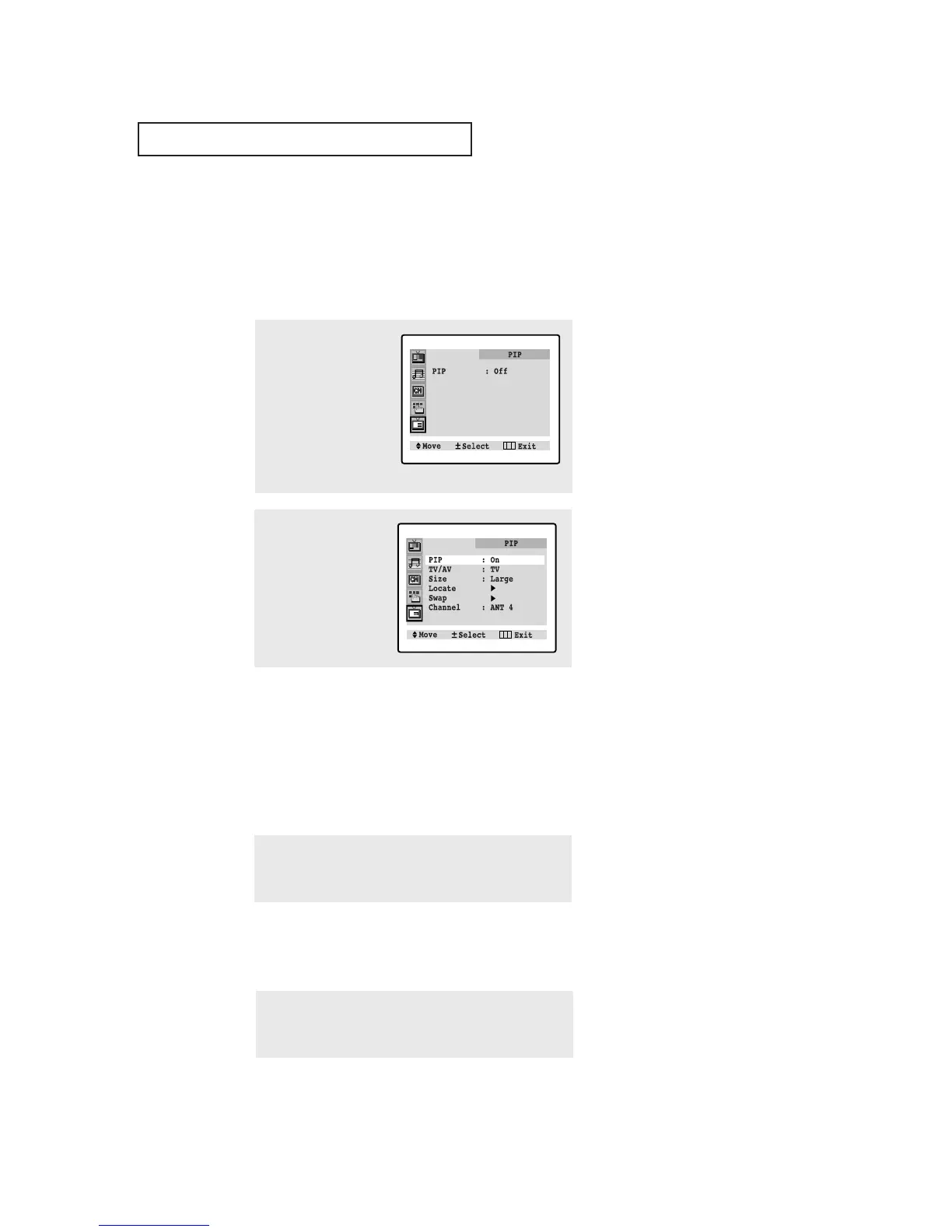
1
Press the Menu button to
display the menu.
Press the CH▼ four times
to select the PIP menu.
Press the VOL + to select
the PIP menu.
2
Press the VOL + to
select PIP “On.”
Press the Menu button
twice to exit.
▼
If you turn TV off while watching
and turn it on again, the PIP window
will disappear.
▼
Quick way to access the PIP
menu: Simply press the PIP/SIZE
button on the remote control:
Press the TV/VIDEO button repeatedly to cycle through all of
the available signal sources:
“TV,” “AV1,” “AV2,” and “S-Video.”
▼
For more information about
external A/V components and sig-
nals, see “Viewing a VCR or
Camcorder Tape” on page 3.16.
If you select “TV”, the PIP image is
the same as the main image.
Selecting a Signal Source (External A/V) for PIP
Press the PIP/SIZE button repeatedly to cycle through this
sequence: PIP ON with large window, PIP ON with small win-
dow, and PIP OFF.
Changing the Size of the PIP Window
Notes:
• The PIP feature does not work with DVD signals.
• When PIP is selected in the Zoom mode, the Mode is automatically converted into the
Normal mode.
• Only NTSC, PAL-N and PAL-M signals are displayed on the screen in PIP mode.






 To Next Page