13 - English
✎
If you want to display the Setup screen again
and make changes, select the Reset option.
(See page 17)
✎
If you use an HDMI cable to connect the
product to an Anynet+ (HDMI-CEC)-compliant
Samsung TV and 1.) You have set the Anynet+
(HDMI-CEC) feature to On in both the TV
and the product and 2.) You have set the
TV to a language supported by the product,
the product will select that language as the
preferred language automatically.
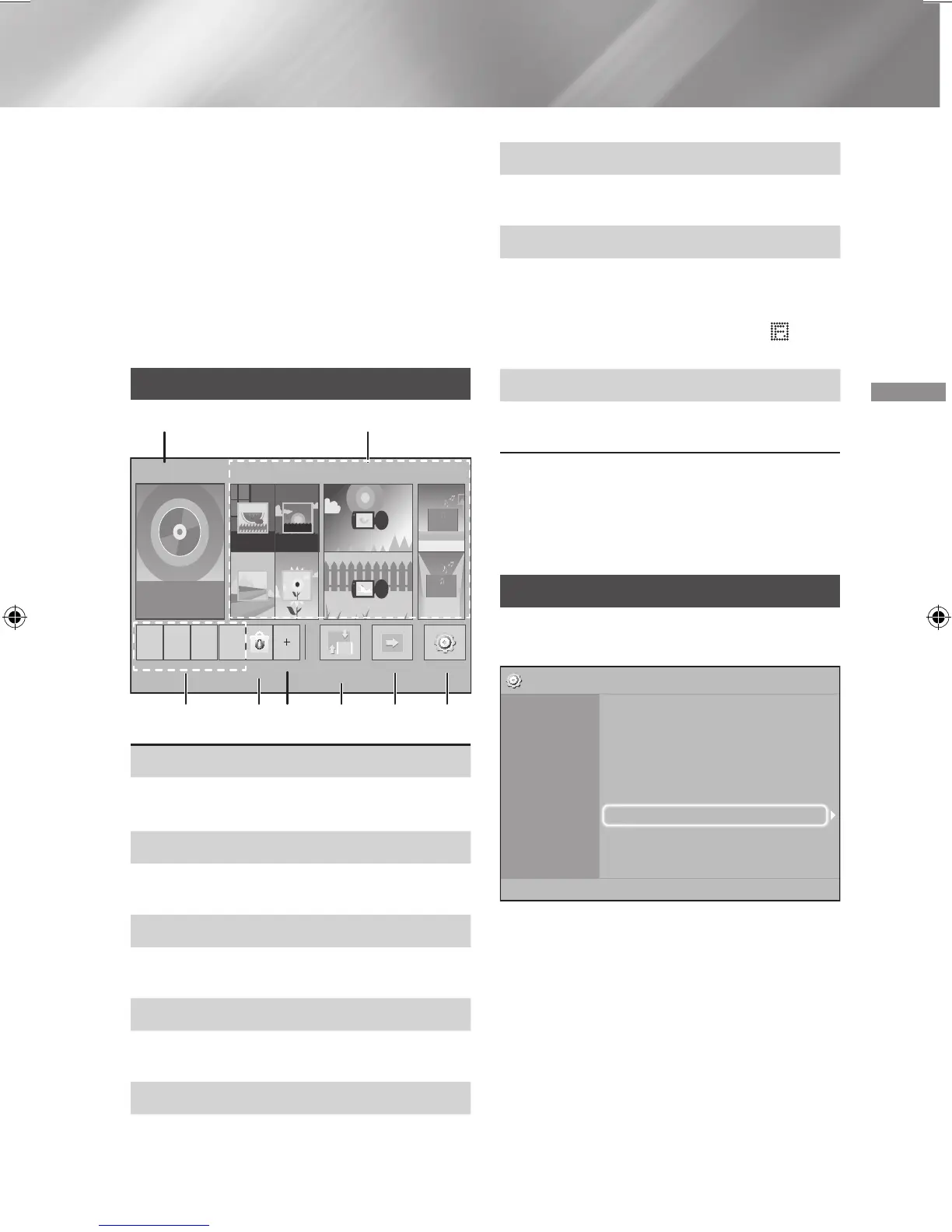
The Home Screen at a Glance
PLAY DISC
App 1 App 2 App 3 App 4
Change Device
Function
Blu-ray
Settings
PHOTOS VIDEOS
MUSIC
1
3 4 5 6 7 8
2
Opera TV
Store
More
1
PLAY DISC
The disc currently in the tray is displayed.
Press
v
to start playing the disc.
2 PHOTOS/VIDEOS/MUSIC
Play photos, videos, or music content from
Disc, USB, PC, or mobile devices.
3
Apps
Access various for pay or free-of-charge
applications.
4
Opera TV Store
Makes the Web-based App for TV available for
use.
5
More
A list of useful and popular apps we recommend.
✎
The item may be not displayed depending on
different country.
6
Change Device
Displays a list of external devices connected to
the main unit. Switch to the desired device.
7
Function
Use for switching to an external device, and
for radio and mode switching for a Bluetooth
connection. You can use the remote control’s
FUNCTION button and the main unit’s
button for mode switching.
8
Settings
Set various functions to suit your personal
preferences.
✎
To play or view video, photo, or music files
located on your PC, you must connect your
home theater and PC to a home network and
have DLNA software installed on your PC. See
page 19 and 30.
Accessing the Settings Screen
1.
Select Settings on the Home screen, and
then press
v
. The Settings screen appears.
Settings
Picture
Sound
Network
System
Language
Security
General
Support
3D Settings
TV Aspect Ratio : 16:9 Original
BD Wise : Off
Resolution : Auto
Movie Frame (24 fps) : Off
HDMI Colour Format : Auto
HDMI Deep Colour : Off
Progressive Mode : Auto
2.
To access the menus, sub-menus, and
options on the Settings screen, please refer
to the remote control illustration. (See page
14)
✎
If you leave the product in the stop mode for
more than 5 minutes without using it, a screen
saver will appears on your TV. If the product is
left in the screen saver mode for more than 20
minutes, the power automatically turns off.
HT-J4500_XU-ECO_0306.indd 13 2015/3/9 14:38:49






 To Next Page