14 - English
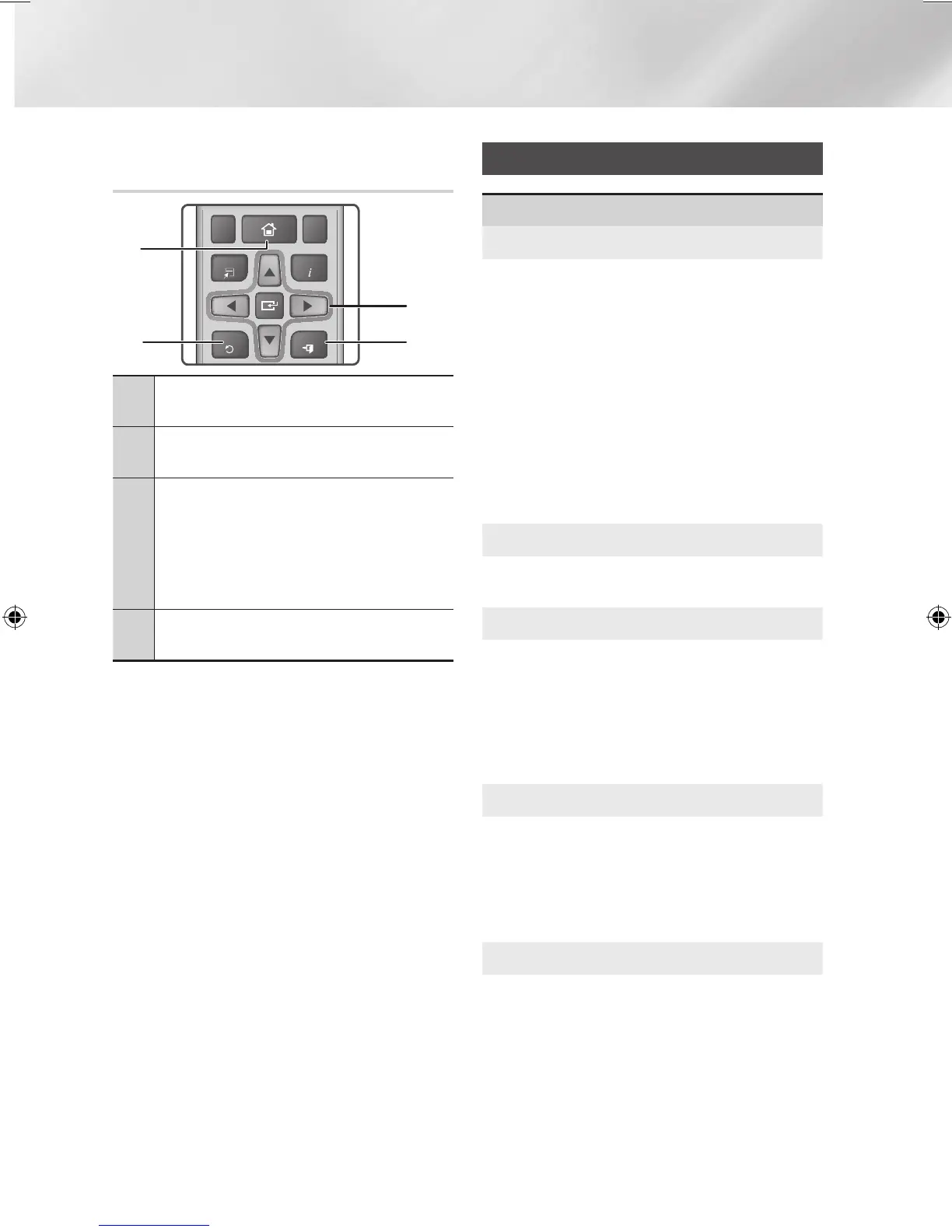
Buttons on the Remote Control Used
for the Settings Menu
1
HOME Button : Press to move to the
Home screen.
2
RETURN Button : Press to return to the
previous menu.
3
v
(ENTER) / DIRECTION Button :
•
Press
$%_+
to move the cursor or
select an item.
•
Press the
v
button to activate the
currently selected item or confirm a
setting.
4
EXIT Button : Press to exit the current
menu.
Detailed Function Information
Each Settings function, menu item, and individual
option is explained in detail on-screen. To view an
explanation, use the
$%_+
buttons to select the
function, menu item, or option. The explanation
will usually appear on the bottom of the screen.
A short description of each Settings function
starts on this page. Additional information on
some of the functions is also in the Appendix of
this manual.
Settings Menu Functions
Picture
3D Settings
Set up the 3D related functions.
3D Blu-ray Playback Mode: Select whether
to play a Blu-ray Disc with 3D contents in 3D
Mode. If you move to the Home menu while
in 3D mode, the product will switch to 2D
automatically.
Screen Size: Enter the size of the TV attached
to the product. The product will automatically
adjust the 3D output to the screen size of the
T V.
✎
Carefully read the health and safety
information before viewing 3D content. (See
page 3)
TV Aspect Ratio
Lets you adjust the output of the product to the
screen size of your TV. (See page 32)
BD Wise
BD Wise is Samsung’s latest inter-connectivity
feature. When you connect a Samsung product
and a Samsung TV with BD Wise to each other
via HDMI, and BD Wise is on in both the product
and TV, the product outputs video at the video
resolution and frame rate of the Blu-ray/DVD
Disc.
Resolution
Lets you set the output resolution of the HDMI
video signal to BD Wise, Auto, 1080p, 1080i,
720p, 576p/480p. The number indicates the
number of lines of video per frame. The i and
p indicate interlaced and progressive scan,
respectively. The more lines, the higher quality.
Movie Frame (24 fps)
Setting the Movie Frame (24 fps) feature to
Auto lets the product adjust its HDMI output
to 24 frames per second automatically for
improved picture quality if attached to a 24Fs
compatible TV.
•
You can enjoy the Movie Frame (24 fps) feature
only on a TV supporting this frame rate.
•
Movie Frame is only available when the
product is in the HDMI 1080p output
resolution modes.
TOOLS
RETURN
EXIT
INFO
SUBTITLE HOME REPEAT
1
2
3
7
8 9
DISC MENU TITLE MENU
0
POPUP
4
5 6
MUTE
MO/ST
TUNER
MEMORY
A B C D
TUNING
DOWN
UP
VOLUME
-
+
DSP/EQTV SOUND
FUNCTION
2 4
3
1
HT-J4500_XU-ECO_0306.indd 14 2015/3/9 14:38:50






 To Next Page