24 - English
Creating a Video Playlist
You can create a playlist of video files in nearly the
same way you create a playlist of music files. See
page 24 for instructions. Select video files instead
of music files.
Playing a Pre-Recorded Commercial
Audio Disc
1.
Insert an Audio CD (CD-DA) or an MP3 Disc
into the disc tray.
•
For an Audio CD (CD-DA), the first track
will be played automatically. Tracks on a
disc are played in the order in which they
were recorded on the disc.
•
For an MP3 disc, press the
_+
buttons to
select MUSIC, then press the
v
button.
2.
To play a particular track, use the
▲▼
buttons
on the remote to select the track, and then
press the
v
button.
✎
For more information about playing music, See
Controlling Music Playback below.
Controlling Music Playback
You can control the playback of music content
located on a DVD, CD, USB, mobile device, or PC.
Depending on the disc or contents, some of the
functions described in this manual may not be
available.
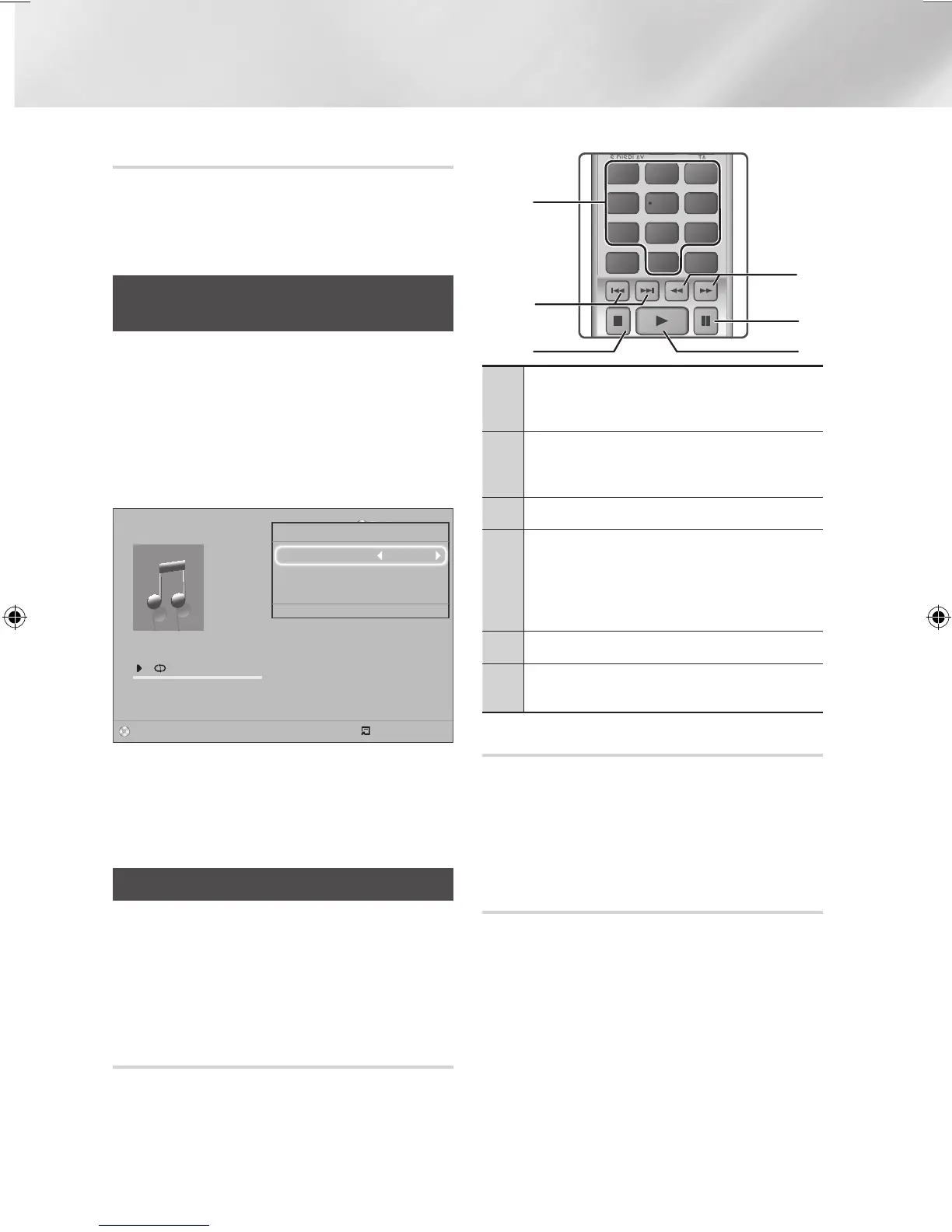
Buttons on the Remote Control used
for Music Playback
1
NUMBER buttons : During Playlist
playback, press the desired track number.
The selected track is played.
2
Skip : During playback, press the
1
or
2
button to move to the previous or
next music track.
3
5
button : Stops a track.
4
Fast Play (Audio CD [CD-DA] only) :
During playback, press the
3
or
4
button.
Each time you press the
3
or
4
button,
the playback speed will change.
5
7
button : Pauses a track.
6
6
button : Plays the currently selected
track.
Repeating Tracks
You can set the product to repeat tracks.
1.
During music playback, press the TOOLS
button.
2.
Use
_+
button to select Off, Track or One,
All or Shuffle in Repeat Mode, and then
press the
v
button.
Creating a Music Playlist
1.
If playing music from a commercial CD or
DVD, press the
5
or RETURN button. The
Music List Screen appears. If you are creating
a playlist from music on a user created disk or
USB device, access the Music list as described
on page 20 or 21.
2.
Press the
▲▼
_+
buttons to move to a
desired file, and then press the YELLOW (C)
button to select it. Repeat this procedure to
select additional files.
3.
If you want to select all files, press the
TOOLS button, use the
▲▼
buttons to select
Select All, and then press
v
. If you want
to deselect all files, press the TOOLS button,
select Deselect All, and then press
v
.
TOOLS
RETURN
EXIT
INFO
SUBTITLE HOME
REPEAT
FUNCTION
1
2
3
7
8 9
DISC MENU
PTY - PTY SEARCH PTY +
TITLE MENU
0
POPUP
4
5 6
MUTE
MO/ST
TUNER
MEMORY
DSP/EQTV SOUND
A B C D
TUNING
DOWN
UP
VOLUME
-
+
1
4
6
5
3
2
0/16
00:00/00:00
Playlist
TRACK 003 04:41
TRACK 004 04:02
TRACK 005 03:43
TRACK 006 03:40
TRACK 001
CD
Tools
Repeat Mode Track
Equaliser Mode : Off
Rip
>
Move
<
Adjust
'
Return
"
Pause
c
Select
Tools
'
Return
HT-J4500_XU-ECO_0306.indd 24 2015/3/9 14:38:55






 To Next Page