21 - English
3.
A screen appears listing the contents of
the disc. Depending on how the contents
are arranged, you will see either folders,
individual files, or both.
4.
If necessary, use the
▲▼
_+
buttons to select
a folder, and then press the
v
button.
5.
Use the
▲▼
_+
buttons to select a file to
view or play, and then press the
v
button.
6.
Press the RETURN button one or more times
to exit a current screen, exit a folder, or to
return to the Home screen.
Press the EXIT button to return directly to the
Home Screen.
7.
Go to pages 22~26 for instructions that
explain how to control playback of videos,
music, and pictures on a disc.
Playing Files on a USB Device
There are two methods you can use to play or
view multimedia files located on a USB device
through your product.
Method 1 : If you connect a USB device while
the product is turned on
1.
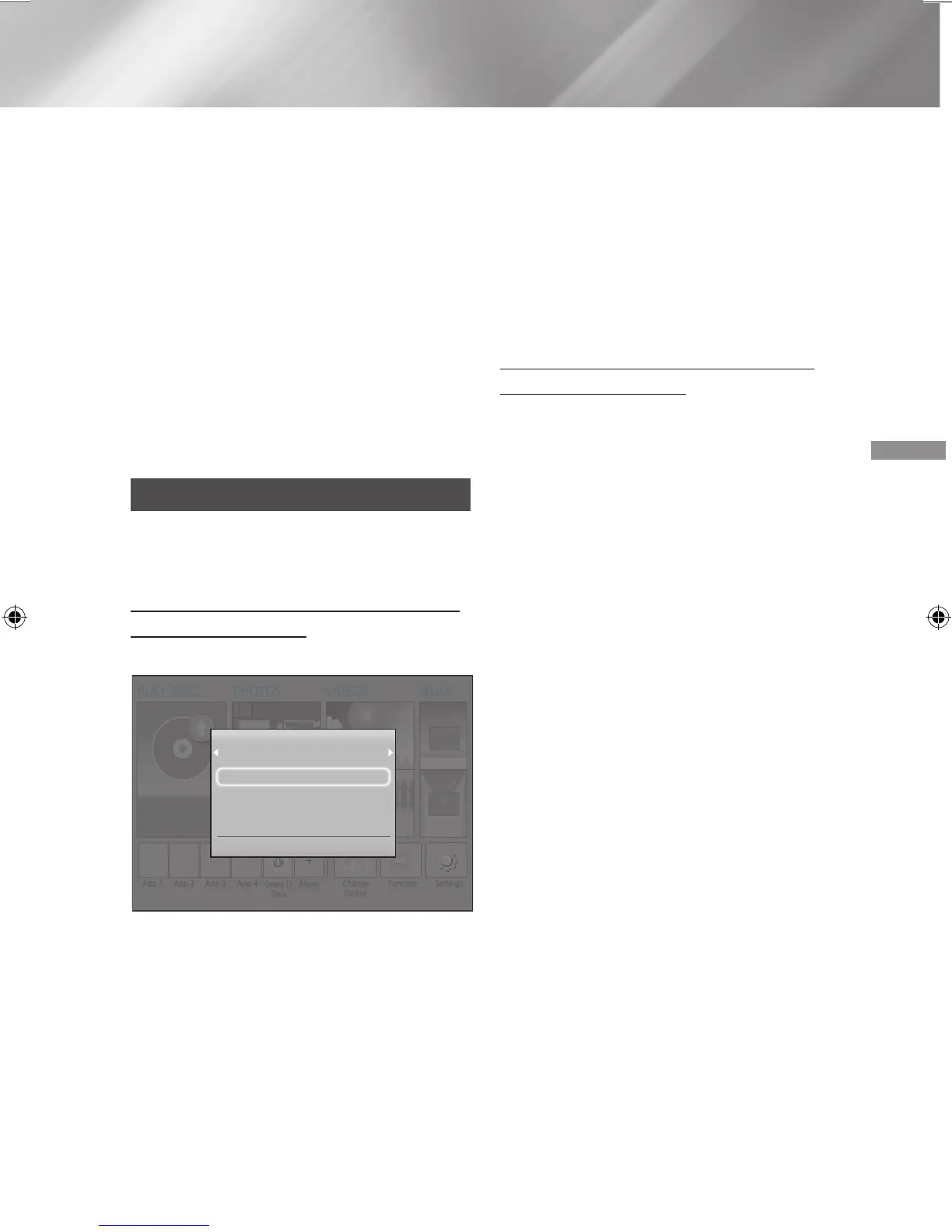
The "New device connected." pop-up
appears.
✎
If the pop-up does not appear, go to Method
2.
2.
Use the
▲▼
buttons to select Photos,
Videos, or Music and then press the
v
button. Depending on how the contents
are arranged, you will see either folders,
individual files, or both.
3.
If necessary, use the
▲▼
_+
buttons to select
a folder, and then press the
v
button.
4.
Select a file to view or play, and then press
the
v
button.
5.
Press the RETURN button to exit a folder
or the EXIT button to return to the Home
screen.
6.
Go to pages 22~26 for instructions that
explain how to control playback of videos,
music, and pictures on a USB device.
Method 2 : If the product is turned on after
you connect a USB device
1.
Turn the product on.
2.
Press Change Device and select a USB device.
3.
Use the
_+
buttons to select PHOTOS,
VIDEOS, or MUSIC on the Home screen, and
then press the
v
button.
4.
If necessary, use the
▲▼
_+
buttons to select
a folder, and then press the
v
button.
5.
Select a file to view or play, and then press
the
v
button.
6.
Press the RETURN button to exit a folder
or the EXIT button to return to the Home
screen.
7.
Go to pages 22~26 for instructions that
explain how to control playback of videos,
music, and pictures on a USB device.
✎
If you insert a disc when playing a USB device
or phone, the device mode changes to "Disc"
automatically.
✎
If your cellular phone is DLNA compatible, you
can play contents without connecting a USB
cable. (See page 30)
PLAY DISC
App 1 App 2 App 3 App 4
Change
Device
Function
No Disc
Settings
PHOTOS VIDEOS MUSIC
Opera TV
Store
More
New device connected.
STORAGE DEVICE
Photos
Videos
Music
> Move " Enter ' Return
HT-J4500_XU-ECO_0306.indd 21 2015/3/9 14:38:53






 To Next Page