73
4
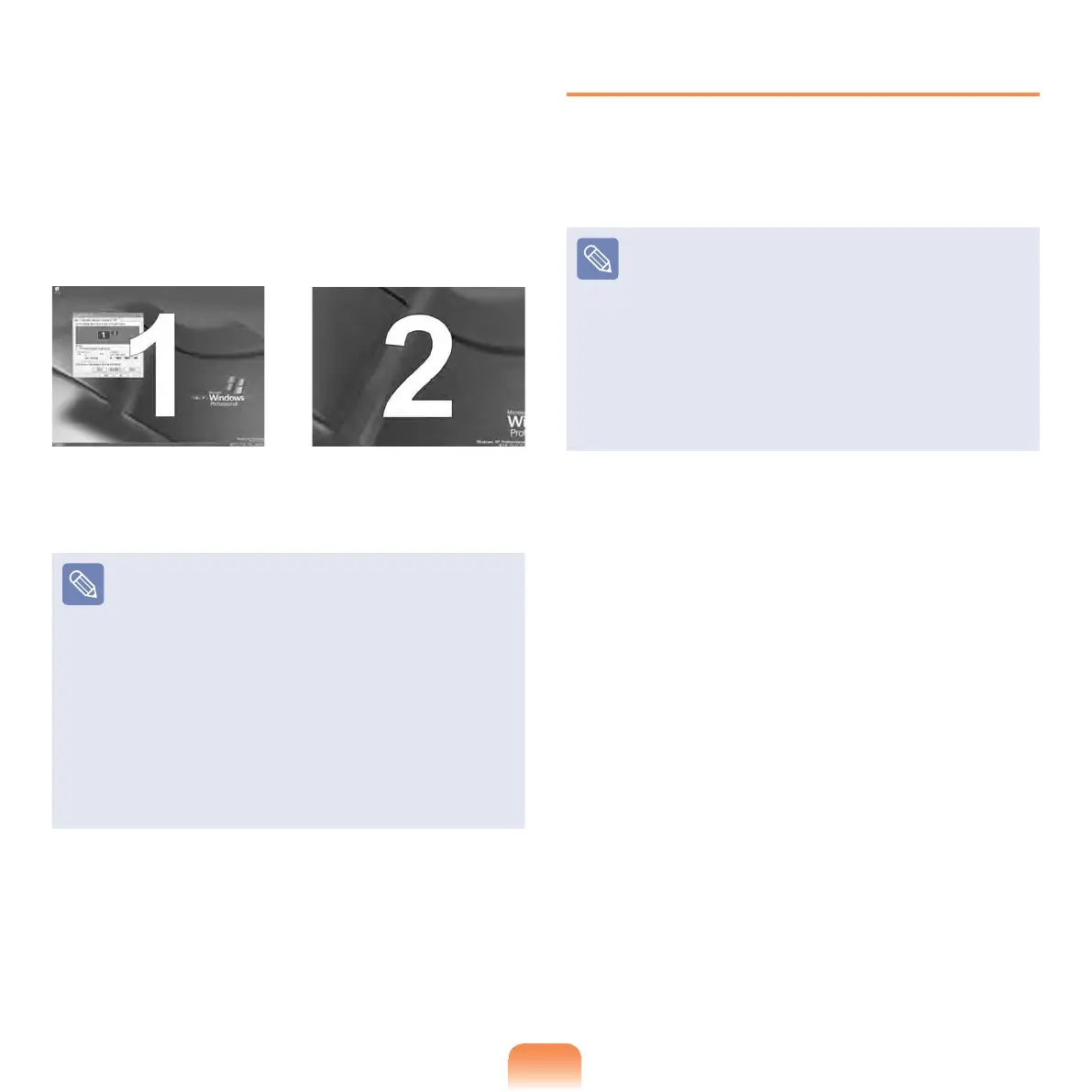
When the conguration is complete,
click Identify on the left side of
Troubleshoot. The primary display
device(the LCD) is indicated as 1,
and the secondary display device is
indicated as 2. Now you can view the
screen through two monitors.
1 : Primary 2 : Secondary
When you use Dual View,
conguring the LCD as the
'Primary' monitor is recommended.
If the screen of the secondary
display device is displayed at
1024x768 pixels, with 32bit
colours, change the settings to
the desired screen resolution
and colour quality in the [Display
Properties] dialog box.
Deactivating Dual View Mode
Click the monitor 2 icon, clear the
Extend my Windows desktop onto this
monitor check box, and then click Apply.
To move a window between
display devices in Dual View
mode
Click the title bar of the window in the
primary display device (1, the LCD),
and drag it to the secondary display
device (2). The window is moved to
the secondary display device.



 To Next Page