88
1
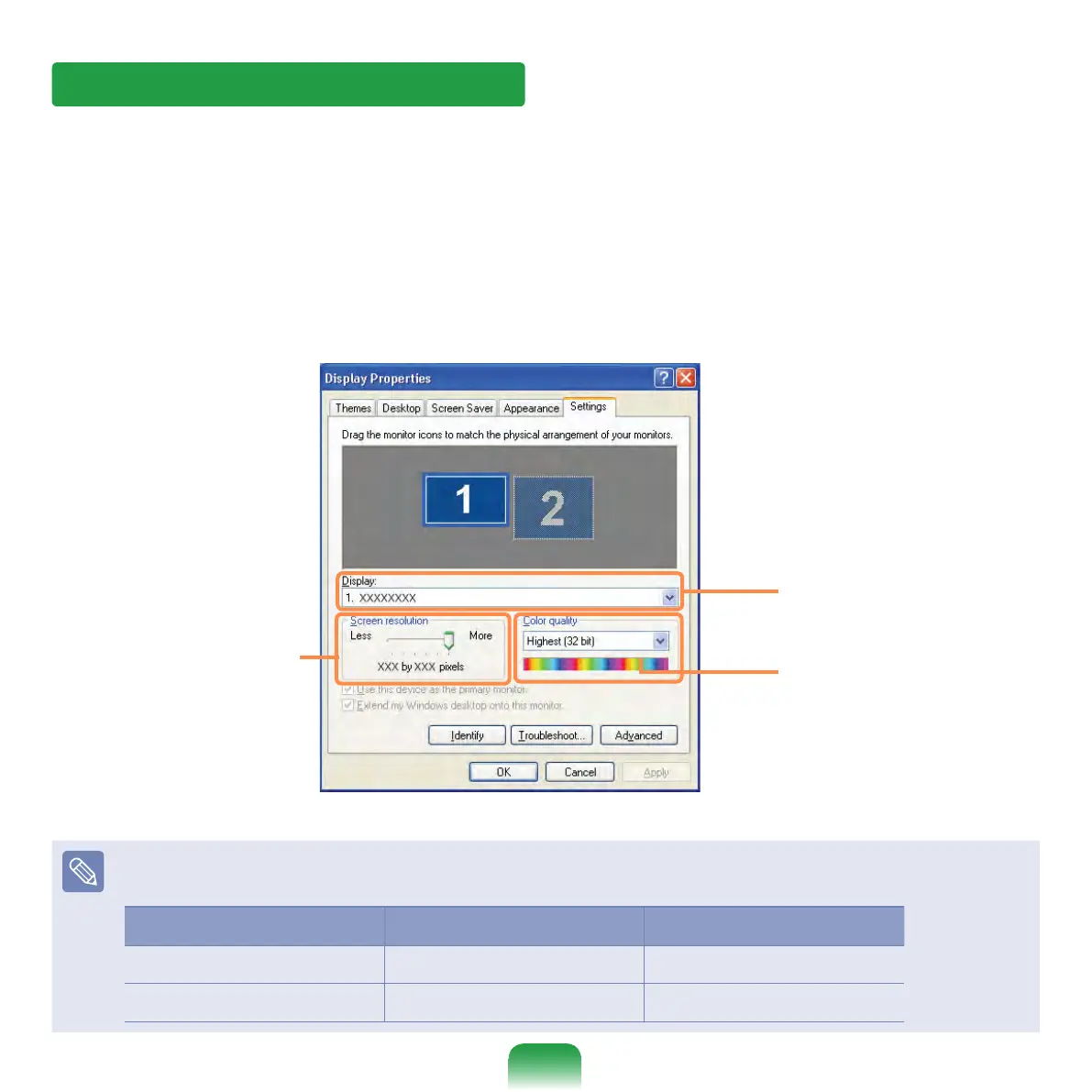
Click Start > Control Panel >
Appearance and Themes > Change
the screen resolution.
2
Click Settings and change the
resolution and color quality. Then,
click OK.
You can select a
graphic chip set.
Click the pull-down
menu button to
select the number of
colors you want.
Move the slider bar
to set the resolution.
It is recommended to set the resolution and color quality depending on the LCD type
of your computer as the following:
LCD Type Resolution Color Quality
WSVGA 1024 x 600 Strongest (32-bit)
WSVGA 1024 x 576 Strongest (32-bit)
Changing Resolution and Color
A resolution is the number of pixels displayed on the screen. If you set the resolution to
a higher value, items on the screen will be displayed smaller and the screen looks wider
than the pervious. As color quality gets higher, more colors can be represented.



 To Next Page