<<
59
>>
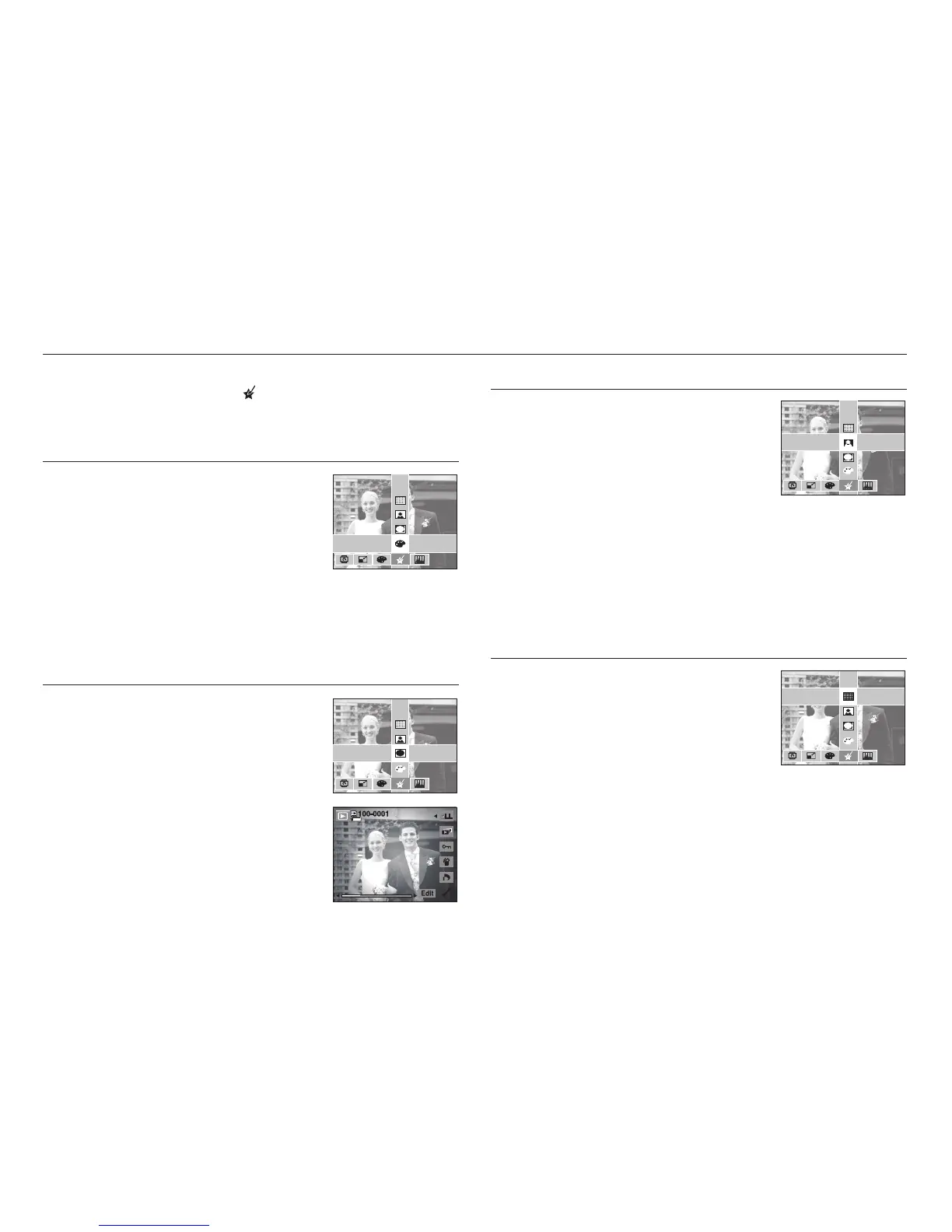
Special Colour
1. Press the Edit button during playback.
2. Use the Smart button to select the ( ) menu.
Colour Filter
With this menu, you can change the colour
information of the image (excluding Red, Blue,
Green and Yellow) to Black and White.
1. Press the [COLOR FILTER] menu button.
2. After the message [Processing!] is displayed,
the corresponding effect is applied.
3. Press the OK button to save the changed image under a new filename.
Noise effect
You can add noise to an image to add a more
classic feel to your photo.
1. Press the [ADD NOISE] menu button.
2. After the message [Processing!] is displayed,
the corresponding effect is applied.
3. Press the OK button to save the changed image
under a new filename.
ADD NOISE
ELEGANT
SHADED
COLOR FILTER
ADD NOISE
ELEGANT
SHADED
COLOR FILTER
ADD NOISE
ELEGANT
SHADED
COLOR FILTER
ADD NOISE
ELEGANT
SHADED
COLOR FILTER
Shaded
This effect decreases the brightness of the
surrounding portions, increases the brightness of
the central portion, and makes the borders dark.
1. Press the [SHADED] menu button.
2. After the message [Processing!] is displayed,
the corresponding effect is applied.
3. Press the OK button to save the changed image
under a new filename.
Elegant
This effect makes the photo’s colours bright and
rich for an elegant feel.
1. Press the [ELEGANT] menu button.
2. After the message [Processing!] is displayed,
the corresponding effect is applied.
3. Press the OK button to save the changed image under a new filename.



 To Next Page