<<
90
>>
Samsung Master
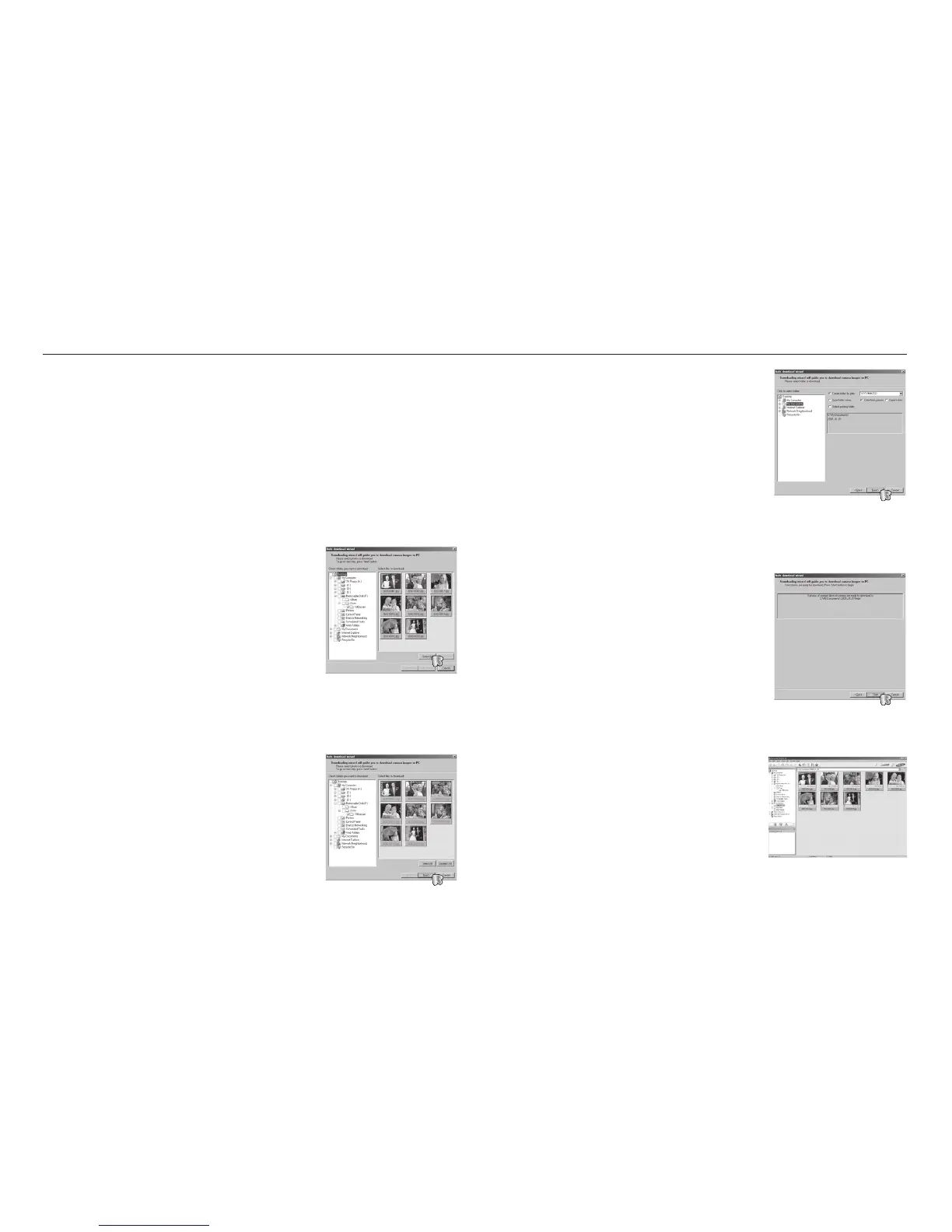
4. Select a destination and make a folder to
save downloaded images and folders.
- Folder names can be made in order of date
and images will be downloaded.
- Folder name will be made as you want and
images will be downloaded.
- After selecting a folder that was made
before, images will be downloaded.
5. Click [Next >] button.
6. A window will open as shown alongside.
The destination of the selected folder will be
displayed on the upper side of the window.
Click the [Start] button to download the
images.
7. Downloaded images will be displayed.
You can download, view, edit and save your images and movies with this
software. This software is only compatible with Windows.
To start the program, click [Start Programs Samsung Samsung
Master Samsung Master].
■ Downloading images
1. Connect the camera to your PC.
2. A window for downloading images will display
after connecting the camera to your PC.
- To download the captured images, select the
[Select All] button.
- Select desired folder in the window and
click the [Select All] button. You can save
captured images and selected folders.
- If you click the [Cancel] button, downloading
will be cancelled.
3. Click [Next >] button.



 To Next Page