<<
91
>>
Samsung Master
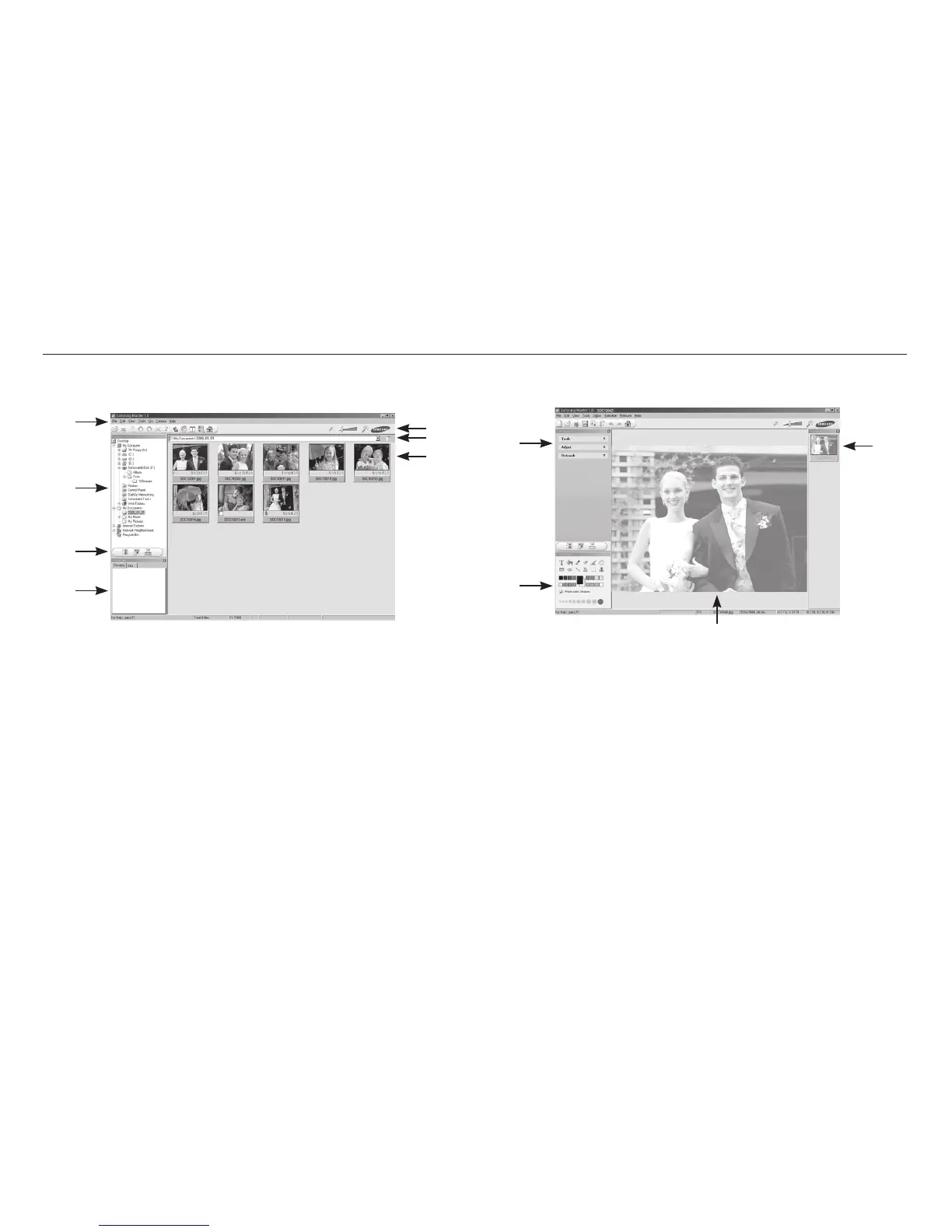
Image viewer : You can view the stored images. Image edit : You can edit the still image.
- Image viewer functions are listed below.
Menu bar : You can select menus.
File, Edit, View, Tools, Change functions, Auto download, help,
etc.
Image selection window : You can select the desired images in this window.
Media type selection menu : You can select image viewer, image edit and
movie edit functions in this menu.
Preview window : You can preview an image or a movie clip and check the
multi media information.
Zoom bar : You can change preview size.
Folder display window : You can see the folder location of the selected image.
Image display window : Images in the selected folder are displayed.
Refer to the [Help] menu in Samsung Master for further information.
- Image edit functions are listed below.
Edit menu : You can select the following menus.
[Tools] : You can resize or crop the selected image. See the [Help] menu.
[Adjust] : You can modify image quality. See the [Help] menu.
[Retouch] : You can change image or insert effects on the image.
See the [Help] menu.
Drawing tools : Tools for editing an image.
Image display window : A selected image displays in this window.
Preview window : You can preview the changed image.
A still image edited with Samsung Master can’t be played back on the
camera.
Refer to the [Help] menu in Samsung Master for further information.



 To Next Page