English - 38
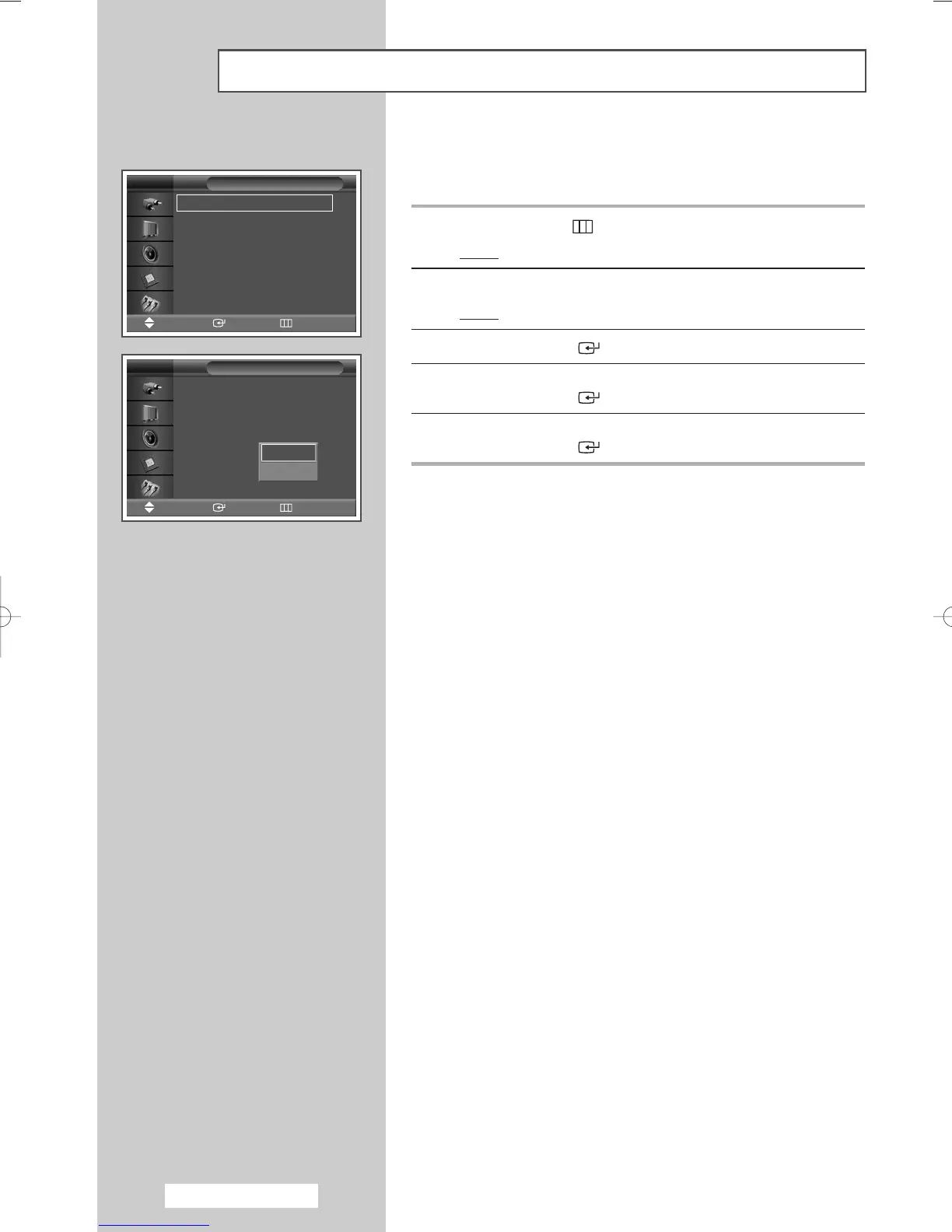
Setting the Film Mode
When a video input source is from a film such as movies, this feature
identifies the source and changes to the corresponding screen.
1 Press the MENU ()button.
Result
: The main menu is displayed.
2 Press the ▲ or ▼ button to select Picture.
Result
: The Picture menu is displayed.
3 Press the ENTER () button.
4 Press the ▲ or ▼ button to select Film Mode.
Press the ENTER () button.
5 Select Off or On by pressing the ▲ or ▼ button.
Press the ENTER () button.
➢
◆ Automatically senses and processes film signals from all
sources and adjusts the picture for optimum quality.
◆ Available in AV, S-Video, and Component (480i)
modes.
◆ Unavailable in PC1, PC2, DVI mode.
Mode : Dynamic
√√
Custom
√√
Color Tone : Normal
√√
Color Control
√√
Film Mode : Off
√√
Size : 16:9
√√
PIP
√√
Picture
Move Enter Return
TV
Mode : Dynamic
Custom
Color Tone : Normal
Color Control
Film Mode : Off
Size : 16:9
PIP
Picture
Move Enter Return
TV
Off
On
Y
de
de
BN68-00848A-00Eng_0406 4/6/05 9:16 PM Page 38


 To Next Page