English - 39
e
ll
Viewing the Picture in Picture (PIP)
You can display a sub picture within the main picture of external A/V
devices. In this way you can monitor the video input from any connected
devices while monitoring other video inputs.
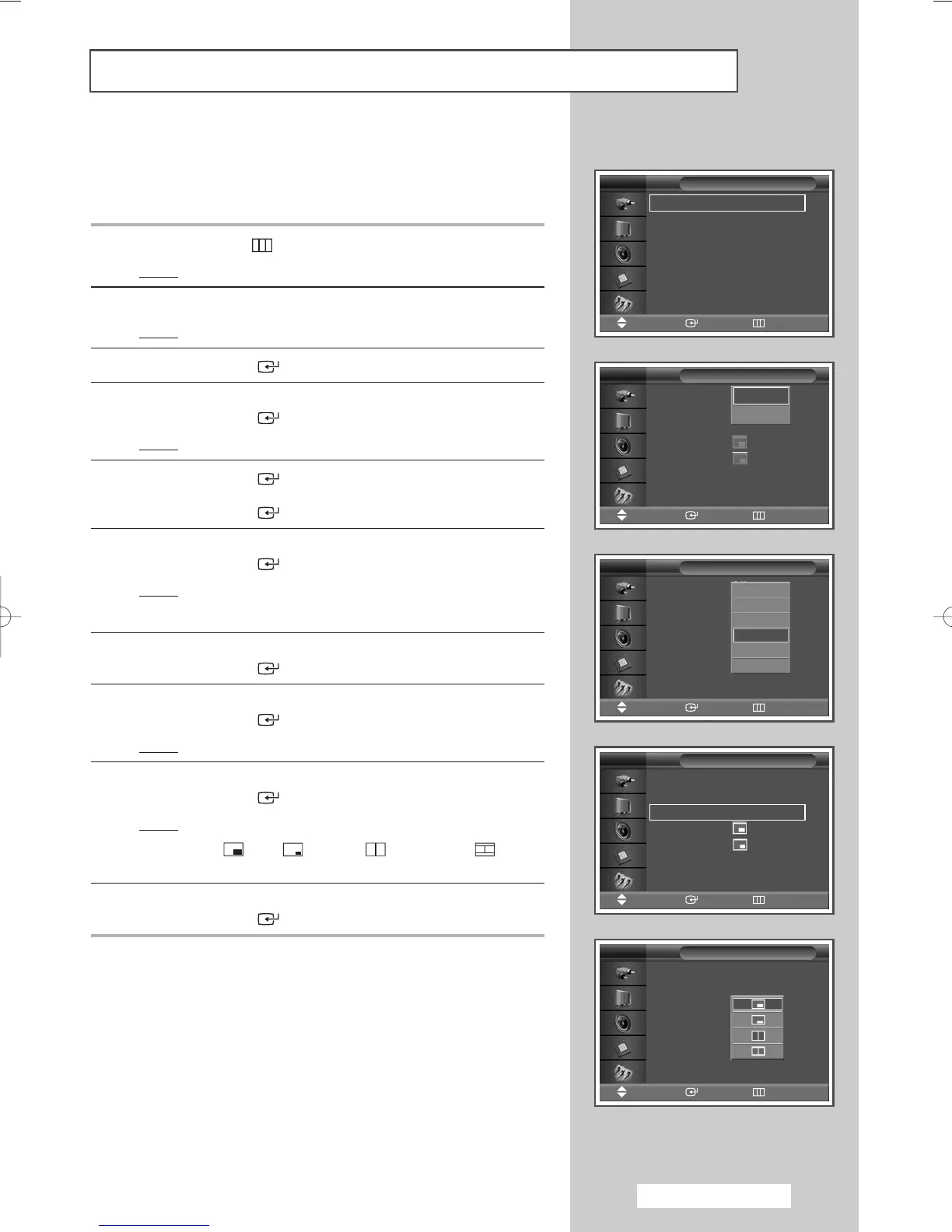
1 Press the MENU ()button.
Result
: The main menu is displayed.
2 Press the … or † button to select Picture.
Result
: The Picture menu is displayed.
3 Press the ENTER () button.
4 Press the … or † button to select PIP.
Press the
ENTER () button.
Result
: The PIP is selected.
5 Press the ENTER () button again.
To activate, set
PIP to On by pressing the … or † button.
Press the
ENTER () button.
6 Press the … or † button to select Source.
Press the
ENTER () button.
Result
: The following options are available.
AV - S-Video - Component - PC1 - PC2 - DVI
7 Select a source of the sub picture by pressing the … or † button.
Press the
ENTER () button.
8 Press the … or † button to select Swap.
Press the
ENTER () button.
Result
: The main picture and sub picture are interchanged.
9 Press the … or † button to select Size.
Press the
ENTER () button.
Result
: The following options are available.
(Large)
-
(Small)
-
(Double Window)
-
(Double Wide)
10 Select a size of the sub picture by pressing the … or † button.
Press the
ENTER () button.
Mode : Dynamic
√√
Custom
√√
Color Tone : Normal
√√
Color Control
√√
Film Mode : Off
√√
Size : 16:9
√√
PIP
√√
Picture
Move Enter Return
TV
PIP : Off
Source : PC1
Swap
Size :
Position :
Sound Select : Main
PIP
Sou
Sw
Siz
Pos
Sou
PIP
Move Enter Return
TV
Off
On
PIP : Off
Source : PC1
Swap
Size :
Position :
Sound Select : Main
PIP
Move Enter Return
TV
AV
S-Video
Component
PC1
PC2
DVI
PIP : On
Source : PC1
Swap
Size :
Position :
Sound Select : Main
PIP
Move Enter Return
TV
PIP : On
√√
Source : PC1
√√
Swap
√√
Size :
√√
Position :
√√
Sound Select : Main
√√
PIP
Move Enter Return
TV
BN68-00848A-00Eng_0406 4/6/05 9:16 PM Page 39


 To Next Page