Basics
34
Entering text
Use the Samsung keyboard or the voice input feature to enter text.
Text entry is not supported in some languages. To enter text, you must change the
input language to one of the supported languages.
Changing the keyboard type
Tap any text field, open the notifications panel, tap
Choose input method
, and then select
the type of keyboard to use.
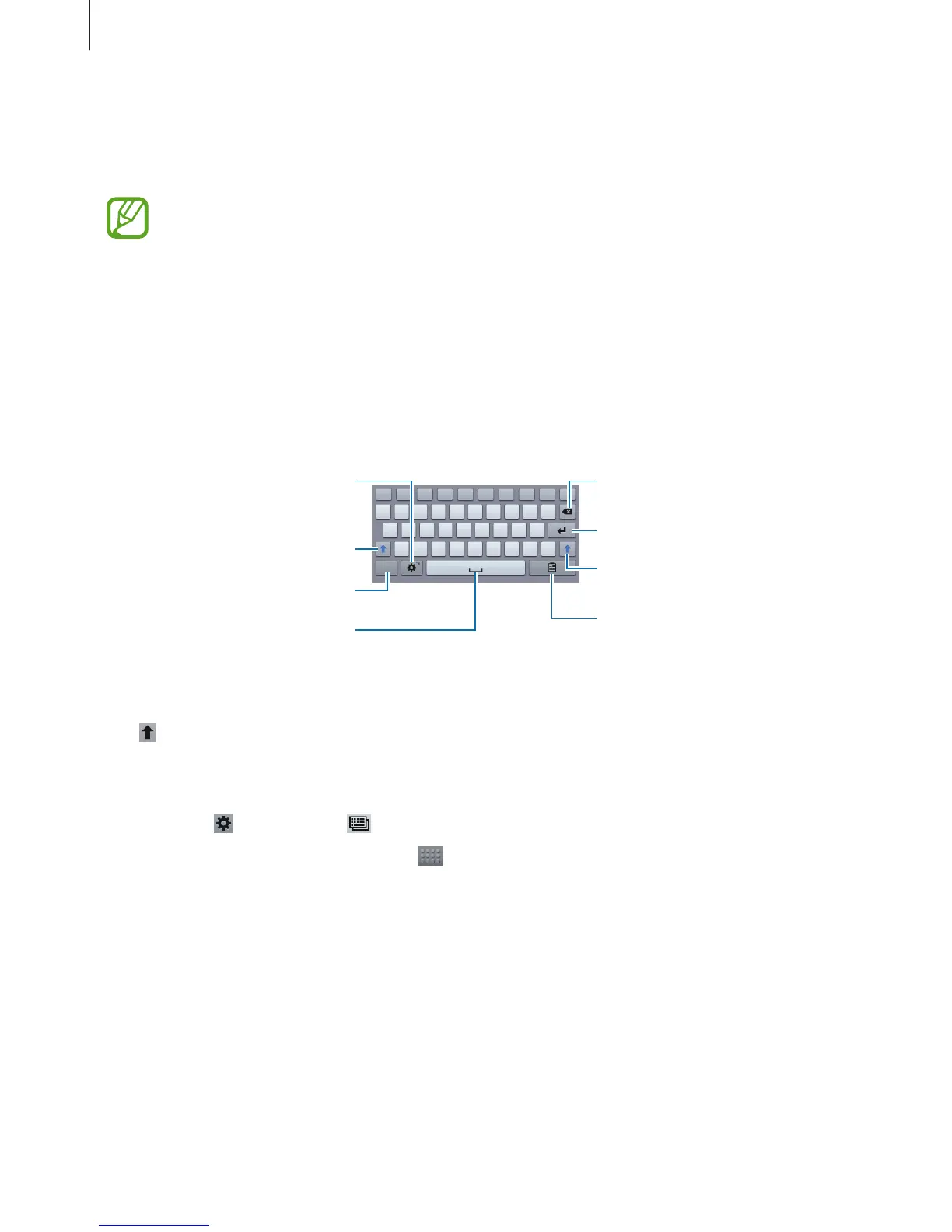
Using the Samsung keyboard
Break to the next line.
Delete a preceding character.
Enter punctuation marks.
Enter uppercase.
Set options for the Samsung
keyboard.
Enter a space.
Enter uppercase.
Add an item from the clipboard.
Entering uppercase
Tap before entering a character. For all caps, tap it twice.
Changing the keyboard type
Tap and hold , and then tap to change the keyboard type.
On the floating keyboard, tap and hold
and move the floating keyboard to another
location.
Changing language keyboards
Add languages on the keyboard, and then slide the space key left or right to change
language keyboards.




 To Next Page