EasyManua.ls Logo

Samsung SR8950 - User Manual

Samsung SR8950
48 pages
Print Icon
To Next Page IconTo Next Page
Loading...
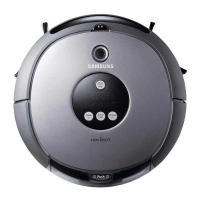
SR8950
English
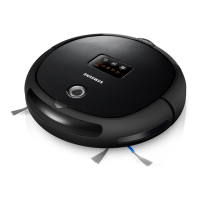
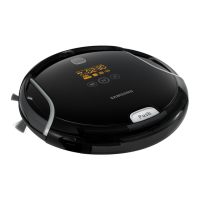
Vacuum Cleaning Robot
user manual
imagine the possibilities
Thank you for purchasing a Samsung product.
To receive a more complete service,
please register your product at
www.samsung.com/register
This manual is made with 100% recycled paper.
Before operating this unit, please read the instructions carefully.
For indoor use only.
DJ68-00633G(EN).indd 01DJ68-00633G(EN).indd 01 2012.2.15 6:45:43 PM2012.2.15 6:45:43 PM

Other manuals for Samsung SR8950

Questions and Answers

  • L
    Lonnie HawkinsSep 23, 2025
    Why does Samsung Vacuum Cleaner clean diagonally?
    • S
      Susan RobinsonSep 23, 2025
      If your Samsung Vacuum Cleaner suddenly performs its cleaning operation in a diagonal direction, install the charging station in the direction of the grain of the wood, and start cleaning while the vacuum is docked with the charger station.
  • R
    Rachel SantanaAug 25, 2025
    Why is my Samsung SR8950 not turning on?
    • J
      Jeff HarringtonAug 25, 2025
      If your Samsung Vacuum Cleaner robot does not operate before cleaning, consider the following: * Ensure the dust bin is installed. * Turn on the Power Switch. * Press the button to start (press and hold for 3 seconds or longer to turn off). * Manually dock the robot onto the charger to charge it. * Replace the batteries in the remote control (AAA type), as a depleted remote battery can prevent operation.
  • R
    Robert BerryAug 25, 2025
    What to do if my Samsung Vacuum Cleaning robot does not operate at all before cleaning?
    • J
      jensendebraAug 26, 2025
      If your Samsung Vacuum Cleaning robot does not operate before cleaning, first ensure that you have installed the dust bin and turned on the power switch. Press the button to turn it on (press and hold for 3 seconds or longer to turn it off). If it still doesn't work, lift the robot and manually dock it onto the charger to charge it. Also, check and replace the batteries in the remote control if they are depleted (AAA type).
  • R
    Robert HernandezAug 27, 2025
    What to do if a foreign substance is caught in the power brush of my Samsung SR8950?
    • S
      Scott LeeAug 27, 2025
      If a foreign substance is caught in the power brush of your Samsung Vacuum Cleaner, turn off the power switch at the bottom and remove the foreign substance from the power brush.
  • V
    Valerie Castro DDSAug 27, 2025
    What to do if a foreign substance is caught in the left driving wheel of my Samsung SR8950 Vacuum Cleaner?
    • S
      saguilarAug 27, 2025
      If a foreign substance is caught in the left driving wheel of your Samsung Vacuum Cleaner, turn off the power switch at the bottom and remove the foreign substance from the left driving wheel.
  • A
    Anthony NobleSep 14, 2025
    What to do if my Samsung Vacuum Cleaning robot is caught, stuck or trapped while navigating?
    • P
      Phyllis ShawSep 14, 2025
      If your Samsung Vacuum Cleaning robot gets caught, stuck, or trapped while navigating, turn off the power switch at the bottom and move it to a different location.
  • M
    Mark DixonSep 12, 2025
    What to do if Samsung SR8950 cliff sensor has foreign substance?
    • B
      Brandon WallaceSep 12, 2025
      If your Samsung Vacuum Cleaner displays an error indicating a foreign substance is on the Cliff sensor window, turn off the Power Switch at the bottom and wipe the foreign substance on the cliff sensor window with a soft cloth.
  • Y
    Yvonne DoyleSep 13, 2025
    What to do if Samsung SR8950 Vacuum Cleaner is stuck?
    • R
      Randy MarquezSep 13, 2025
      If your Samsung Vacuum Cleaner displays an error indicating it is caught, stuck, or trapped while navigating, turn off the Power Switch at the bottom and move the vacuum to a different location.
  • V
    vharrellSep 5, 2025
    Why did my Samsung SR8950 stop working?
    • C
      Clinton OrtegaSep 5, 2025
      If your Samsung Vacuum Cleaner robot stops operating while cleaning, try the following: * Manually dock the robot onto the charger to charge it. * Turn off the Power Switch and remove any wires that may be obstructing it. * Turn off the Power Switch and move the vacuum to another place to clean. * Turn off the Power Switch and remove any thin towels that may be obstructing it.
  • G
    gracemosesSep 2, 2025
    What to do if a foreign substance is caught on the edge-cleaning side rotating brush of my Samsung SR8950 Vacuum Cleaner?
    • A
      Andrew DennisSep 2, 2025
      If a foreign substance is caught on the edge-cleaning side rotating brush of your Samsung Vacuum Cleaner, turn off the power switch at the bottom and wipe the foreign substance from the edge-cleaning side rotating brush.

Summary

Important Safety Instructions

General & Battery Charger Safety

Covers general usage guidelines and crucial safety instructions for the battery charger.

Robot Usage Safety Precautions

Prohibited Items, Materials, and Filter Safety

Lists items to avoid, filter usage, and safety for battery leaks.

Power and Electrical Safety

Before Use Safety Checks

Operational Safety Guidelines

Charger Station Safety and Usage

Charger Placement, Clearance, and Restrictions

Guides on charger placement, clearance, and usage restrictions like liquids.

In-Use Safety Precautions

Cleaning and Maintenance Safety

Robot Handling, Cleaning Agents, and Sensor Maintenance Safety

Warns against improper handling, harsh agents, and emphasizes sensor maintenance.

Electrical Safety and Battery Handling

Foreign Substance Removal and Component Replacement Safety

Safety for removing substances and replacing damaged electrical components.

Product Features

Installing and Operating the Robot

Charger Installation and Charging Procedures

Battery Information and Handling

Battery Specifications, Safety, and Disposal

Details battery type, safety warnings, proper handling, and disposal.

Virtual Guard Functionality and Setup

Using the Robot

Specific Cleaning Modes

Troubleshooting Common Issues

Checklist Before Service Calls

Provides steps for common issues like non-operation or weak suction.

Troubleshooting Error Codes

Error Code Solutions (C00-C09)

Addresses specific error codes (C00-C09) and their solutions for robot issues.

Samsung SR8950 Specifications

General IconGeneral
Bagged or BaglessBagless
Battery Voltage14.4 V
Dust Capacity0.6 L
ColorBlack
TypeRobot
Battery TypeLi-Ion
Operating Time90 minutes

Related product manuals