EasyManua.ls Logo

Samsung SR8950 - User Manual

Samsung SR8950
48 pages
Print Icon
To Next Page IconTo Next Page
Loading...
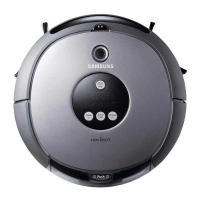
SR8950
English
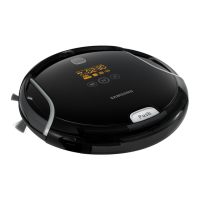
Vacuum Cleaning Robot
user manual
imagine the possibilities
Thank you for purchasing a Samsung product.
To receive a more complete service,
please register your product at
www.samsung.com/register
This manual is made with 100% recycled paper.
Before operating this unit, please read the instructions carefully.
For indoor use only.
DJ68-00633G(EN).indd 01DJ68-00633G(EN).indd 01 2012.2.15 6:45:43 PM2012.2.15 6:45:43 PM

Other manuals for Samsung SR8950

Questions and Answers

  • A
    Andrea ThomasAug 28, 2025
    What to do if a foreign substance is caught in the right driving wheel of my Samsung SR8950?
    • C
      Curtis BradfordAug 28, 2025
      If a foreign substance is caught in the right driving wheel of your Samsung Vacuum Cleaner, turn off the power switch at the bottom and remove the foreign substance from the right driving wheel.
  • V
    Valerie Castro DDSAug 27, 2025
    What to do if a foreign substance is caught in the left driving wheel of my Samsung SR8950 Vacuum Cleaner?
    • S
      saguilarAug 27, 2025
      If a foreign substance is caught in the left driving wheel of your Samsung Vacuum Cleaner, turn off the power switch at the bottom and remove the foreign substance from the left driving wheel.
  • R
    Robert HernandezAug 27, 2025
    What to do if a foreign substance is caught in the power brush of my Samsung SR8950?
    • S
      Scott LeeAug 27, 2025
      If a foreign substance is caught in the power brush of your Samsung Vacuum Cleaner, turn off the power switch at the bottom and remove the foreign substance from the power brush.
  • R
    Robert BerryAug 25, 2025
    What to do if my Samsung Vacuum Cleaning robot does not operate at all before cleaning?
    • J
      jensendebraAug 26, 2025
      If your Samsung Vacuum Cleaning robot does not operate before cleaning, first ensure that you have installed the dust bin and turned on the power switch. Press the button to turn it on (press and hold for 3 seconds or longer to turn it off). If it still doesn't work, lift the robot and manually dock it onto the charger to charge it. Also, check and replace the batteries in the remote control if they are depleted (AAA type).
  • R
    Rachel SantanaAug 25, 2025
    Why is my Samsung SR8950 not turning on?
    • J
      Jeff HarringtonAug 25, 2025
      If your Samsung Vacuum Cleaner robot does not operate before cleaning, consider the following: * Ensure the dust bin is installed. * Turn on the Power Switch. * Press the button to start (press and hold for 3 seconds or longer to turn off). * Manually dock the robot onto the charger to charge it. * Replace the batteries in the remote control (AAA type), as a depleted remote battery can prevent operation.

Summary

Important Safety Instructions

General & Battery Charger Safety

Covers general usage guidelines and crucial safety instructions for the battery charger.

Robot Usage Safety Precautions

Prohibited Items, Materials, and Filter Safety

Lists items to avoid, filter usage, and safety for battery leaks.

Power and Electrical Safety

Before Use Safety Checks

Operational Safety Guidelines

Charger Station Safety and Usage

Charger Placement, Clearance, and Restrictions

Guides on charger placement, clearance, and usage restrictions like liquids.

In-Use Safety Precautions

Cleaning and Maintenance Safety

Robot Handling, Cleaning Agents, and Sensor Maintenance Safety

Warns against improper handling, harsh agents, and emphasizes sensor maintenance.

Electrical Safety and Battery Handling

Foreign Substance Removal and Component Replacement Safety

Safety for removing substances and replacing damaged electrical components.

Product Features

Installing and Operating the Robot

Charger Installation and Charging Procedures

Battery Information and Handling

Battery Specifications, Safety, and Disposal

Details battery type, safety warnings, proper handling, and disposal.

Virtual Guard Functionality and Setup

Using the Robot

Specific Cleaning Modes

Troubleshooting Common Issues

Checklist Before Service Calls

Provides steps for common issues like non-operation or weak suction.

Troubleshooting Error Codes

Error Code Solutions (C00-C09)

Addresses specific error codes (C00-C09) and their solutions for robot issues.

Samsung SR8950 Specifications

General IconGeneral
Bagged or BaglessBagless
Battery Voltage14.4 V
Dust Capacity0.6 L
ColorBlack
TypeRobot
Battery TypeLi-Ion
Operating Time90 minutes

Related product manuals